Why OneDrive Is a Strong Backup Choice for Windows Users
OneDrive has a unique advantage over other cloud storage services: it's built directly into Windows 10 and 11. That means no third-party app to install, no separate login — just seamless folder sync that stays out of your way.
- 🪟 Built Into Windows 10 & 11 – OneDrive is pre-installed and deeply integrated with File Explorer and the Settings app. No setup required to get started.
- 🔄 Known Folder Move – Automatically redirects Desktop, Documents, and Pictures to OneDrive, so they're always backed up without changing your workflow.
- 🕒 Version History – OneDrive keeps previous versions of files for up to 30 days (Microsoft 365 subscribers get longer retention), letting you recover overwritten or deleted files.
- 🔐 Ransomware Recovery – OneDrive includes Files Restore, which lets you roll back your entire OneDrive to a point in time before an attack.
- 📱 Cross-Device Access – Access your backed-up files from any device — phone, tablet, or another Windows PC — through the OneDrive app or web browser.
- 🏢 Business-Grade Features – OneDrive for Business (via Microsoft 365) adds compliance, audit logs, and advanced sharing controls for professional use.
Method 1: Back Up Windows Using OneDrive's Built-In Folder Sync
Windows makes it simple to start syncing key folders to OneDrive. Here's how to enable folder backup using the native integration.
- Click the OneDrive cloud icon in the system tray (bottom-right corner of the taskbar). If it's not visible, search for "OneDrive" in the Start menu and open it.
- Sign in with your Microsoft account if prompted.
- Click the OneDrive icon again, then select Settings (gear icon → Settings).
- Go to the Sync and backup tab, then click Manage backup.
- Toggle on the folders you want to protect: Desktop, Documents, and Pictures. These will be continuously synced to your OneDrive cloud storage.
- Click Start backup. Windows will redirect these folders to OneDrive while keeping them accessible in File Explorer.
Once enabled, any file you save to Desktop or Documents is automatically backed up to OneDrive within minutes. The folders behave exactly as before — the only difference is that they now live in the cloud, too.
Limitation: Built-in OneDrive sync is limited to Desktop, Documents, and Pictures. It cannot back up external drives, custom project folders, or paths outside your user directory. For those use cases, see Method 2.
Method 2: Back Up Any Windows Folder to OneDrive Using OurClone
OurClone is a desktop backup tool that supports any folder path, adds client-side encryption, and offers scheduling and incremental backups. It works alongside OneDrive's native sync — handling the folders and features that the built-in tool can't.
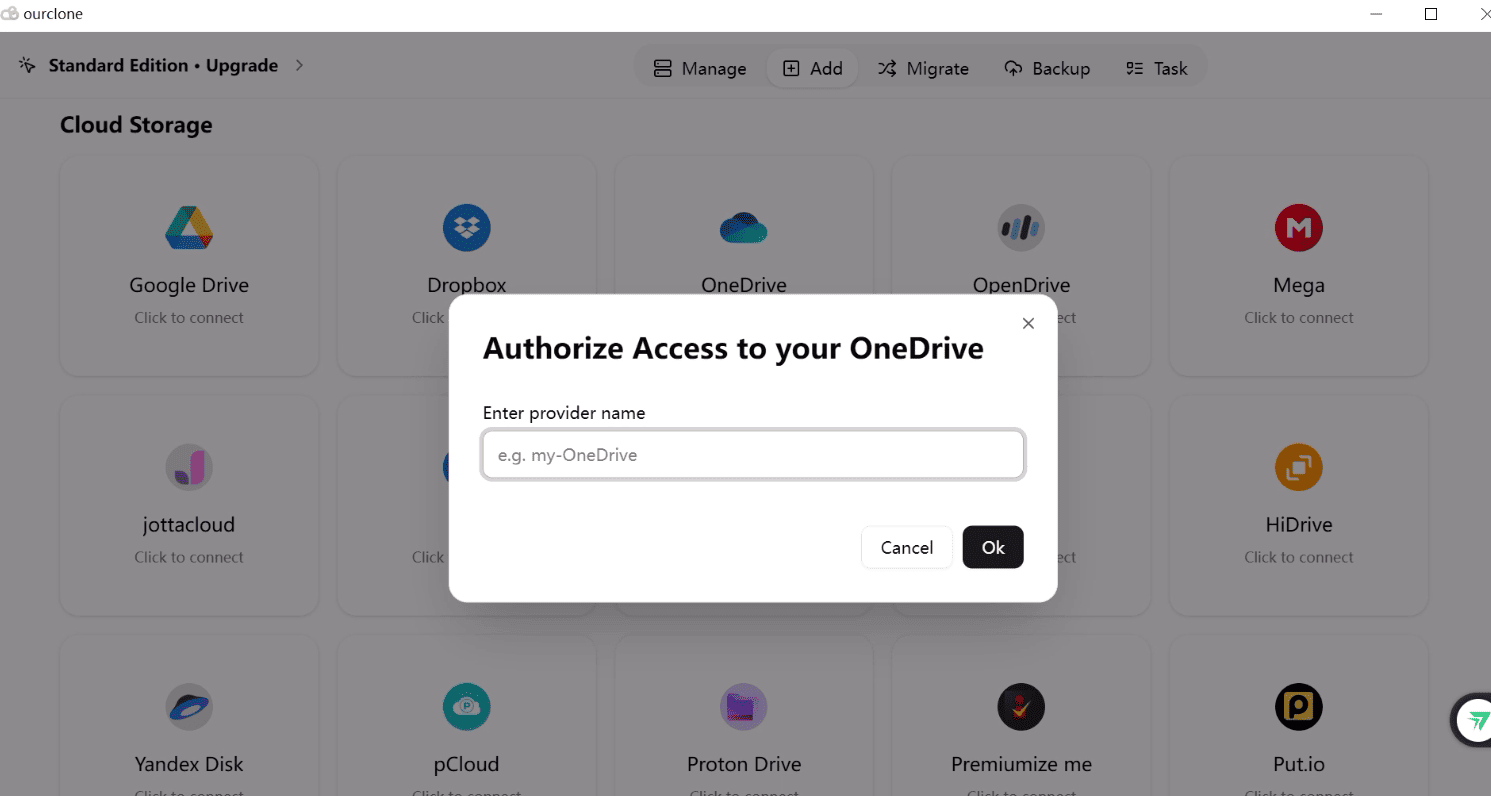
- 🔐 Step 1: Connect OneDrive in OurClone – Open OurClone and click Add Storage. Select OneDrive from the provider list. A browser window will open asking you to sign in with your Microsoft account and authorize OurClone. Once approved, OneDrive appears in your connected storage list.
-
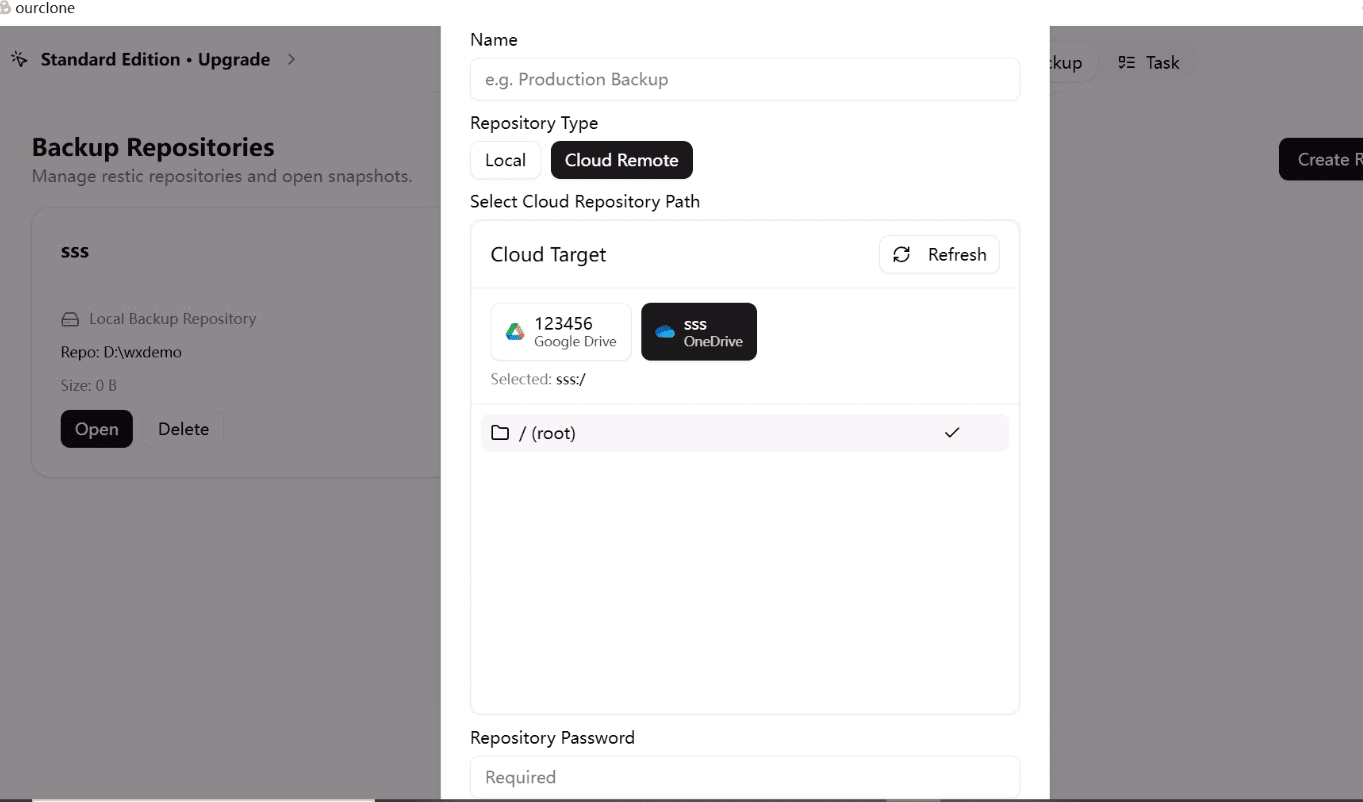
🗄️ Step 2: Create an Encrypted Backup Repository – Go to the Backup section and click
Create Repository. Select a folder in OneDrive as the destination (e.g.,
pc-backups). Set a repository name and a strong encryption password. Keep this password safe — you cannot restore without it. -
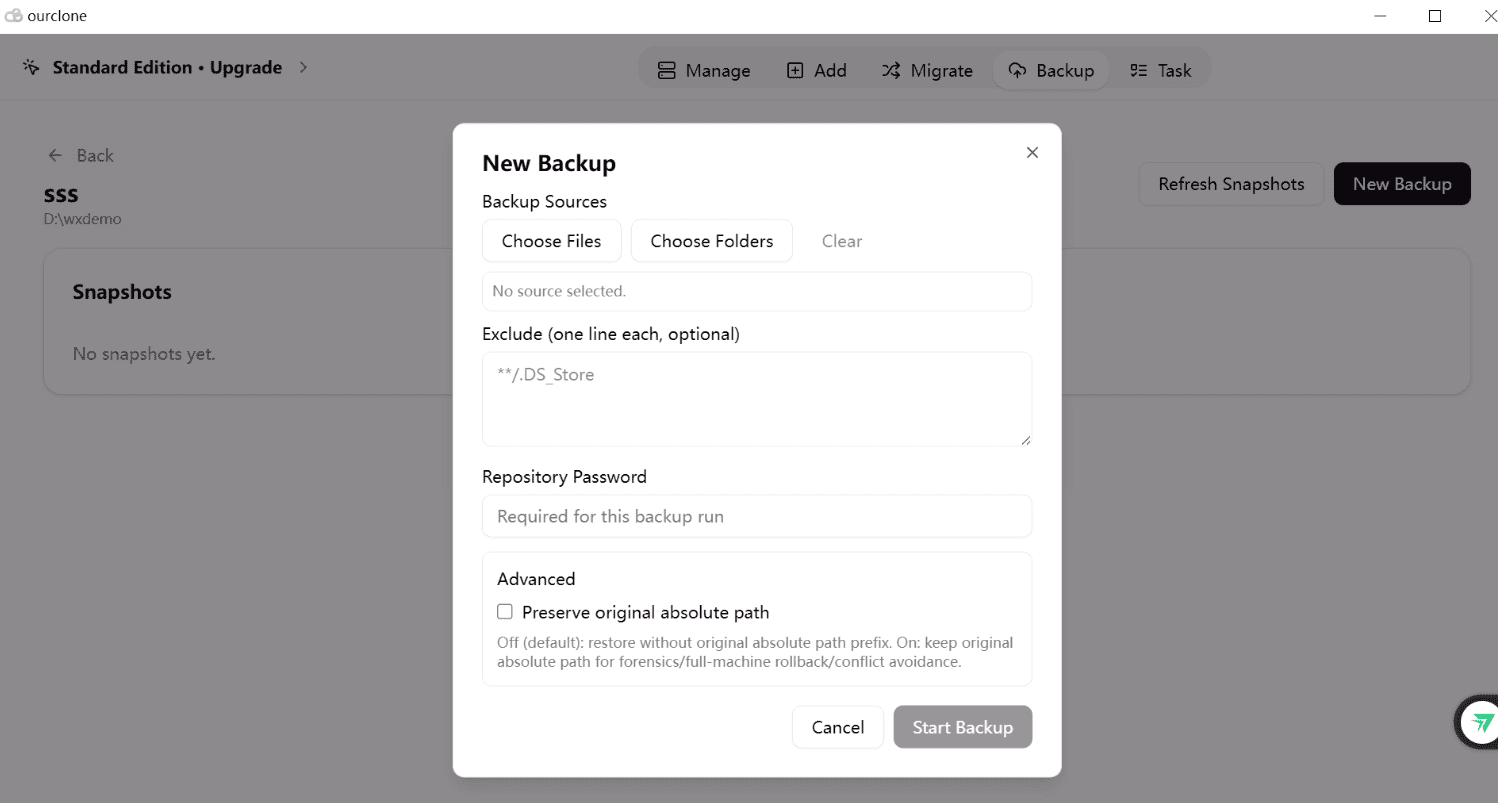
📁 Step 3: Choose Folders to Back Up – Click New Backup and select the folders
you want to protect. You can add standard paths like
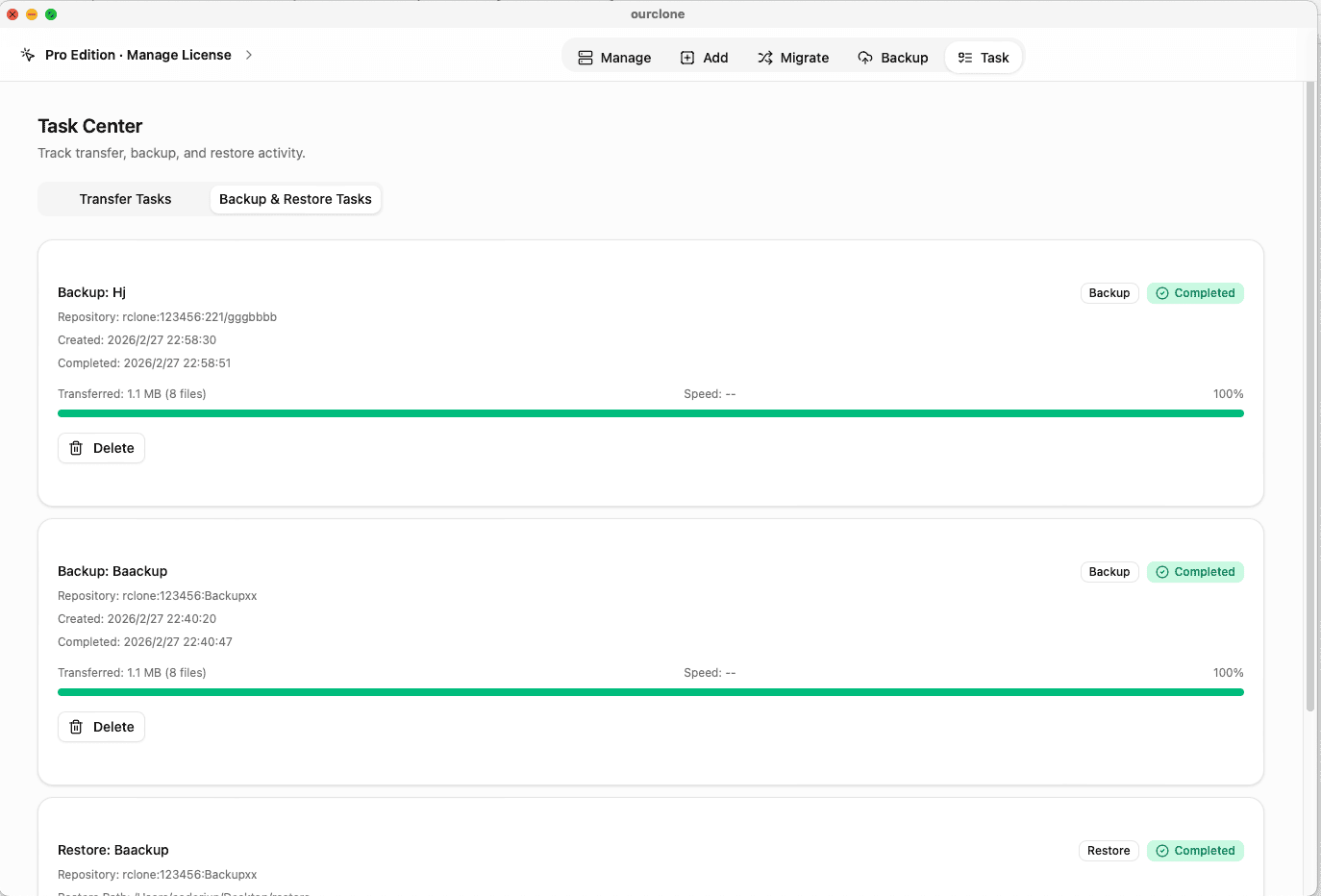
C:\Users\YourName\DocumentsandDesktop, or any external drive path such asD:\Work\Projects. Click Backup to begin. - 📊 Step 4: Track the Backup Progress – The Task panel shows real-time upload status for each file. OurClone encrypts data in chunks before uploading, so large backups can be paused and resumed without restarting. Only new or changed files are uploaded on subsequent runs.
- 🔄 Step 5: Restore Files When Needed – Open the Backup section in OurClone, select your repository, and choose a backup snapshot. Click Restore, enter your encryption password, and select a destination path. OurClone restores files with their original folder structure intact.
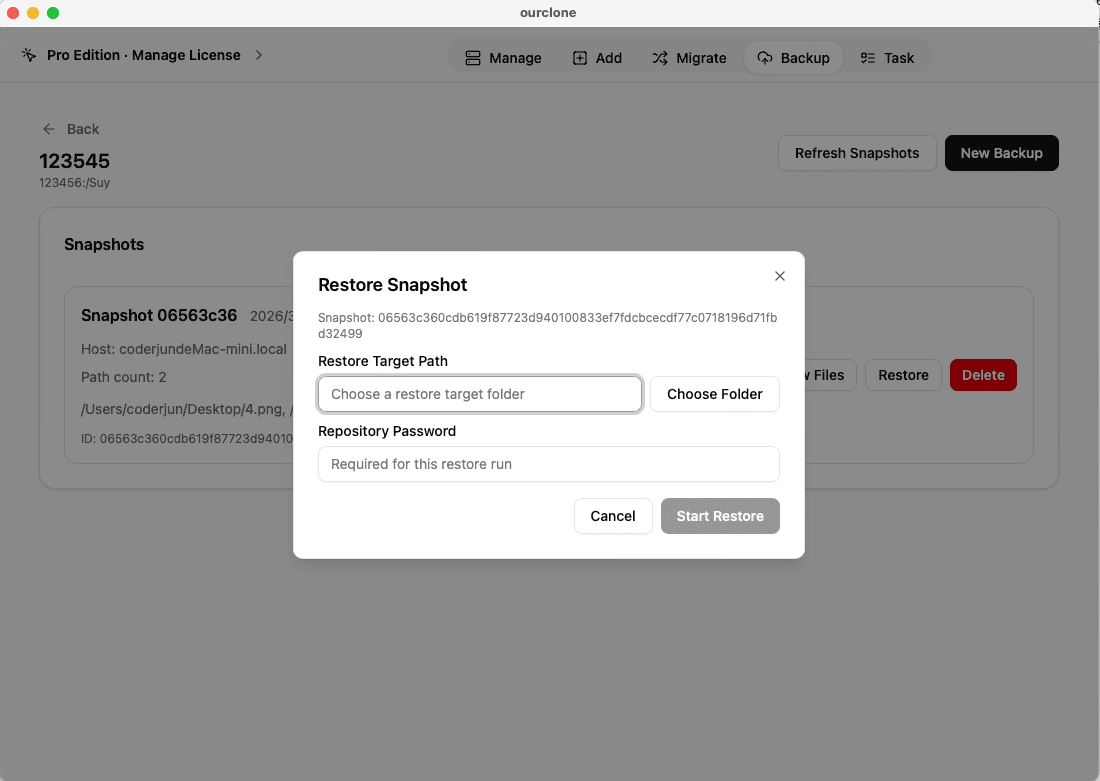
OurClone only needs authorization once. All subsequent backups — including scheduled runs — happen automatically without requiring you to be at the computer.
Setting Up Automatic Backup Schedules in OurClone
Manual backups are easy to forget. OurClone lets you configure automatic backup schedules so your Windows folders stay protected without any action on your part.
- In OurClone, go to the Backup section and open your backup task.
- Click Schedule to set up automation.
- Choose your frequency: daily, every few hours, or weekly.
- Set a preferred start time — off-hours like 3:00 AM work well to avoid slowdowns during the workday.
- Save the schedule. OurClone will run backups automatically, even when the app is not open.
Incremental backups mean that only changed files are uploaded each time, keeping scheduled runs fast and using minimal bandwidth.
Tips for a Solid Windows-to-OneDrive Backup Strategy
- 💾 Use Both Methods Together – Let OneDrive's native sync handle Desktop/Documents for instant access, and use OurClone to back up external drives and project folders with encryption.
- 🔑 Store Your Encryption Password Securely – Use a password manager to save your OurClone repository password. Without it, encrypted backups cannot be recovered.
- 🧪 Test Restores Regularly – Pick a small folder and run a full restore test every few months to confirm your backup is actually recoverable.
- 🔐 Enable Multi-Factor Authentication on Your Microsoft Account – This prevents unauthorized access to your OneDrive storage even if your password is compromised.
- 📦 Monitor Storage Quota – Check your OneDrive storage usage periodically. If you're approaching the limit, either clean up old backups or upgrade your Microsoft 365 plan.
Frequently Asked Questions
Does Windows 11 automatically back up to OneDrive?
Windows 11 prompts you to enable OneDrive backup for Desktop, Documents, and Pictures during initial setup. You can also enable it anytime in OneDrive Settings → Sync and backup → Manage backup.
How much free OneDrive storage do I get with Windows?
Every Microsoft account includes 5 GB of free OneDrive storage. Microsoft 365 subscribers get 1 TB per person. Additional storage is available via Microsoft 365 plans starting at $1.99/month for 100 GB.
Can I back up external drives to OneDrive on Windows?
Not with OneDrive's built-in sync. OurClone supports any folder path including external USB drives and network drives, and can back them up to OneDrive with full encryption.
How do I restore a OneDrive backup on Windows?
Native OneDrive: access files directly in File Explorer or the OneDrive web interface. OurClone: open the Backup section, select your repository, choose a backup version, and click Restore. Enter your password and select the destination folder.
Is OneDrive backup encrypted?
Microsoft encrypts all OneDrive data in transit and at rest. OurClone adds an extra layer: files are encrypted on your PC before upload using your own password, so Microsoft cannot access the content.