📌 What Are MEGA and Box?
MEGA is famous for its client-side encryption and privacy-first sharing. Users get 20GB free and can expand storage by inviting friends or completing bonus tasks.
Box is a leading enterprise-grade cloud platform used by teams and companies around the world. It’s known for advanced collaboration, file versioning, and tight compliance for industries like legal and healthcare. Learn more at Box’s Trust Center.
🔍 Why Sync MEGA with Box Locally?
MEGA’s strength is end-to-end encryption, making it perfect for storing personal backups or confidential archives. Box shines in day-to-day teamwork — previewing files, sharing them with colleagues, and managing permissions in large groups.
By syncing them with OurClone, you get the best of both: MEGA’s privacy plus Box’s workplace collaboration, without sending your files through risky third-party relay servers.
🧰 What You’ll Need
- A Windows PC or Mac (OurClone works on both)
- Active MEGA and Box accounts
- Latest OurClone version installed
- Permission to read/write the folders you plan to sync
🔗 How to Connect MEGA and Box
Step 1: Add MEGA
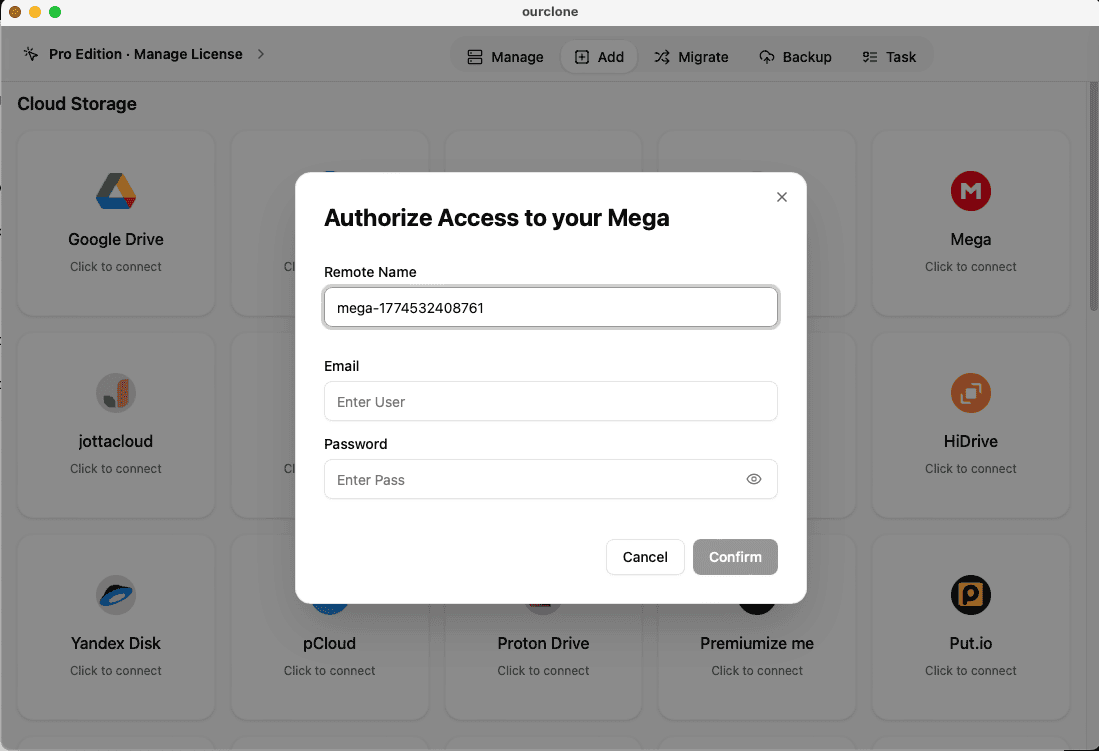
Open OurClone, click Add Cloud, select MEGA, then sign in to your MEGA account and confirm access. OurClone stores your credentials securely and never shares them.
Step 2: Add Box
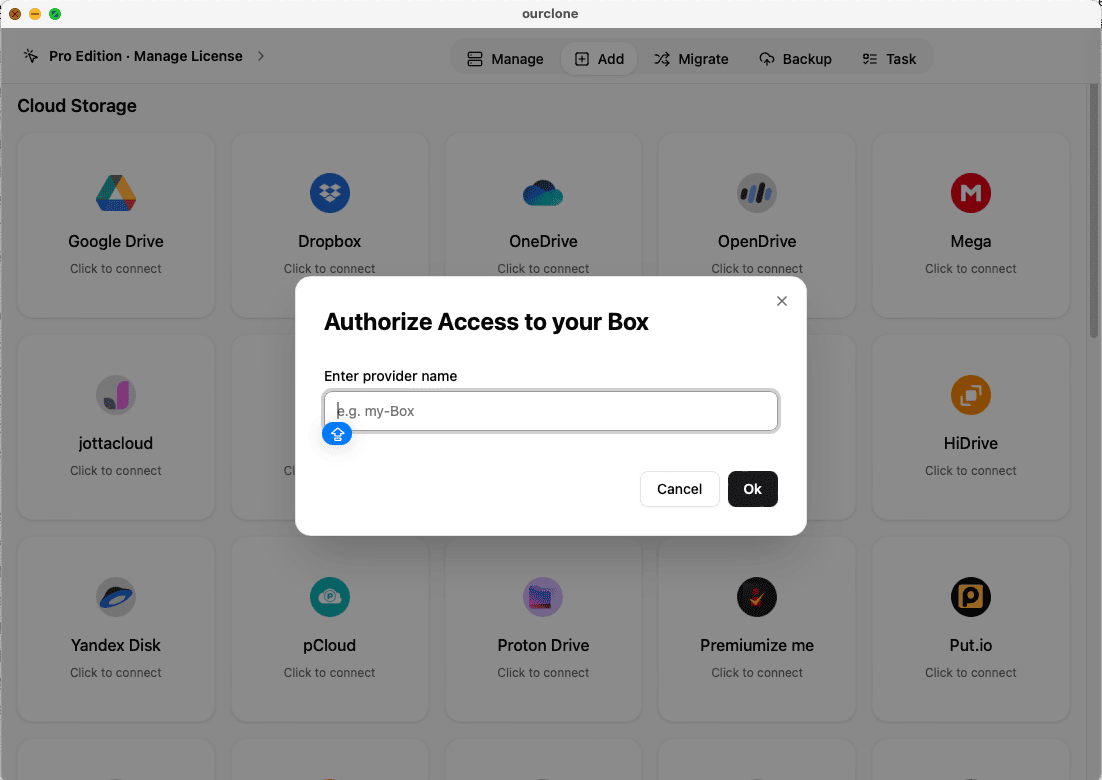
In the same Add Cloud panel, pick Box. Log in with your Box credentials and grant permission. Both accounts are now linked and ready.
⚙️ Build and Customize Your Sync Task
Now it’s time to create your sync. Many people use MEGA for encrypted storage and push selected folders to Box for easy team sharing. With OurClone, this all runs on your machine, not in the cloud.
Step 1: Open Migrate
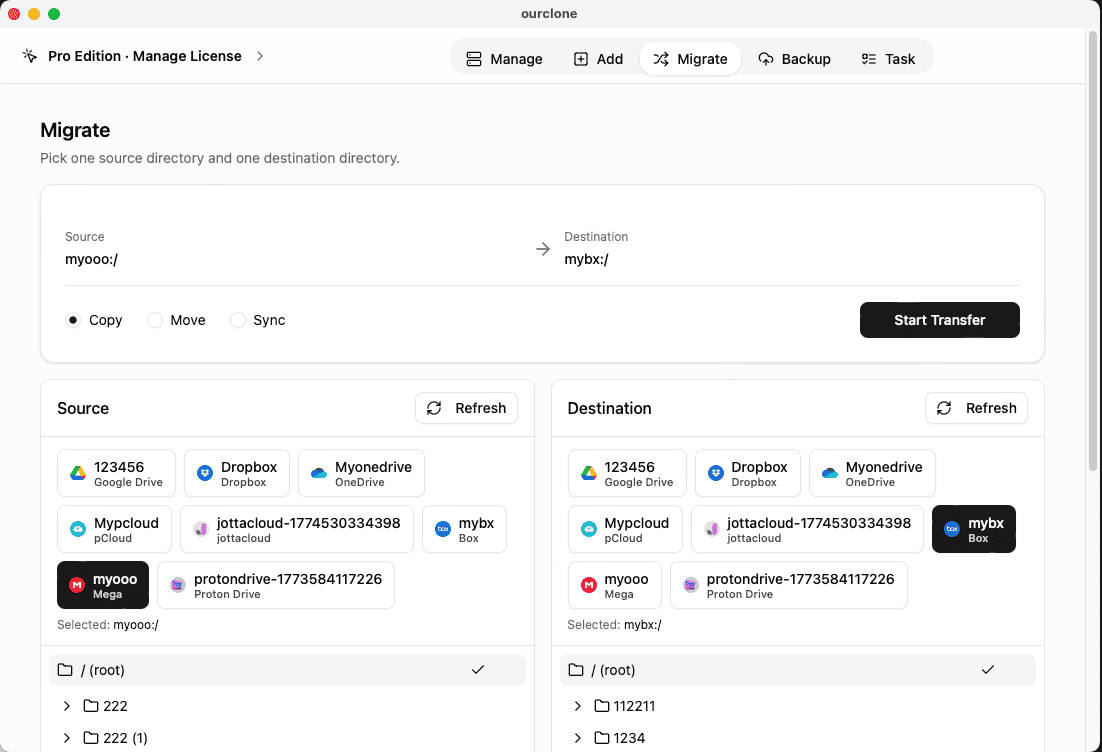
Click Migrate in OurClone’s sidebar. This is where you manage all sync jobs.
Step 2: Set Source
Choose MEGA as your source cloud. Select the folder(s) that you want to copy or mirror.
Step 3: Set Destination
Pick Box as the destination. You can select an existing Box folder or create a new target folder for backups.
Step 4: Choose Mode
sync: Keeps MEGA and Box folders exactly the same, two-way if needed.copy: One-way push from MEGA to Box, leaving source unchanged.move: Transfers files and removes them from MEGA after upload.
Step 5: Advanced Options
For true mirroring, enable Delete Extras — this deletes any outdated files in the Box folder that don’t exist on MEGA. You can also set file type filters, conflict handling, and schedule.
Step 6: Start Sync
Click Start to begin. OurClone shows live progress: how many files are new, which are skipped, and what’s removed.
🚦 Tips for Smoother Transfers
For large folders, run your first sync overnight. Connect with a stable wired network to avoid interruptions. Keep your PC plugged in and idle for faster performance.
Want to sync automatically? OurClone’s scheduler lets you run tasks daily, weekly, or on custom intervals.
🔐 How OurClone Protects Your Data
Unlike typical online sync tools, OurClone never uses relay servers. All data flows directly from your PC to MEGA and Box over SSL. Local backups are AES-256 encrypted — no password, no access.
Even if your cloud credentials are compromised, your local repository stays locked.
🗃️ Local Repository & Version Control
OurClone stores detailed logs and snapshots locally. If you ever overwrite or lose a file, you can roll back using the local backup history.
This gives you an extra layer of safety that most cloud sync tools don’t offer.
💼 Real Use Cases
Freelancers often keep sensitive drafts or archives on MEGA, then push approved versions to Box for client collaboration.
Small businesses back up team folders to MEGA for secure retention, while working daily from Box for teamwork.
With OurClone, these workflows run smoothly — no third-party servers or extra subscriptions.
❓ FAQ — MEGA to Box Sync
Does Box support large files?
Yes. Box supports file uploads up to 15 GB or more, depending on your plan.
Is my data safe during sync?
Absolutely. Transfers run locally with SSL, and all backups are AES-256 encrypted.
Can I exclude certain files?
Yes — OurClone lets you filter by file type or size.
Can I do two-way sync?
Yes. Set your task mode to sync and changes on both clouds will stay aligned.
Where is my sync history stored?
In your local backup repository, fully encrypted and accessible only with your password.
📥 Try It Free
Download OurClone today and test MEGA to Box sync without limits: ourclone.app/download.