Many people begin their cloud journey with Mega because of its generous free storage and simple sharing features. But if your priority shifts to security, end-to-end encryption, and data residency under strict Swiss privacy laws, then Proton Drive is a natural choice. In this guide, I’ll show you how I migrated my files from Mega to Proton Drive using OurClone — a lightweight desktop utility that runs entirely on your own computer and keeps you in control from start to finish.
Quick overview: The process is straightforward — download and install OurClone, sign in with your Mega account, and create an App Password from your Proton account settings. Once both clouds are connected, you can kick off the transfer. Even with large directories, the tool handles the job quickly without relying on external servers.
🔒 Why Switch to Proton Drive?
While Mega is known for affordable storage and link-based file sharing, Proton Drive takes a different path by focusing on privacy-first design. Developed in Switzerland, Proton Drive follows the same zero-access principles as Proton Mail, meaning that even Proton itself cannot read your files. With seamless integration across web and mobile apps, plus encrypted sharing features, it has become a strong alternative for anyone who values security and compliance with European data standards. You can also review Proton’s plans and pricing to choose the option that best fits your needs.
⚙️ Step-by-Step Migration
1. Install OurClone
Download the installer for Windows, macOS, or Linux. The setup is quick and feels very similar to installing any desktop sync client, so you’ll be ready to go in just a couple of minutes.
2. Connect Your Mega Account
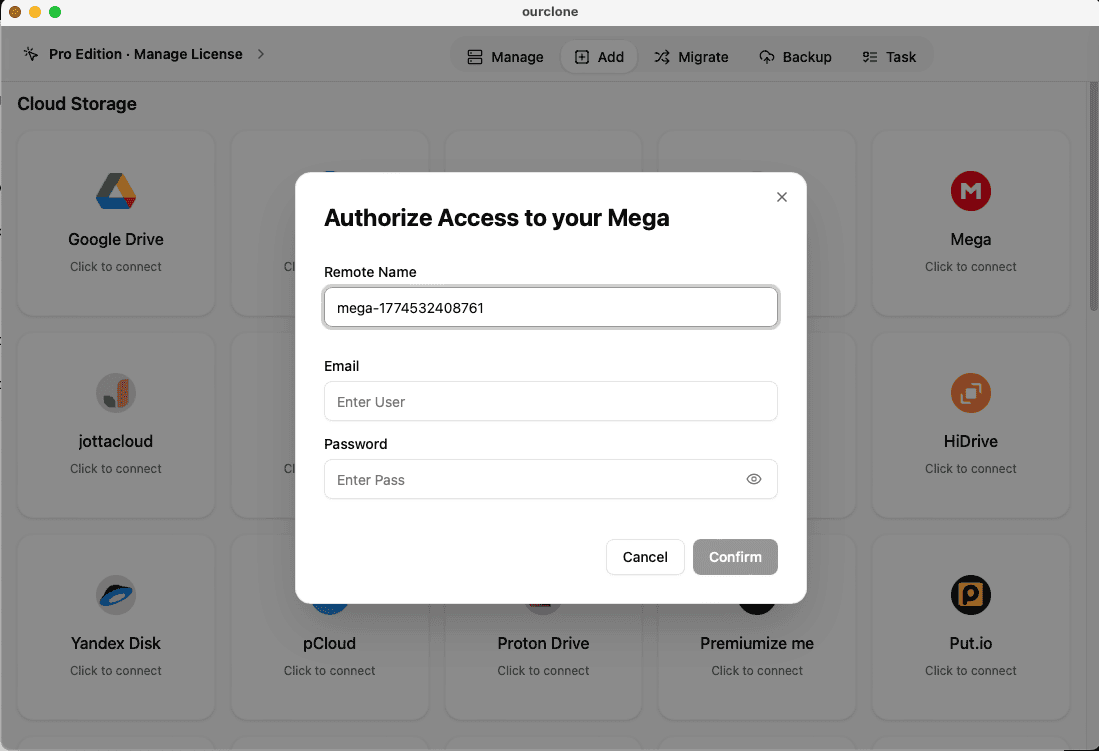
Launch OurClone and click Add Cloud. Select Mega from the list of supported services. You’ll be asked to provide your Mega email and password (this is handled securely within OurClone). Once authenticated, your Mega folders will appear inside the application, ready to be used as a source.
3. Add Proton Drive (Email + Password)
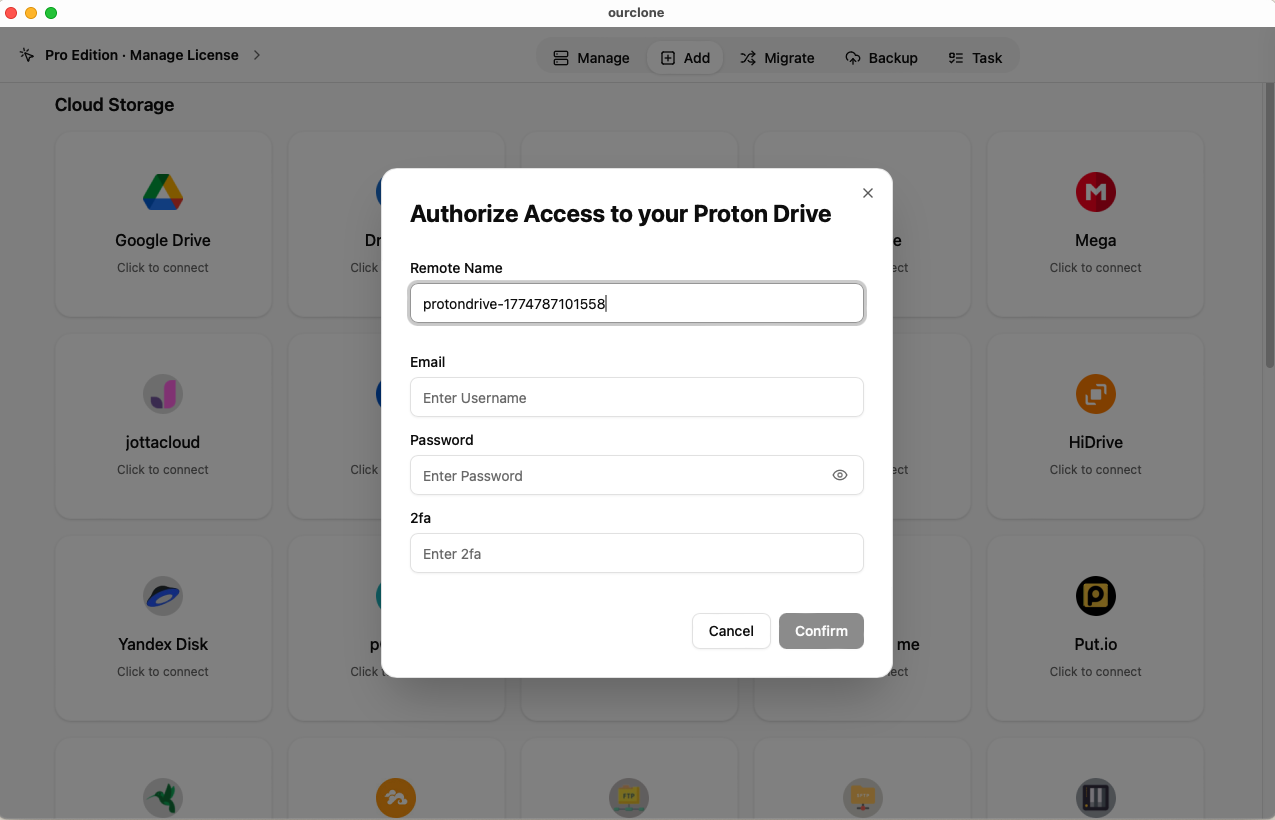
Proton Drive works differently than token-based services. When you choose Proton Drive in the Add Cloud screen, you’ll need to enter your Proton account email and password. If you have two-factor authentication enabled (2FA), the app will also ask for the verification code from your authenticator or Proton account. This extra step ensures that your Proton Drive connection remains protected by Proton’s strict security model.
- Go to your Proton Drive account
- Enter your Proton email address and password
- If prompted, input your 2FA code to complete the login
4. Configure the Transfer
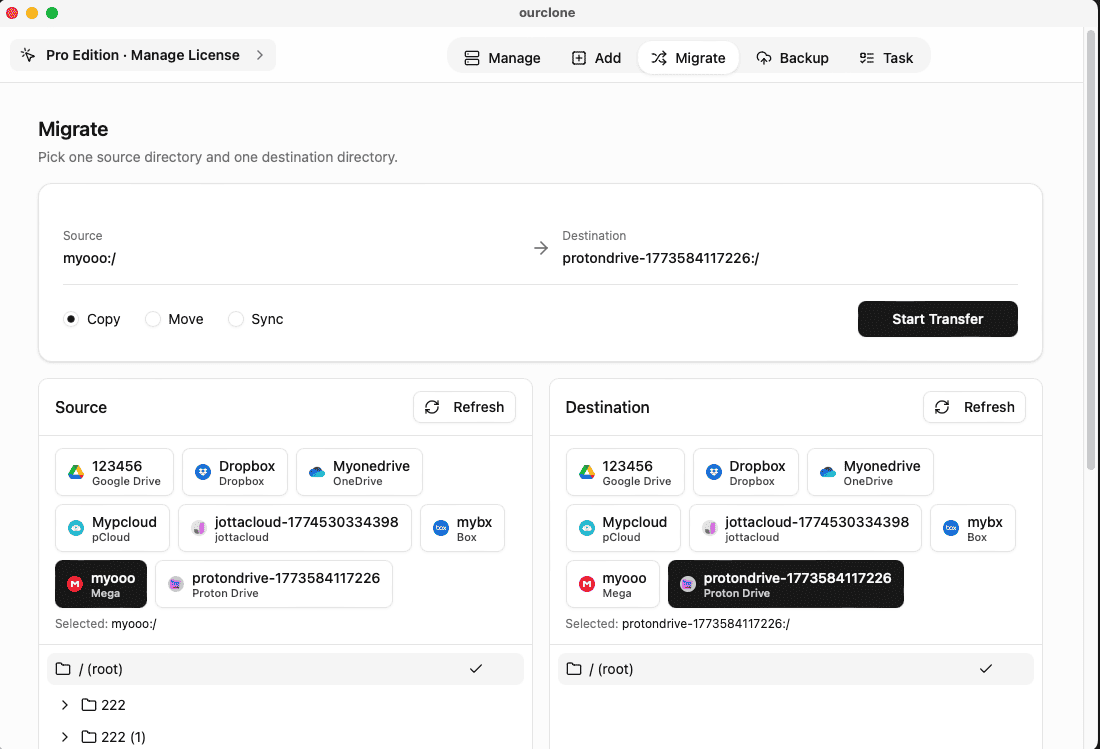
With both accounts connected, head over to the Migrate tab. Set Mega as your source and Proton Drive as the target. Then select how you want the transfer to behave:
-
Copy→ Keeps your Mega files intact and duplicates them in Proton Drive -
Sync→ Mirrors updates both ways, keeping Mega and Proton Drive aligned -
Move→ Transfers files into Proton Drive and removes them from Mega
Once your settings are ready, hit Start. You’ll be able to watch progress in real time as the migration runs.
5. Monitor Tasks and Progress
After the job begins, go to the Task view in the sidebar. This panel shows current transfer speed, percentage complete, and any errors. If something interrupts the connection — like a brief network issue — you can retry or resume without losing progress.
Security First
The migration runs on your own computer — no third-party servers ever see your data. OurClone uses AES-256 encryption, so everything you move from Mega to Proton Drive stays private and under your control.
✅ After Moving Your Files
Once the migration finishes, confirm your key folders in Proton Drive. For a clean, long-term setup:
🔑 Enable Two-Factor Authentication
Turn on 2FA for your Proton account to add an extra layer of protection.
📂 Organize Your Drive
Build a clear folder structure so projects, photos, and documents are easy to find later.
🔄 Schedule Syncs
Use OurClone to create recurring jobs if you plan to keep Mega and Proton Drive in sync.
💾 Watch Your Storage
Keep an eye on your Proton Drive plan to avoid running into storage limits.
⚠️ Troubleshooting Tips
🔑 Login Problems
Re-enter your Proton email and password. If 2FA is enabled, make sure the code is fresh and not expired before submitting.
📦 Running Out of Space
Large Mega archives fill quotas fast. Review your Proton Drive plan and upgrade if needed.
🌐 Interrupted Connection
If the network drops, use OurClone’s resume rather than restarting the whole job.
📁 Duplicates or Conflicts
Files with identical names may be skipped or duplicated. Adjust OurClone’s conflict rules, then rerun the specific task.
🚀 Ready to start your move?
Migrate from Mega to Proton Drive with privacy and ease using OurClone.
Download OurClone🎥 Watch the Video Tutorial
Prefer to follow along visually? Here’s a step-by-step walkthrough of moving your files from Mega to Proton Drive using OurClone: