📦 What Are OneDrive and MEGA?
OneDrive is Microsoft’s official cloud storage service, built into Windows and integrated with Office 365. As described in their support center, OneDrive lets you store, sync, and share documents, photos, and more across devices.
MEGA stands out for its client-side encryption and generous free storage. MEGA’s security page highlights how files are encrypted before they ever leave your device, meaning not even MEGA’s servers have access to your content.
🔍 OneDrive vs MEGA: Key Differences & Strengths
OneDrive stands out as Microsoft’s flagship cloud storage service, bundled with Windows and Microsoft 365. Its tight integration with Word, Excel, PowerPoint, and Teams makes it the go-to for professionals and students who need real-time collaboration and seamless file sharing.
Main OneDrive highlights:
- ✅ Deep Office integration — edit and co-author directly online.
- ✅ Built-in version history and file recovery up to 30 days.
- ✅ Personal Vault with two-step verification for sensitive files.
- ✅ Auto backup for photos and videos from mobile devices.
- ✅ Files On-Demand — access all files without using local storage.
MEGA is privacy-first by design. According to its Security Whitepaper, MEGA applies end-to-end encryption to every file — only you hold the decryption key.
Key MEGA strengths:
- 🔒 End-to-end encryption for all transfers.
- 🔒 Secure link sharing with customizable permissions.
- 🔒 Generous free tier — 20GB plus bonus storage for referrals.
- 🔒 Private encrypted chat and collaboration features.
- 🔒 Accessible on all platforms: Mac, Windows, mobile, and web.
If you trust OneDrive for daily teamwork and MEGA for private storage, combining them with OurClone gives you the best of both — with local sync, full control, and no outside servers.
🧰 What You’ll Need
- macOS computer (10.13 or newer)
- Active OneDrive and MEGA accounts
- Latest version of OurClone installed (Download here)
- Access to the folders you plan to sync (read/write)
🔌 How to Connect OneDrive and MEGA
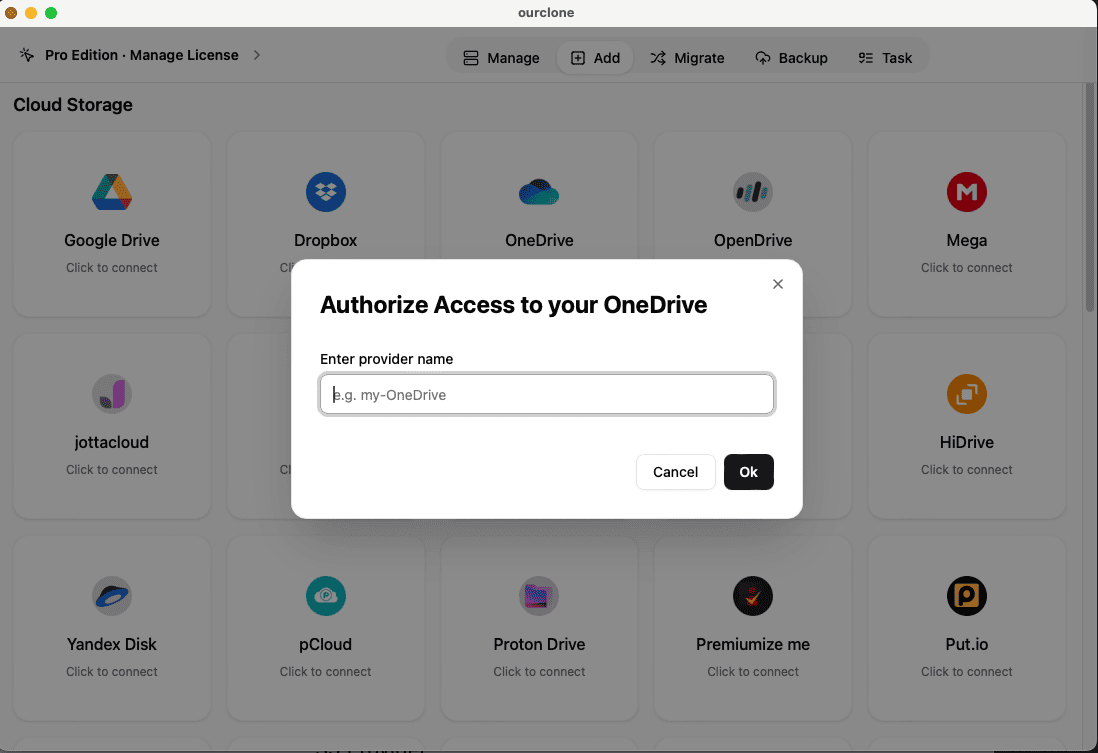
Step 1: Link OneDrive
Launch OurClone, click Add Cloud, then choose OneDrive. Sign in with your Microsoft account, confirm the permissions, and you’re connected.
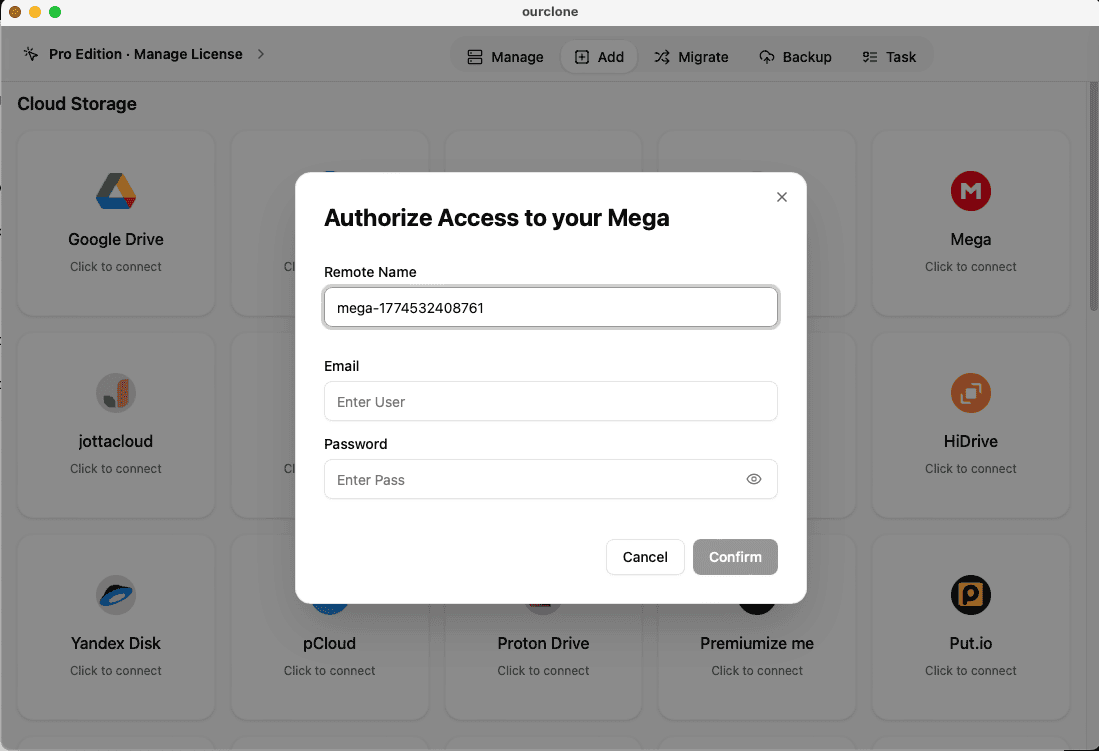
Step 2: Link MEGA
In the same Add Cloud panel, choose MEGA, enter your account details, and approve access. Now both storage accounts are ready to sync.
📂 Create a Smart Sync Task
With both clouds connected, you can build a custom sync. Many people keep OneDrive as their daily workspace, then push critical folders to MEGA for a secure backup.
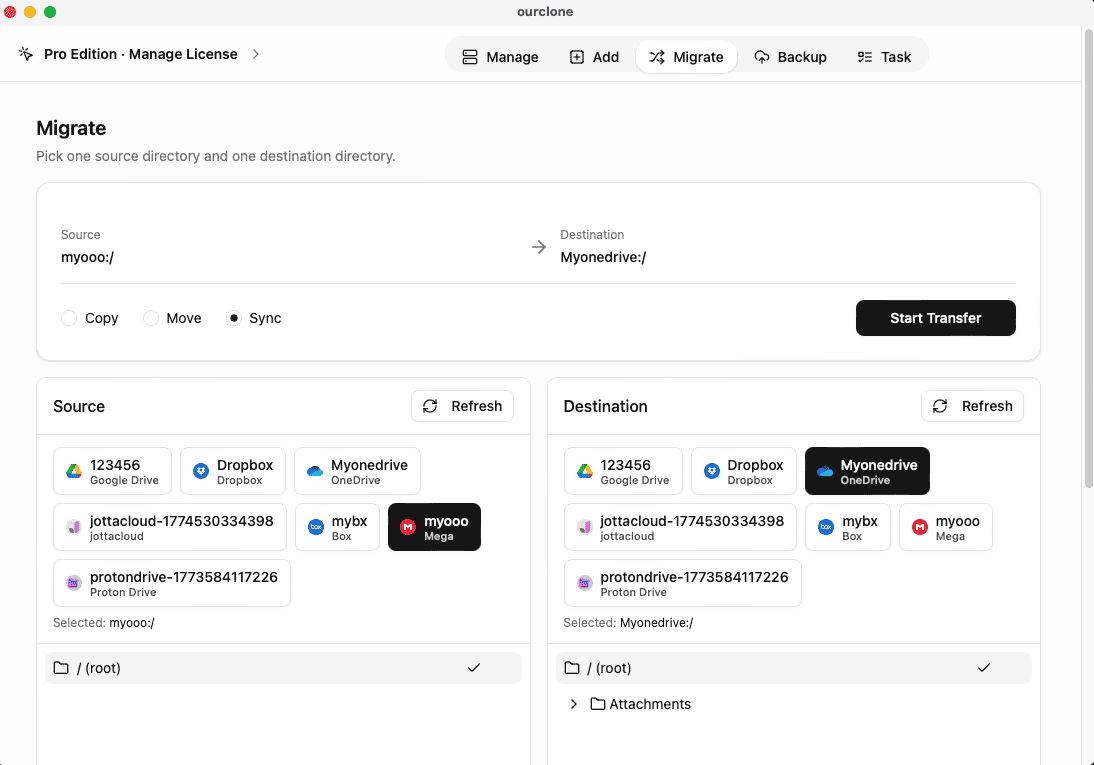
Step 1: Open the Migrate Panel
Click Migrate in OurClone’s sidebar. This is where you build your sync task.
Step 2: Choose Source
Pick OneDrive as your source. Select the folder you want to protect or mirror.
Step 3: Choose Target
Choose MEGA as the destination. You can pick an existing MEGA folder or create a new backup vault.
Step 4: Pick Sync Mode
sync: Keeps source and target identical.copy: One-way copy from OneDrive to MEGA.move: Transfers files and removes them from OneDrive afterward.
Step 5: Advanced Options
Turn on Delete Extras if you want your MEGA folder to exactly match OneDrive — no leftover files.
Step 6: Start the Task
Click Start. OurClone shows progress in real time — files copied, skipped, or any issues.
📦 Why Incremental Sync is Essential
OneDrive folders can change often. Full re-uploads are wasteful — OurClone’s incremental sync only moves files that are new or updated.
This saves time, bandwidth, and avoids duplicate storage costs, especially for large project archives or photo collections.
🗄️ How Local Backup Repository Works
OurClone saves a local, password-protected backup repository on your Mac. It keeps logs, snapshots, and file states.
This means you can restore old files or review what changed, even if you lose access to OneDrive or MEGA.
💡 Real-World Use Cases
Many students use OneDrive for class notes and files synced with Office. By syncing to MEGA, they keep a private backup safe from accidental deletion.
Small businesses often sync invoices or reports to MEGA to create an extra encrypted layer of protection.
With OurClone, no manual downloads or risky third-party servers are needed.
🔐 Fully Local & Secure
Unlike many cloud bridges that route files through external servers, OurClone syncs OneDrive and MEGA directly via your Mac. Transfers use SSL during transit and AES-256 encryption for local backup data.
⚙️ Extra Settings & Scheduling
- Schedule syncs daily, weekly, or custom times
- Filter files by type: docs, media, zip
- Define conflict behavior: overwrite or skip
- Export detailed logs for audits
🚀 Tips for Smooth Transfers
Large syncs work best overnight or during low-traffic hours. For folders with thousands of files, use Ethernet instead of Wi-Fi for stable speed.
📥 Try It Today
Want OneDrive and MEGA to stay aligned automatically? Download OurClone free: ourclone.app/download.
❓ FAQ — OneDrive MEGA Sync
Is OneDrive safe for large files?
Yes. OneDrive offers secure storage integrated with your Microsoft account. Read more in the OneDrive Help Center.
Does MEGA keep my backup private?
Yes. MEGA encrypts files end-to-end. Only you hold the keys. Check MEGA Security for details.
Can I choose which folders sync?
Yes — select exactly which OneDrive folders to copy to MEGA.
How does incremental backup help?
It avoids re-uploading unchanged files, saving time and bandwidth.
Where’s my sync log stored?
All history stays in your encrypted local repository.