🧰 What You Need
- A Mac running macOS 10.13 or newer
- Valid Google Drive and MEGA accounts
- OurClone installed (Download here)
- Basic understanding of folder structure and cloud storage access
🔌 Connect Your Cloud Accounts
Step 1: Add Google Drive
Launch OurClone, click on Add Cloud, and select Google Drive. You’ll be redirected to a Google login screen. Once you authenticate, OurClone will locally register your Google Drive account without storing any credential remotely.
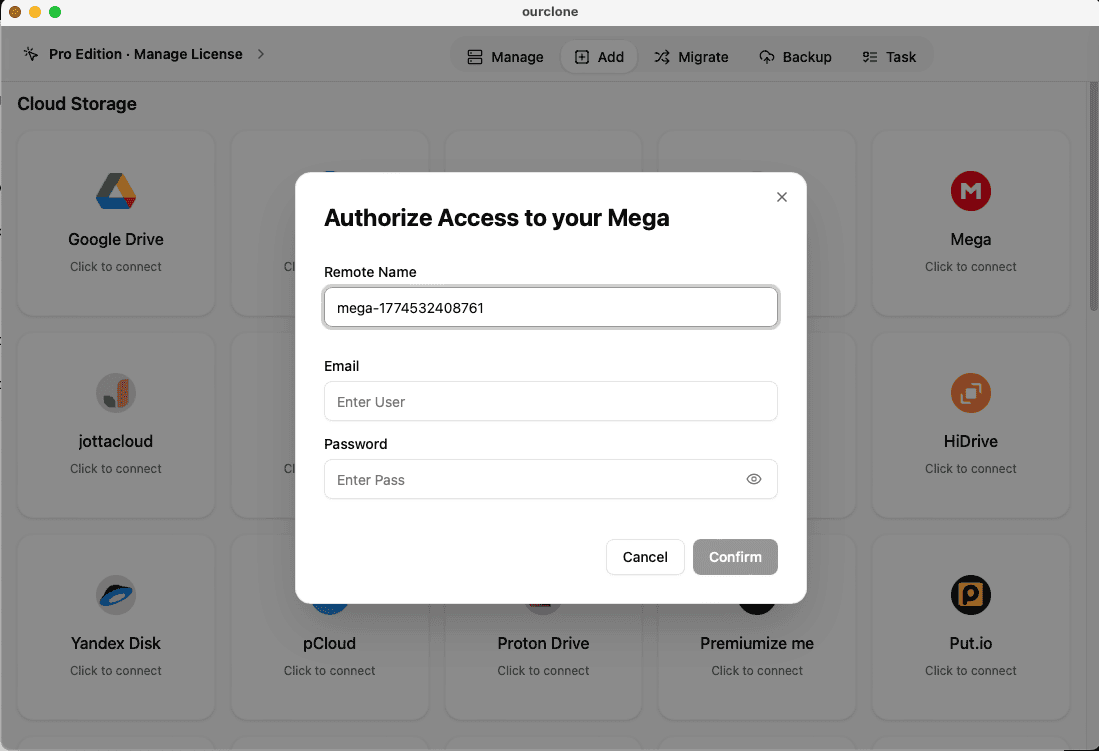
Step 2: Add MEGA
Go back to the Add Cloud interface and choose MEGA. Enter your MEGA credentials. OurClone communicates directly with MEGA's secure API, but keeps all tokens locally, adding a layer of privacy.
📂 Configure the Sync Task
Once your accounts are added, it’s time to define what should be synced. You can fine-tune exactly which folders to include, what file types to sync, and how conflicts are handled.
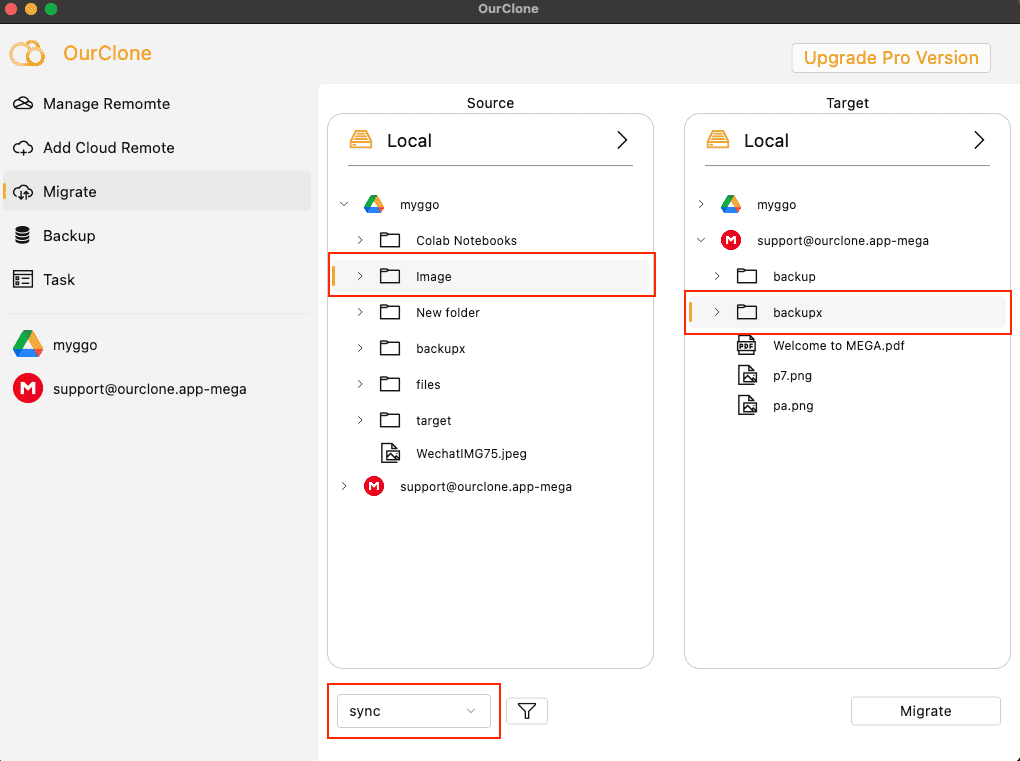
- Go to the Migrate tab
-
Set Source as your Google Drive folder (e.g.,
gdrive:/Work/Reports) -
Set Target as your MEGA folder (e.g.,
mega:/Backup/Reports) -
Select your operation mode:
sync– keeps both sides identicalcopy– one-way duplicationmove– transfers and deletes from source
- Enable delete extra files for full mirroring
- Start the task and monitor the live progress bar
📦 What Is Incremental Backup?
Instead of copying everything each time, incremental backup works intelligently by only transferring files that have changed since the last sync. This saves time, conserves bandwidth, and reduces storage costs.
OurClone automatically detects file modifications based on checksums and timestamps. If a file hasn’t changed, it won’t be copied again. For large Google Drive photo libraries or frequently-updated MEGA folders, this dramatically improves sync efficiency.
🗄️ Understanding the Backup Repository
A backup repository in OurClone is a secure, encrypted folder structure maintained on your local drive. It stores file snapshots, version history (if enabled), and metadata for restoring or auditing sync tasks.
Each repository is protected using AES-256 encryption and requires a password to open. Even if someone gains access to your Mac, they cannot read or restore your backup without that key. This is especially valuable for sensitive work documents, financial records, or personal media.
🔐 Secure by Design
OurClone uses a security-first design: no cloud relays, no token caching on servers, and no file exposure to third parties. All transfers between Google Drive and MEGA happen directly through your Mac using local bandwidth.
SSL encryption is applied during all API calls, and file contents are further protected through AES-256 before being written to your drive or synced to MEGA.
⚙️ Advanced Controls
- Scheduled Tasks: Configure hourly, daily, or weekly automatic sync jobs
- Selective Sync: Choose specific file types like PDFs, images, or videos
- Conflict Policies: Define whether new files overwrite old ones or skip them
- Log Tracking: Review full logs of successful, skipped, or failed transfers
🚀 Tips for Optimal Sync
If you’re syncing large media folders, plug your Mac into Ethernet for better speed. Avoid syncing gigabytes of data over Wi-Fi during office hours. Want redundancy? Consider syncing Google Drive to MEGA and then backing up MEGA to a local encrypted external disk.
Upgrade to OurClone Pro to unlock multi-threaded transfers, priority support, and enterprise policy controls.
📥 Try OurClone Now
OurClone is free to use and works fully offline. Take control of your syncs today by downloading it from: ourclone.app/download
❓ Frequently Asked Questions
Can I sync Google Drive to MEGA without using the cloud?
Yes. OurClone runs entirely on your Mac, using no third-party servers. Files go directly from Google Drive to MEGA over your network.
Does OurClone support incremental backup for Google Drive?
Absolutely. OurClone detects changed files and only transfers what’s new. This is essential for large libraries or frequent syncs.
Is my backup data encrypted?
Yes. Backups are stored in a local encrypted repository protected by AES-256. Without your password, it’s unreadable.
Can I schedule MEGA to Google Drive sync overnight?
Yes, you can define any schedule in the OurClone task editor—including nightly, weekly, or real-time monitoring syncs.
Does syncing large folders slow down my Mac?
Heavy syncs can affect CPU and disk performance. For best results, use SSDs and schedule large jobs outside working hours.
Can I run multiple sync jobs between different clouds?
Yes. OurClone supports parallel jobs—e.g., syncing Dropbox to Google Drive while syncing MEGA to a local folder.