🔍 Why Sync Google Drive to Dropbox from Your PC?
Let’s say you’ve been using Google Drive for years—school docs, work projects, vacation photos, you name it. But now you’re finding that Dropbox fits better for sharing with your team or syncing across devices. Naturally, you want everything in one place.
Sure, you could manually download and re-upload folders... but that’s time-consuming, error-prone, and not fun when dealing with hundreds of files. Most third-party tools claim to do the job, but they often pass your data through their own servers, raising privacy concerns and introducing limits like transfer quotas or throttling.
That’s why syncing locally is still the most dependable method. It puts you in the driver's seat—you're not waiting on server queues, dealing with mysterious errors, or crossing your fingers hoping large folders won’t break mid-transfer. Everything happens directly on your machine, with the same tools you trust.
⚙️ How It Works (No Overhead, No Surprises)
You don’t need to be a system admin to sync Google Drive with Dropbox reliably. Here’s the general flow using OurClone—a lightweight utility designed for secure, local operations:
- Install OurClone: You can grab it from the official CloudsLinker site. It works on Windows, macOS, and Linux, and doesn’t require any account sign-up.
- Mount Google Drive: Use the built-in connector to authorize your Google Drive account and mount it as a local directory. OurClone handles OAuth securely without storing your credentials.
- Mount Dropbox: Connect your Dropbox account the same way. The app creates a local mirror of your Dropbox, similar to Dropbox’s own desktop sync client, but with more control.
-
Run
migrate: In the command panel, just run something likeourclone migrate ~/GoogleDrive/Work ~/Dropbox/Backupand the sync begins immediately. You can also set up scheduled jobs for recurring tasks.
You’ll get full logs, error tracking, and even dry-run capabilities to preview the sync before committing. And since all operations stay local, your network speed is the only bottleneck.
💡 What Makes OurClone Different?
Most cloud migration tools are either too complicated, too invasive, or just plain unreliable. OurClone is built with a different mindset—it’s open, minimal, and most importantly, local-first.
Unlike web-based tools that upload your content to an unknown intermediary before sending it to your destination, OurClone keeps the entire process on your machine. That means:
- No server-side caching or third-party data handling
- No monthly quotas or throttling
- No surprise charges or vendor lock-in
The software also includes optional AES-256 encryption, letting you encrypt data on the fly if you're syncing sensitive content. Whether you’re a privacy enthusiast or just someone who’s tired of flaky transfer tools, this approach keeps you in control from start to finish.
🛠 Step-by-Step Setup: Google Drive to Dropbox
1. Install OurClone
First things first—head over to the OurClone download page and grab the version that matches your system (Windows, macOS, or Linux). Installation is straightforward and doesn’t require creating an account.
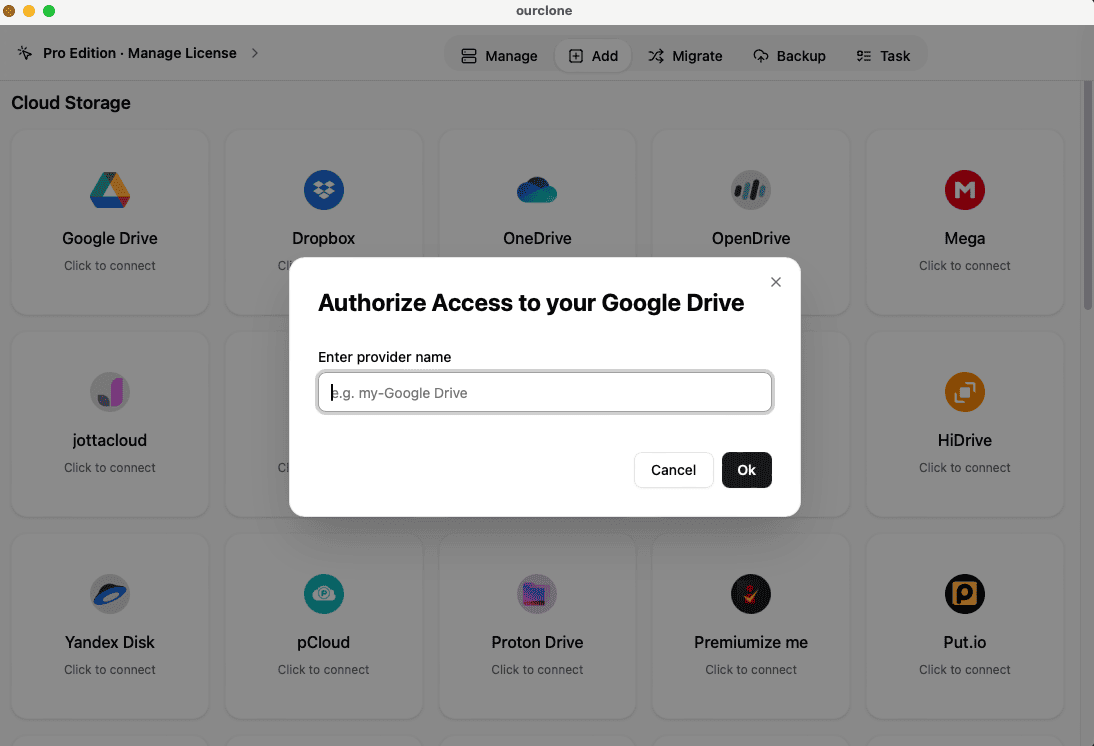
2. Connect Google Drive
- Launch OurClone on your computer
- Click Add Cloud and choose Google Drive
- You'll be prompted to log in—OurClone uses secure OAuth flow directly with Google, so your credentials never leave your machine
- Once linked, your Drive contents will appear as a local path inside the app
3. Connect Dropbox
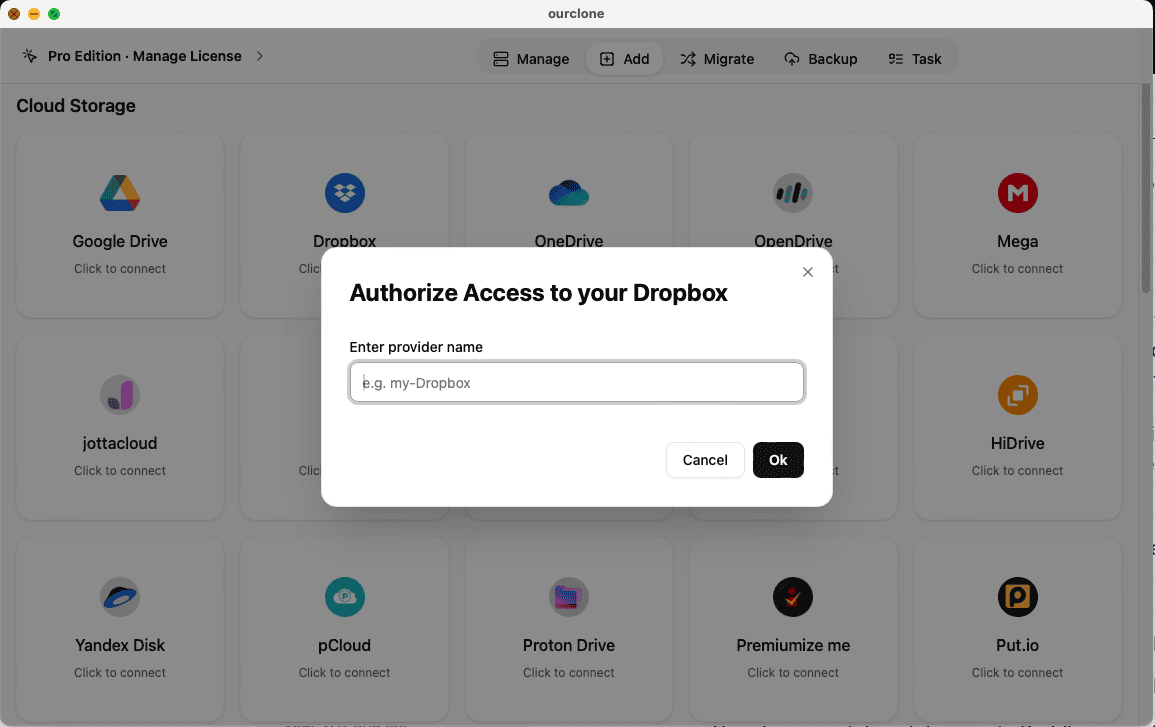
- Go back to Add Cloud and select Dropbox
- Just like before, sign in and authorize access to your Dropbox account
- You’ll now see both Google Drive and Dropbox listed on your dashboard, ready to sync
4. Set Up Your Sync Task
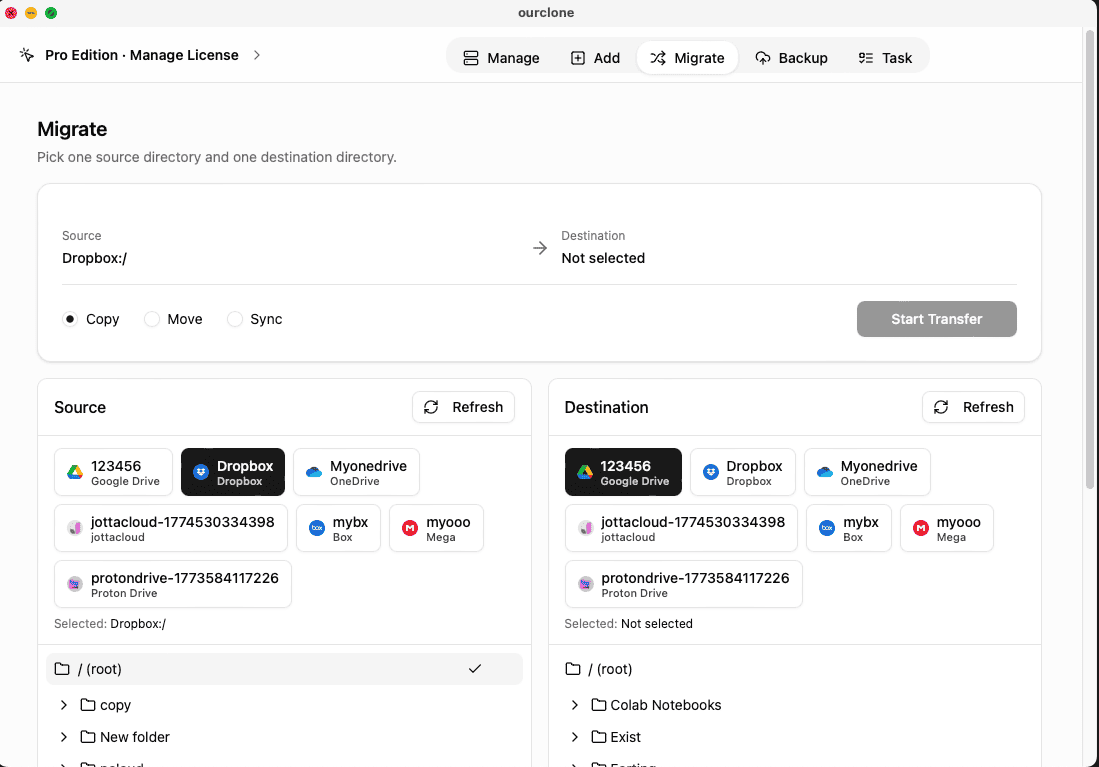
- Click on the Migrate tab in the sidebar
-
For the source, choose the Google Drive folder you want to sync (e.g.,
/MyDrive/Documents) -
For the destination, select the target folder inside your Dropbox
(e.g.,
/Dropbox/WorkBackup) -
Pick a mode—
syncto keep both sides in sync, orcopyif you only want a one-way transfer -
Optional: enable auto-delete for files that are removed from the
source, or run a
dry-runto preview changes - When you're ready, hit Start
🔐 Security Advantages of Local Syncing
Most cloud migration tools act as a middleman, routing your files through third-party servers where privacy is often promised—but not always guaranteed. OurClone skips that risk entirely. All data is transferred using your own internet connection, and every file stays encrypted right on your device.
The sync process uses end-to-end AES-256 encryption, and nothing leaves your machine unless you explicitly allow it. That means no hidden uploads, no data mining, and no third-party log storage. Even temporary files are automatically wiped after the task is complete.
It’s ideal for freelancers, researchers, and businesses who deal with sensitive data—whether you're moving financial spreadsheets, private images, or client contracts.
📌 Features That Actually Matter
- 🕒 Automated Scheduling: Set syncs to run hourly, daily, or weekly—perfect for passive backup routines
- 🧩 Smart Filters: Want to only sync PDFs or exclude .mp4 files? Use extensions or regex to fine-tune what gets moved
- 📁 Granular Folder Control: Choose which subfolders to include, preserve metadata like timestamps and permissions
- 🔔 Live Monitoring: Watch real-time progress, review full task history, and export logs for auditing or troubleshooting
These tools aren't hidden in a settings jungle—they're clearly labeled, beginner-friendly, and designed for real-world usage. Whether you're syncing gigabytes or gigapixels, you stay in charge.
📣 Final Advice Before You Hit Sync
A smooth sync starts with preparation. Here are a few things to check:
- 📦 Make sure both your Google Drive and Dropbox accounts have enough free space
- 🗂 Clean up unnecessary files beforehand to reduce sync time and avoid clutter
- 🧪 Try a small test folder first—this ensures your filters and sync mode behave as expected
-
📌 Use the
dry-runmode if you're unsure—it's like previewing your sync without actually moving data
📥 Ready to Give It a Go?
You don’t need to pay or sign up—just download and try the free version of OurClone at: https://www.ourclone.app/download
If you find yourself syncing frequently or working with large datasets, consider upgrading to OurClone Pro for features like:
- 🚀 Parallel processing for faster transfers
- 📈 Advanced scheduling and webhook triggers
- 🔒 Enterprise-grade audit logs and encryption control
But for most users, the free version is already powerful enough to handle everyday cloud syncs—from Google Drive to Dropbox and beyond.