🧰 Before You Begin
- macOS 10.13 or newer
- A valid MEGA account
- FTP access credentials (hostname, port, username/password)
- OurClone installed on your Mac (Download here)
🔌 Linking MEGA and FTP
Step 1: Add MEGA
Open OurClone and head to Add Cloud. Choose MEGA, enter your credentials, and authorize access. This gives you access to your MEGA cloud storage as a local mount within OurClone—without syncing through the cloud.
Step 2: Add FTP
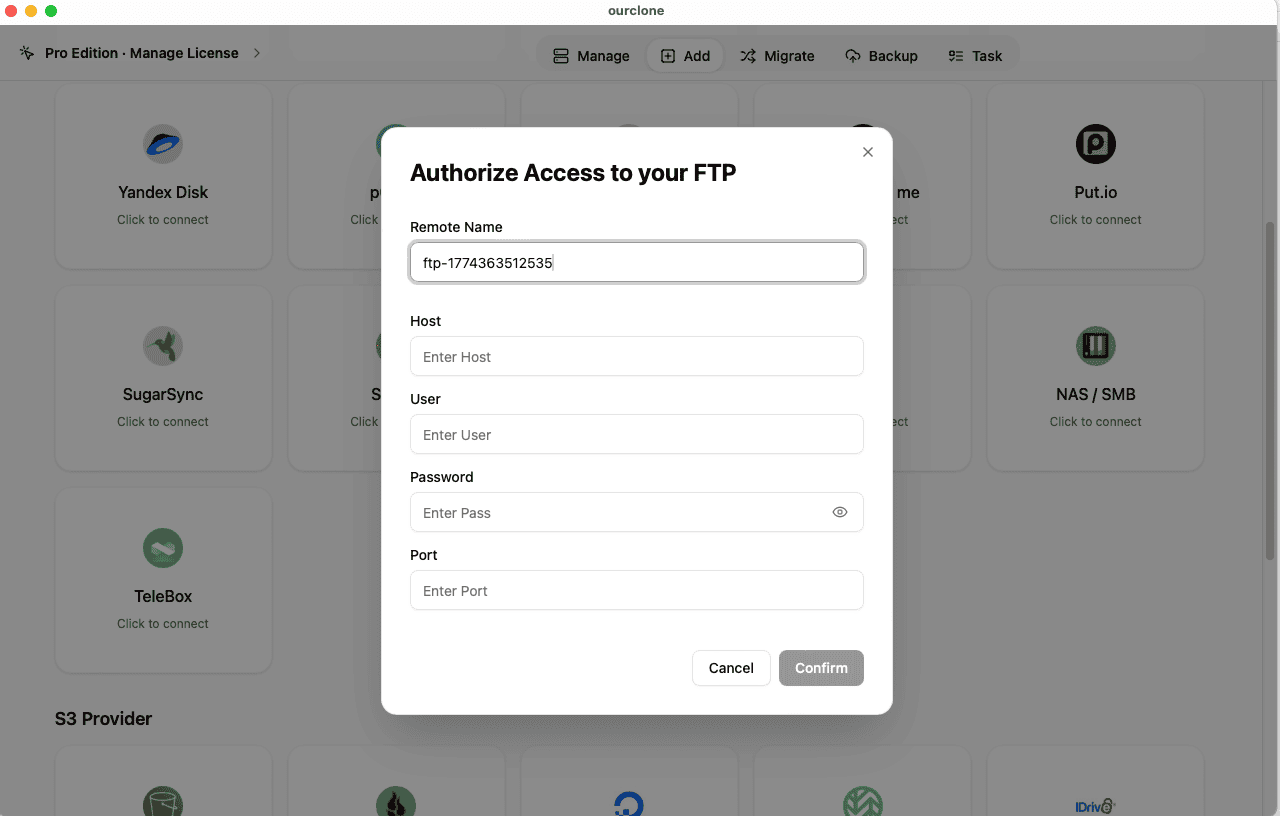
Go back to the Add Cloud interface, but this time select FTP. Enter your server address, port (usually 21), and login credentials. OurClone treats the FTP server as a sync-compatible target or source, just like a cloud service.
📂 Set Up the Sync Operation
Once both accounts are connected, you can define your sync task in a few clicks. Want to back up MEGA files to your FTP server? Or mirror an FTP project folder to MEGA? You choose.
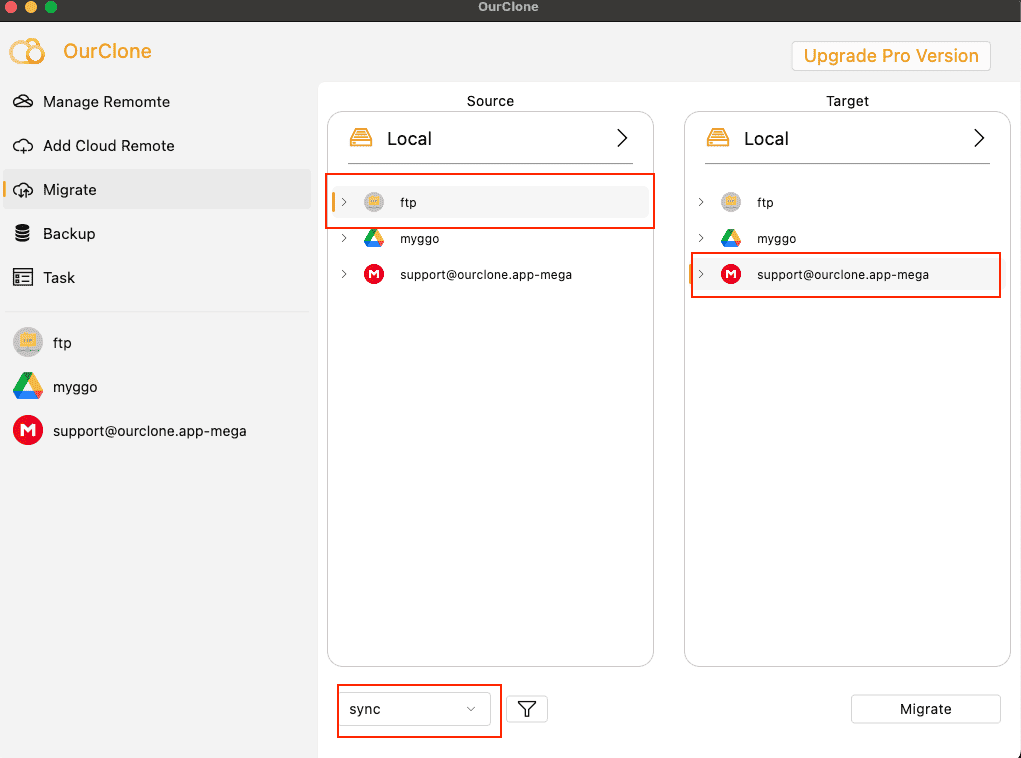
- Go to Migrate
- Set your Source: either MEGA or FTP
- Set your Target: the other side
- Choose action type:
sync– keep both directories matchedcopy– transfer only from source to targetmove– send then delete from source
- Optionally enable delete extra files on target to maintain strict structure
📦 Why Incremental Sync Matters
FTP servers can be slow—and MEGA limits your bandwidth. That’s why OurClone uses incremental sync: it checks what’s changed since the last run and only moves what’s necessary.
This is especially helpful if you’re syncing logs, site backups, or periodic exports. Instead of re-uploading entire directories, only new or modified files will be handled, reducing network load and sync time.
🗄️ What Is a Local Backup Repository?
Every time you create a backup sync, OurClone stores metadata and version info in a repository—a secure folder on your Mac. These repositories are AES-256 encrypted and cannot be accessed without your password.
If you ever need to roll back or review past syncs, this repository contains all the checkpoints and logs you’ll need.
🔐 Local Encryption, No Server Exposure
Most sync tools route your data through third-party relays or store temporary files on external clouds. OurClone avoids all that. All your sync jobs—from MEGA to FTP—run entirely on your machine using SSL-secured connections and password-encrypted backups.
The result: total data privacy. Even if you're syncing sensitive documents or codebases, your data never leaves your control.
⚙️ Extra Controls for Power Users
- 🎯 Target only certain file types (e.g. .zip, .html, .jpg)
- ⏲ Schedule syncs at fixed intervals—hourly, daily, weekly
- 📂 Choose whether to sync subdirectories or keep it flat
- 🧾 Export logs for auditing or automation
🚀 Pro Tips
FTP servers can time out during large transfers. To avoid failed uploads, break large folders into chunks or use file filters. If you’re syncing both ways (FTP ↔ MEGA), use conflict resolution rules to prevent overwrite loops.
Want better speeds? Plug in via Ethernet, or sync during off-peak hours. Also, avoid public Wi-Fi if transferring sensitive data.
📥 Get Started with OurClone
Ready to unify your FTP and MEGA workflows? Download OurClone and take full control of your sync process: ourclone.app/download
❓ Frequently Asked Questions
Can I sync FTP to MEGA without using a cloud sync service?
Yes. OurClone runs locally on your Mac and handles all transfers between FTP and MEGA without involving any external servers.
Does OurClone support encrypted FTP (FTPS)?
Yes. OurClone supports both standard FTP and FTPS with SSL/TLS for encrypted transfers.
What if my FTP server goes offline mid-sync?
OurClone can retry failed transfers and supports resumable sync if enabled. Your local backup repository keeps a record of what was already transferred.
Can I limit syncs to only updated files?
Yes. Incremental sync ensures that only modified or new files are transferred, reducing time and bandwidth.
Where are my backups stored?
They’re stored locally in an encrypted backup repository. Without your decryption password, they are unreadable—even to system-level processes.
Can I schedule MEGA to FTP syncs at night?
Absolutely. You can define sync windows to avoid high-traffic periods or automate overnight tasks.