Why Transfer Files Between Cloud Accounts?
- 📦 Free Up Storage Space – Many cloud providers offer limited free storage (e.g., Google Drive provides 15 GB). Transferring files to another account can help manage space efficiently.
- 🔐 Enhance Data Security – Distributing data across multiple cloud accounts can reduce the risk of data loss due to account compromise or service outages.
- 💼 Facilitate Business Transitions – During mergers or organizational changes, migrating data between cloud accounts ensures continuity and proper data management.
- 🌎 Improve Accessibility – Storing files in different cloud services can enhance access speed and reliability, especially when collaborating with international teams.
- 🔄 Consolidate Data – Merging files from various accounts into a single cloud storage can simplify data management and retrieval.
Preparation Before Starting
- 🧾 Verify Account Access – Ensure you have active and accessible accounts for both the source and destination cloud services.
- 📊 Assess Storage Capacity – Check that the destination account has sufficient storage space to accommodate the transferred files.
- 🔒 Prepare Authentication Methods – Have necessary credentials ready, such as API keys or OAuth permissions, to facilitate seamless integration.
- 📶 Ensure Stable Internet Connection – A reliable and fast internet connection is crucial to prevent interruptions during the transfer process.
- 💾 Backup Important Data – Before initiating the transfer, back up essential files to prevent data loss in case of unforeseen issues.
- 🗂️ Organize Files – Structure your files and folders logically to facilitate a smoother transfer and easier management post-migration.
Step-by-Step: How to Transfer Files Between Cloud Storages with OurClone
Step 1: Install and Launch OurClone
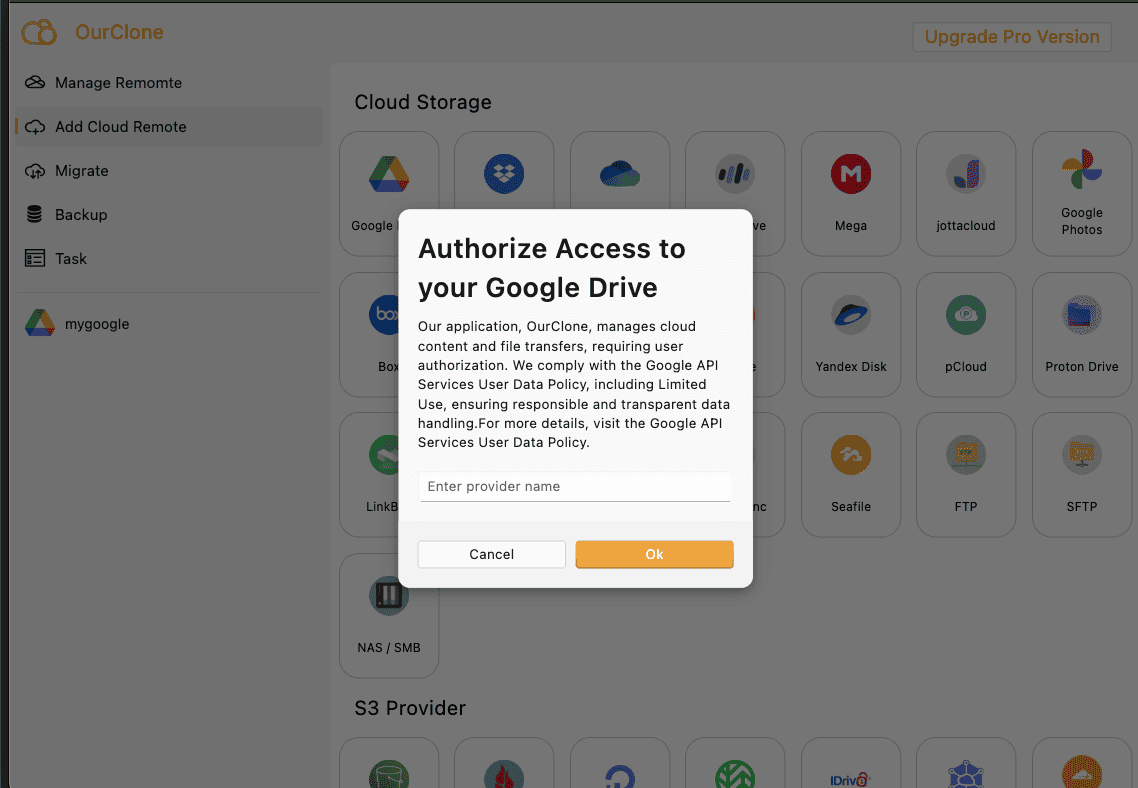
First, download OurClone and install it on your Mac. Once launched, click Add Cloud Remote. Choose the cloud provider to add—here we select Google Drive as an example.
OurClone supports over 40 cloud platforms, including AWS S3, OneDrive, Dropbox, Proton Drive, Jottacloud, Mega, and more.
Step 2: Select Source and Target Files
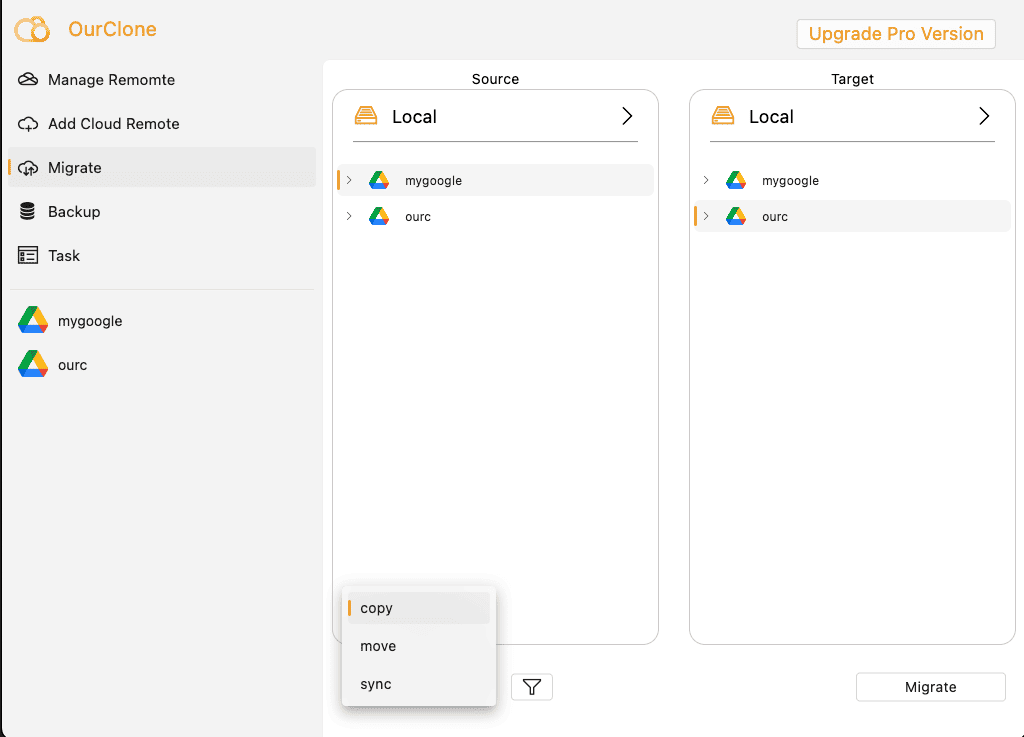
After connecting your cloud accounts, browse the source cloud storage (e.g., Google Drive) and select the files or folders you want to transfer.
Next, choose a destination folder from another connected cloud (e.g., a target directory within another Google Drive or OneDrive).
Step 3: Choose Transfer Mode
OurClone supports three transfer modes:
- Copy – Files are duplicated to the target cloud, and original files are preserved.
- Move – Files are transferred and then deleted from the source cloud.
- Sync – The target folder is synchronized with the source. Extra files in the destination will be removed.
After selecting your preferred mode, click Migrate to start the task.
Step 4: Monitor the Task
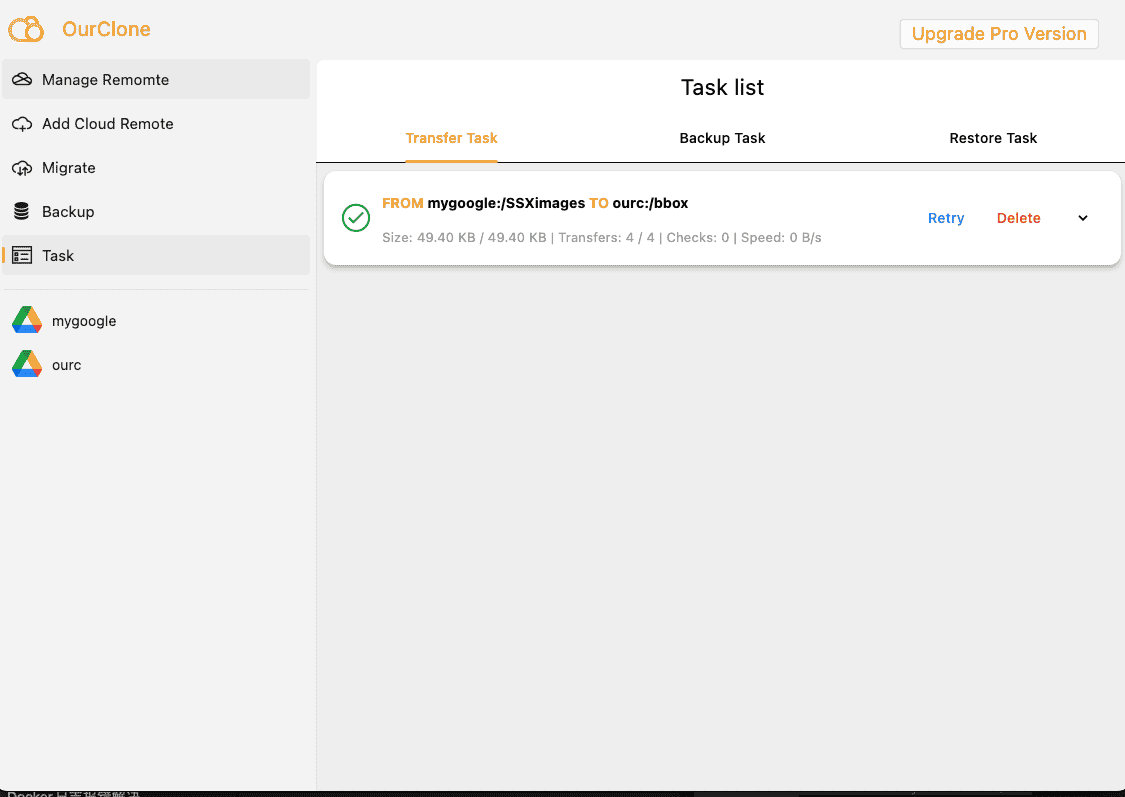
Go to the Task tab to monitor the progress of your migration. Once the status shows completed, your cloud-to-cloud transfer has been successfully completed.
Advantages of Using OurClone for Cloud Transfers
- ⚡ Local bandwidth transfer ensures privacy and control
- 🔐 AES-256 encrypted data during transit
- 🔁 Full and incremental sync modes available
- 🖥️ No need for server-side processing or cloud-to-cloud APIs
- 🌐 Supports 30+ cloud providers including Dropbox, Box, pCloud, and S3-compatible platforms
Comparison: Web Tools vs. OurClone
| Feature | Online Transfer Tools | OurClone (Local) |
|---|---|---|
| Privacy | Depends on third-party server | Full local transfer, no data leakage |
| Transfer Speed | Server-limited | Local ISP full speed |
| Customization | Limited | Advanced control, filters, exclusions |
| Storage Provider Support | Partial | 30+ Providers supported |
| Encryption | Unknown | AES-256 + Poly1305 Auth |
Alternative Method: Using Rclone to Transfer Files Between Cloud Storages
Rclone is a powerful open-source command-line program that supports syncing files across over 40 cloud storage services, including Google Drive, OneDrive, Dropbox, Amazon S3, and more.
Step 1: Install Rclone
Visit the official Rclone download page and install the version suitable for your operating system. Follow the instructions to set it up in your terminal or command prompt.
Step 2: Configure Cloud Storage Remotes
Run rclone config in the terminal. You will be prompted to add new remotes. Follow the steps to authenticate each of your cloud accounts (e.g., Google Drive and Dropbox).
Step 3: Execute File Transfer
Use the following command structure to start a transfer:
rclone copy source_remote:source_path destination_remote:destination_path --progressFor example:
rclone copy gdrive:/myfiles dropbox:/backup --progressLimitations
- ⚠️ Requires basic knowledge of command-line operations
- ⚠️ No graphical interface; progress is shown via terminal
- ⚠️ Each remote must be configured manually
OurClone vs Rclone: Which One to Choose?
| Feature | OurClone (GUI) | Rclone (CLI) |
|---|---|---|
| User Interface | ✅ Easy-to-use graphical interface | 🛠 Command-line based, no GUI |
| Setup Simplicity | ✅ Add cloud accounts with one click | 🛠 Requires terminal setup and manual token generation |
| Ideal For | ✅ Beginners and casual users | 🛠 Advanced users and automation workflows |
| Transfer Monitoring | ✅ Real-time task status with visual feedback | 📉 Console-only progress display |
| Platform Support | ✅ macOS (GUI app) | ✅ Cross-platform (Windows, macOS, Linux) |
While Rclone is highly flexible and scriptable for advanced users, OurClone is better suited for those who prefer a clean interface and an easier way to move files between cloud services without learning command-line syntax.