Why Mounting IDrive e2 on macOS Is a Smart Move
Working directly on IDrive e2 buckets through Finder beats juggling third-party S3 browsers or the IDrive e2 web console. A mounted drive streams files on demand, so you can browse a multi-terabyte archive without filling your Mac's SSD. And because the mount is just a folder, every macOS app — Preview, Pages, VS Code, Photoshop — sees IDrive e2 as a native location.
Watch the full IDrive e2 mount walkthrough — or keep reading for the step-by-step.
- 🧩 Native Finder Integration — Your IDrive e2 bucket shows up as a regular folder and a mounted Finder volume, so any macOS app can open and save into it without an S3 browser or CLI.
- 💾 No SSD Hostage Situation — IDrive e2 is built for cheap bulk storage, which usually means lots of large files. Mounting streams them on demand, so even a multi-TB bucket only spends Mac disk space on the files you actually open.
- ⚡ Real-Time Access to Cloud Files — Objects uploaded from another machine, a backup tool, or a CI pipeline appear in your mounted folder after the next poll cycle.
- 🛡️ Read-Only Mode for Safety — IDrive e2 is often used for cold archives and offsite backups. Mount read-only and Finder will block any accidental writes or deletes outright.
- 💸 From $0.004/GB/Month with Free Egress — IDrive e2 pricing starts around $0.004 per GB-month with no API charges, and most plans include free egress equal to your stored capacity — making IDrive e2 one of the most cost-effective S3-compatible clouds to mount.
How Mounting a Cloud Drive Works (and Why It's Different from Sync)
Traditional sync tools copy every object in your IDrive e2 bucket down to your hard disk and keep both sides matched. That's fine for small buckets, but it's a non-starter when you're storing the kinds of multi-terabyte backup archives IDrive e2 is built for.
Mounting flips the model. OurClone presents your IDrive e2 bucket as a virtual filesystem — the object key hierarchy is visible right away, but file contents are only fetched when you actually open something. Frequently used objects are cached locally for instant repeat access, and writes are pushed back to IDrive e2 in the background using standard S3-compatible PUTs.
OurClone makes both the polling interval (how often it checks IDrive e2 for remote changes) and the maximum cache size configurable, plus a read-only switch for extra safety on archive buckets.
- 🚀 Stream files on demand — no need to download the whole drive
- 💾 Saves Mac disk space by caching only what you actually open
- 🔁 Two-way sync — edits in the mounted folder push back to IDrive e2
- 🛡️ Read-only mode prevents accidental writes when you only need to browse
What to Know Before You Mount IDrive e2
A little planning before you click Mount will save you from cleaning up a messy mount point later.
- 📁 Pick the Right Mount Source — You can mount a specific bucket prefix (say
/archive/2026) for focused access, or mount the entire bucket for full Finder browsing. A narrower prefix usually feels snappier. - 🖥️ Choose a Sensible Local Mount Point — Use a dedicated, empty folder like
~/CloudMounts/IDrive-e2. Don't aim it at your Desktop or any folder that already has files — the mount will hide whatever was there. - 🔒 Read-Only vs Read-Write — Read-only is the safer pick for archive buckets where you only need to browse and pull. Pick read-write if you need to upload or edit. Remember: read-only mode literally cannot upload — Save dialogs will fail.
- ⏱️ Set a Reasonable Polling Interval — IDrive e2 doesn't charge for API calls, but a chatty mount still creates background traffic. 30–60 seconds is a sensible balance.
- 💽 Plan Your Cache Size — A bigger cache makes repeat opens snappy. A few GB is plenty for documents; bump it up if you regularly reopen large backup archives or media stored in IDrive e2.
How to Mount IDrive e2 on macOS with OurClone
OurClone makes mounting IDrive e2 on macOS refreshingly painless. Step 1 uses IDrive e2 Access Keys — no special CLI required — and from there you're four clicks away from a Finder-ready volume.
- 🔐 Connect to IDrive e2 via Access Keys — Open OurClone and go to
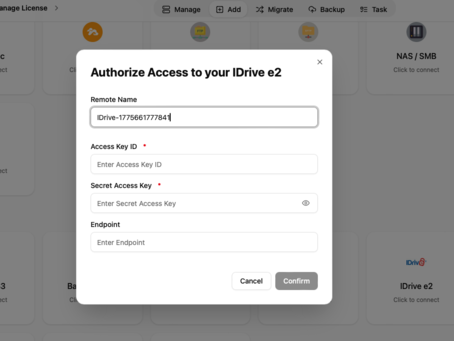
Add Storage. Choose the IDrive e2 provider from the S3 list, then fill in your Remote Name, Access Key ID and Secret Access Key (create these in the IDrive e2 console under Access Keys → Create Access Key). The Endpoint field is optional — if you have multiple regions or a non-default region, paste in your bucket's endpoint URL from the IDrive e2 dashboard. Once entered, OurClone will verify your credentials and IDrive e2 will appear as a connected storage backend. - 📂 Open the Mount Tab and Click New Mount — Once IDrive e2 is connected, go to the
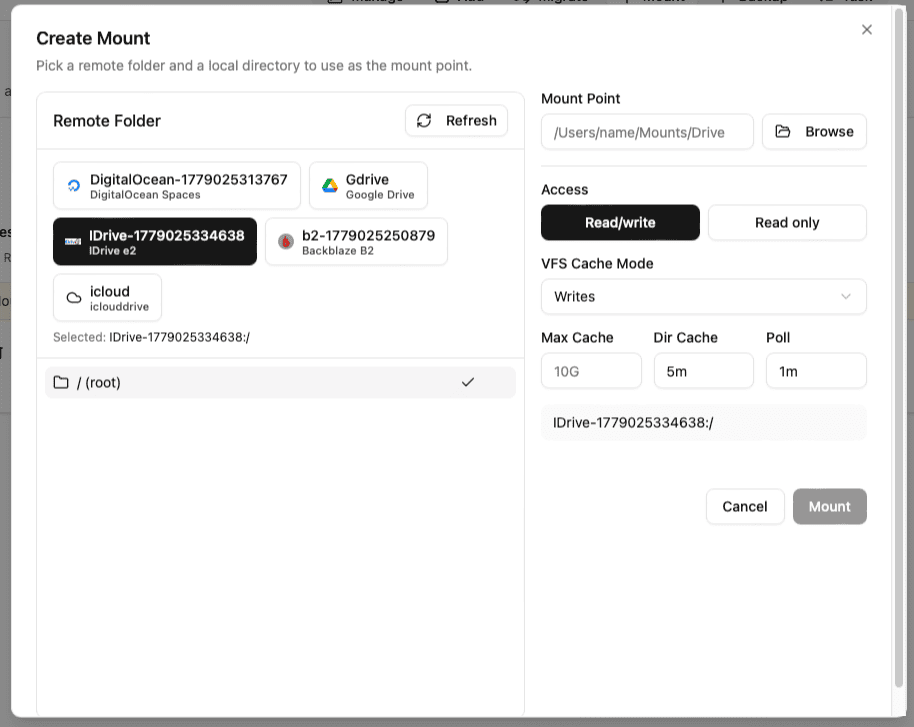
Mounttab in OurClone. Click the New Mount button in the top-right corner to open the mount configuration dialog. - ⚙️ Configure the Mount Settings — In the dialog, pick IDrive e2 as the authorized source. Choose what to mount — a specific bucket prefix (e.g.,
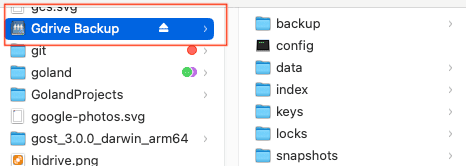
/archive/2026) or the entire bucket. Then pick a local folder as the mount point (something like~/CloudMounts/IDrive-e2). Choose Read-only if you just want to browse, or Read-write if you need to upload and edit. Optionally tweak the polling interval (how often OurClone checks IDrive e2 for changes) and max cache size. Click Mount to finish. - 🗂️ Use Your IDrive e2 Mount Like a Local Folder — Open the local folder you picked as the mount point. macOS now treats it as a mounted volume — you can browse, open, create folders, drag in files, and delete items just like any local folder. For example, create a new
backupfolder inside and drop in a few photos. OurClone uploads them to your IDrive e2 bucket in the background. - ✅ Confirm the Sync on IDrive e2 — Switch back to OurClone and open your IDrive e2 storage from the file browser — your new
backupfolder and uploaded photos should already be listed. For extra peace of mind, log in to the IDrive e2 console and confirm the files appeared in your bucket too.
The combination of IDrive e2 Access Keys and OurClone's mount engine gives you an IDrive e2 bucket that genuinely feels like a local volume on macOS — cheap, S3-compatible, and ready to use right from Finder.
Getting the Most Out of Your IDrive e2 Mount
A live mount is convenient. Keep these in mind once your IDrive e2 mount is up and running.
- 🔁 Edits Sync Both Ways — Anything you add, rename, or delete in the mounted folder propagates to IDrive e2. Changes uploaded from other clients appear after the next poll cycle.
- 🛑 Read-Only Means Read-Only — If you mounted with read-only permissions, drag-and-drop uploads and Save dialogs will fail silently or with a permissions error. Remount as read-write to enable uploads.
- 💽 Cache Lives on Your Mac — Recently opened files are cached locally for speed. If your Mac is low on disk space, reduce the max cache size in the mount settings.
- ⏱️ Polling Interval Affects Freshness — A short polling interval picks up remote changes faster but generates more LIST traffic. For IDrive e2, a 30–60 second interval is usually a good balance.
- 🔌 Unmount Cleanly Before Sleep — If you put your Mac to sleep with the mount active, OurClone will reconnect automatically on wake. For long absences, click Unmount in the Mount tab to release the volume.
When Your Mount Stops Working
Most mount failures trace back to one of a few causes: a deleted or rotated IDrive e2 access key, the wrong regional endpoint (if you have buckets across multiple IDrive e2 regions, the endpoint must match the bucket's region), a bucket that's been deleted or renamed, or a mount point that's no longer empty. If your IDrive e2 mount returns auth errors, regenerate the key in the IDrive e2 console, update the credentials (and endpoint, if applicable) under Add Storage, and remount.
Verify the Sync Anytime
Any time you're unsure whether a file made it up, you have two easy checks: open the IDrive e2 storage view inside OurClone's file browser, or log straight into the IDrive e2 console and inspect the bucket. Whatever Finder shows in your mount point should match — and if it doesn't, give it a poll cycle and check again.