Why Yandex Disk Is Worth Considering for Mac Backups
Not every backup needs an object-storage bucket. For a lot of people, a straightforward consumer drive like Yandex Disk is plenty -- you sign in with an account you already have and start protecting files. OurClone layers an encrypted repository on top so those backups stay private.
Imagine someone with a growing photo archive who just wants a second copy somewhere off the laptop: pointing OurClone at Yandex Disk gives them that without learning bucket policies or access keys.
- 🔑 Simple Browser Sign-In -- OAuth means you authorize in a browser; there are no keys or tokens to manage.
- 🔐 Encrypted Before Upload -- OurClone encrypts repository data locally, so Yandex stores only protected blocks.
- 💻 Any Mac Folder -- Back up
~/Documents,~/Pictures, or a project tree rather than one fixed sync folder. - 🌍 Recover From Anywhere -- Reconnect from another Mac and restore the files you need without rebuilding your setup.
Incremental Snapshots Make the Most of Yandex Disk Space
A consumer drive has a fixed quota, so re-uploading a full folder every time burns both space and time. Incremental snapshots only send what changed after the first run, which keeps your Yandex Disk usage and upload time under control.
The first snapshot is the big one; after that, OurClone adds just the new and modified data.
- 🚀 Only changed data uploads after the first snapshot
- 💾 Stretches a fixed Yandex Disk quota further
- 🔐 Fits the encrypted repository model
- 📅 Keeps multiple restore points without full duplicates
A Quick Checklist Before You Connect Yandex Disk
A short prep pass makes the first backup painless:
- 👤 Have Your Yandex Account Ready -- You'll log in through a browser during setup, so make sure you can sign in and approve access.
- 🔒 Secure the Account -- Since the account guards your backup, use a strong password and enable two-factor authentication on Yandex.
- 📁 Pick the Right Folders -- Focus on files with real recovery value such as
~/Documentsor~/Pictures; skip caches and system files. - 📶 Plan the First Upload -- The initial snapshot is the heaviest, so run it on a stable connection.
- 🧪 Start Small -- Back up one folder first to confirm sign-in and the restore flow before larger archives.
Backing Up to Yandex Disk with OurClone
Because Yandex Disk uses browser authorization, setup is quick and password-free inside the app.
- 🔗 Add Yandex Disk -- In
Add Storage, choose Yandex Disk, enter a custom name, and confirm. A browser window opens; log in to your Yandex account and approve access. Yandex Disk then appears in OurClone. - 📦 Create a Backup Repository -- Open
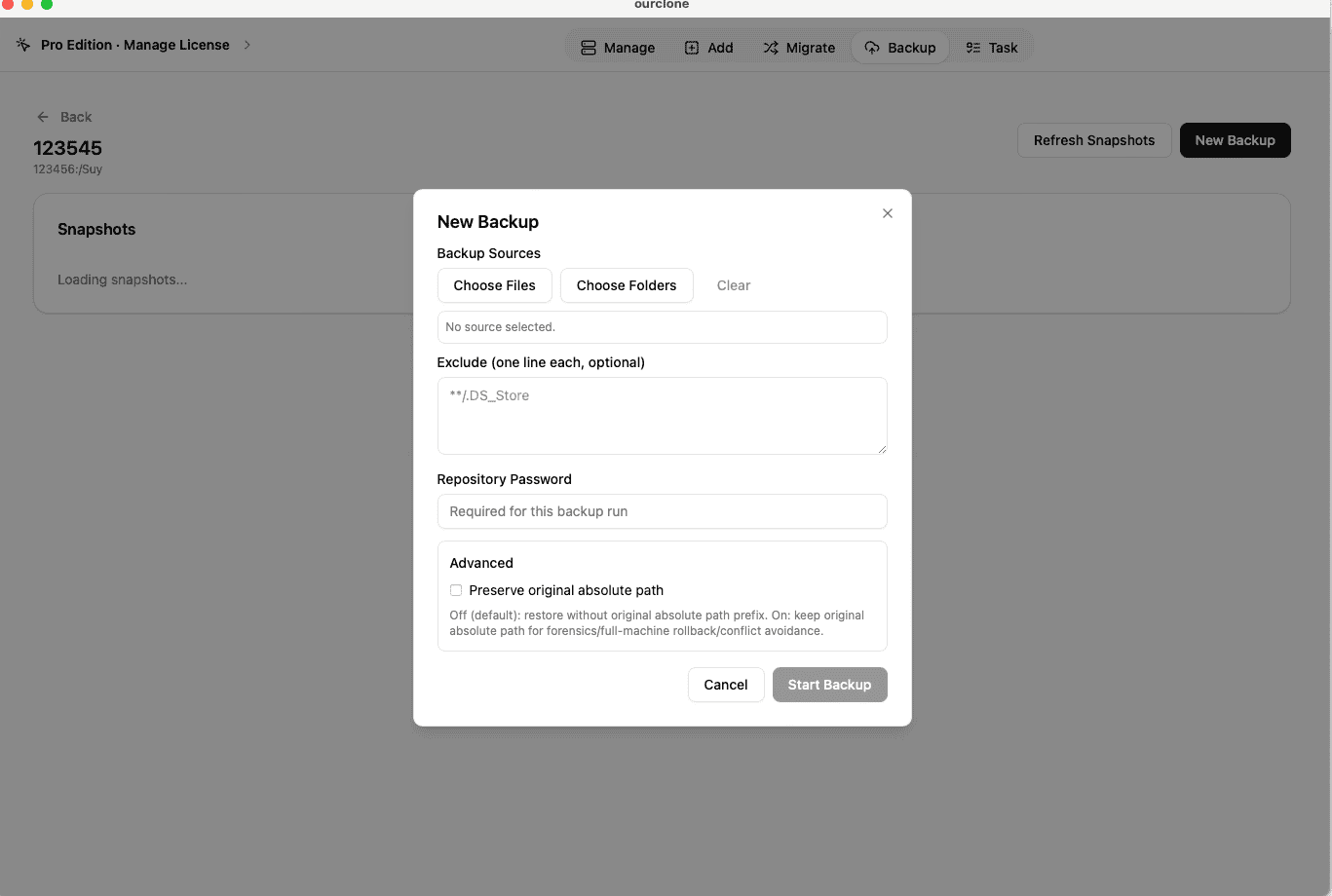
Backup, create a repository, and choose a path on Yandex Disk (for example/ourclone-backups). Name it and set a repository password that encrypts the backup -- it's required for every restore, so keep it safe. - 🗂️ Select Mac Folders and Snapshot -- Open the repository, click
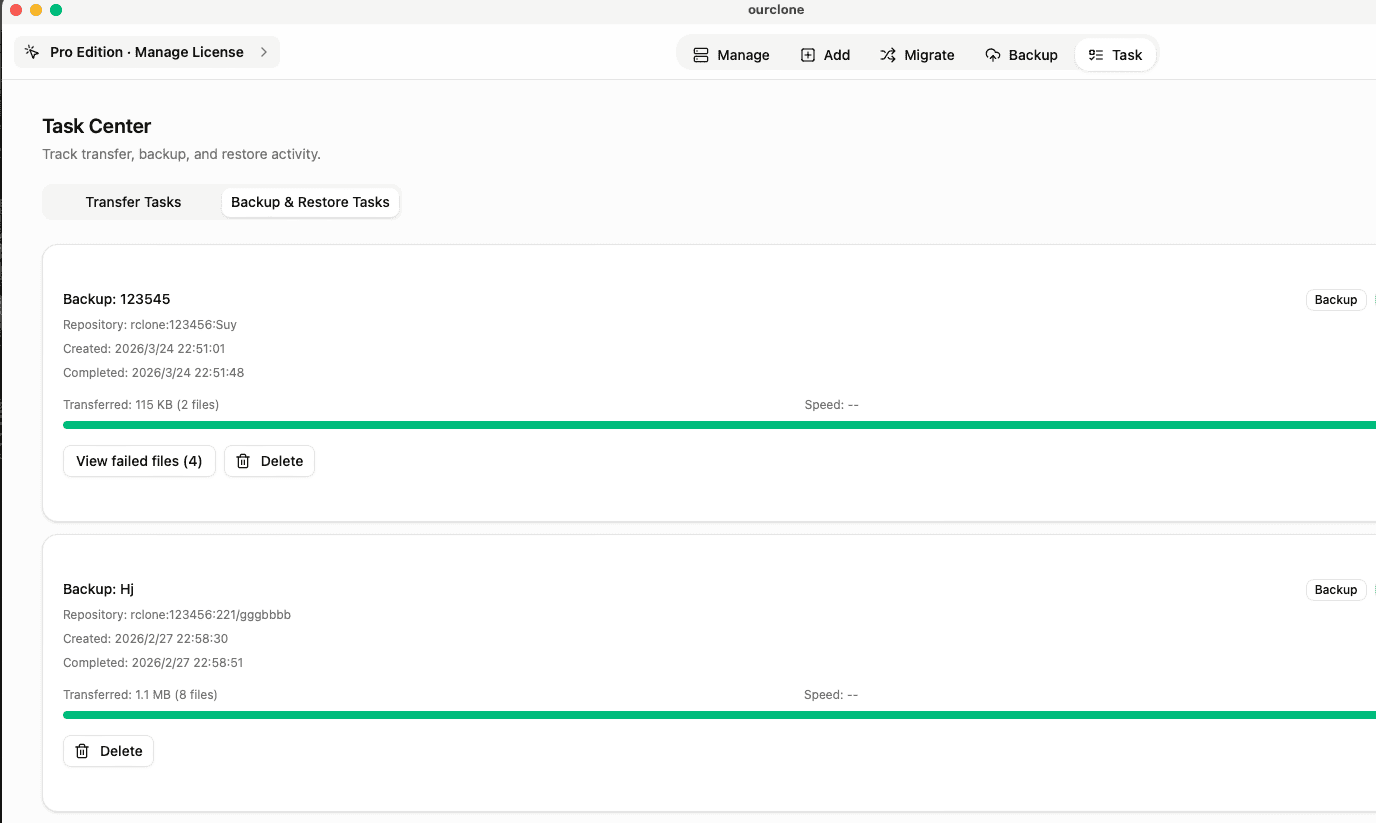
New Backup, choose folders like~/Documentsor~/Pictures, and start. The first run uploads everything; later runs are incremental. - 🕒 Watch the Task -- Open
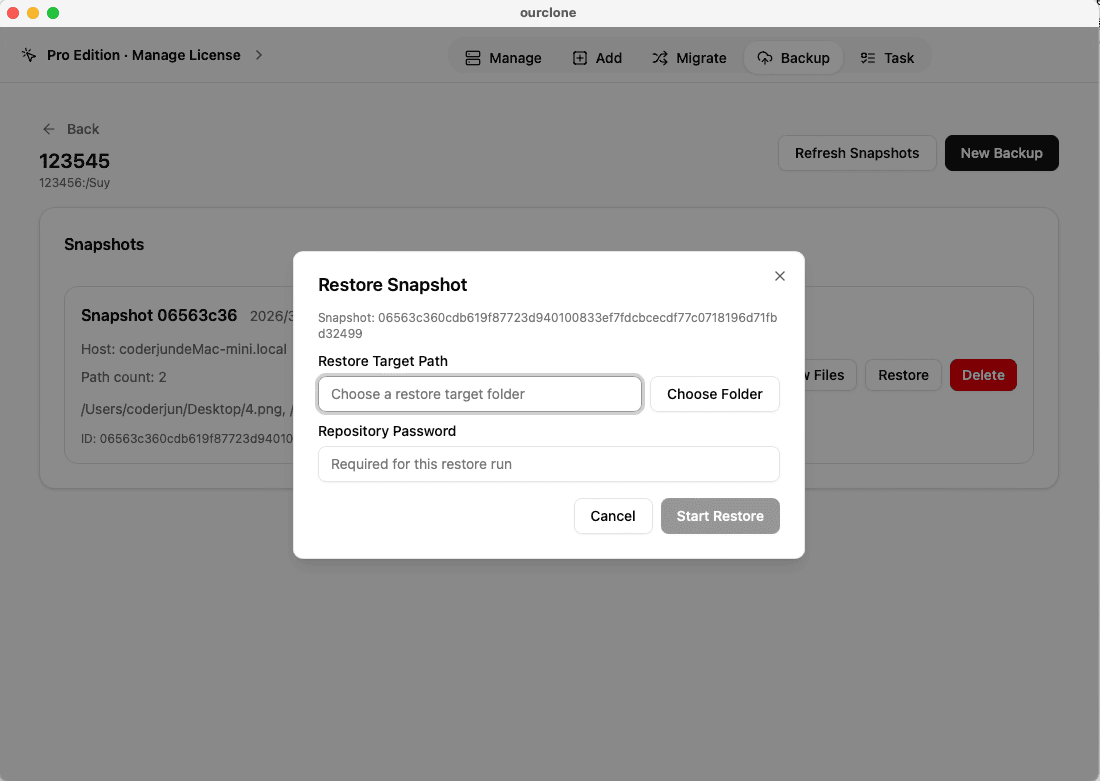
Task→Backup & Restoreto follow progress, speed, and any skipped files. - 🔁 Restore When Needed -- Open the repository, pick a snapshot, click
Restore, enter the repository password, and choose a local destination folder.


Confirm the Backup and Keep Your Yandex Login Working
After the snapshot, spend a minute confirming the backup is actually recoverable.
- 📄 Check Task Status -- In
Task→Backup & Restore, a clean completion means the snapshot landed; failures are flagged. - 🧩 Review Skipped Files -- Permission issues and locked files show up in the logs so you can fix them without a full re-run.
- 🔐 Encryption Holds -- Data is encrypted before upload, so Yandex stores only protected repository blocks.
Re-Authorize If Access Expires
OAuth tokens can expire or be revoked -- for example after a password change or a security reset on your Yandex account. If backups start failing, reconnect Yandex Disk in OurClone to refresh authorization.
Test a Restore Early
Restore a small folder from a finished snapshot before any emergency. It confirms your Yandex Disk backups work and that you still have the repository password every restore needs.