Why Seafile Works Well for Encrypted Mac Backups
Seafile started as a self-hosted sync platform, which is exactly why it makes a dependable backup target: you can run it on your own server or use Seafile's hosted service, and either way you decide where the data lives. OurClone treats that Seafile space as an encrypted repository for your Mac.
Consider a developer who keeps source and design libraries on a company Seafile server -- snapshotting ~/Projects there means backups stay inside infrastructure the team already trusts.
- 🗄️ Self-Hosted or Hosted -- Use your own Seafile server or the hosted service; the backup flow is the same.
- 🔐 Encrypted Before Upload -- OurClone encrypts repository data locally, adding a backup-layer password on top of your Seafile account.
- 👥 Team-Friendly Storage -- Seafile's library model fits organizations that already manage shared storage centrally.
- 💻 Back Up Any Folder -- Protect
~/Documents,~/Desktop, or a specific project tree, not just a sync folder.
Incremental Backups Mean Less Repeated Uploading
Uploading a full folder to Seafile on every run is wasteful, especially across the internet to a hosted server. Incremental snapshots only move what changed after the first backup, so routine runs stay fast.
The first snapshot does the heavy lifting; subsequent ones add only new or modified data to the Seafile repository.
- 🚀 Sends only changed data after the initial snapshot
- 💾 Conserves space on your Seafile server
- 🔐 Works with the encrypted repository model
- 📅 Keeps several restore points without full duplicates
What to Sort Out Before Connecting Seafile
A little setup keeps the first backup smooth:
- 🌐 Know Your Server -- OurClone defaults to
https://cloud.seafile.com/. If you run your own Seafile server, plan to switch to its address after connecting. - 🔑 Have Your Login Ready -- Seafile connects with your account username and password; confirm the account can write to the target library.
- 📁 Choose Meaningful Folders -- Back up
~/Documents,~/Pictures, or project directories; skip caches and system paths. - 📶 Mind the First Upload -- For a hosted server, the initial snapshot is the heaviest, so run it on a stable connection.
- 🧪 Start Small -- Snapshot one folder first to confirm the login, server, and restore path before larger archives.
Create a Seafile Backup in OurClone
With your Seafile credentials handy, setup is quick.
- 🔗 Add Seafile -- In
Add Storage, choose Seafile, enter a custom name, then your Seafile username and password. It connects tocloud.seafile.comby default; for a self-hosted server, update the server address after connecting. - 📦 Create a Backup Repository -- Open
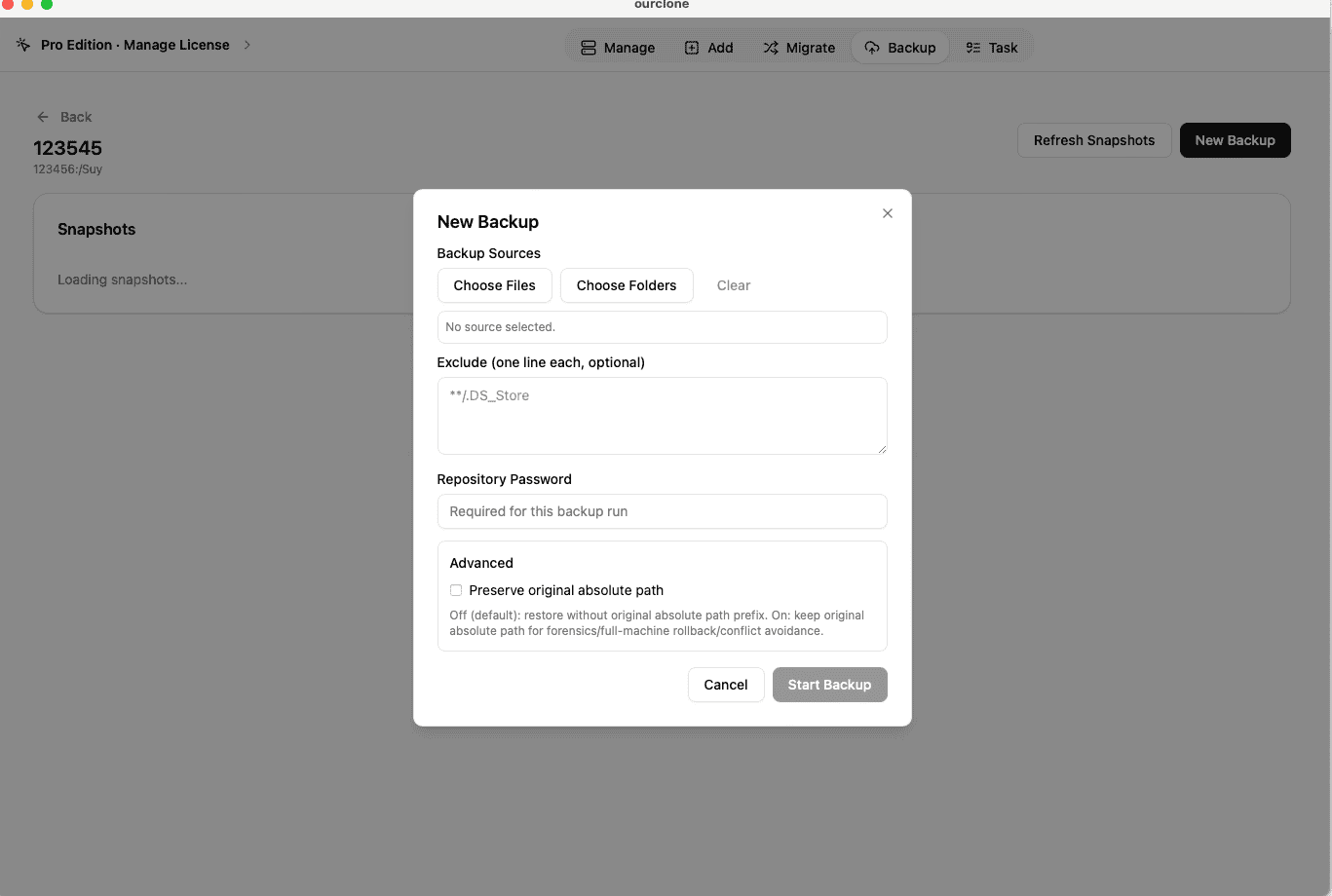
Backup, create a repository, and choose a path in your Seafile space. Name it and set a repository password -- this encrypts the backup and is separate from your Seafile login, so store it safely. - 🗂️ Select Mac Folders and Snapshot -- Open the repository, click
New Backup, pick folders like~/Documentsor~/Projects, and start. The first run uploads everything; later runs are incremental. - 🕒 Track the Task -- Open
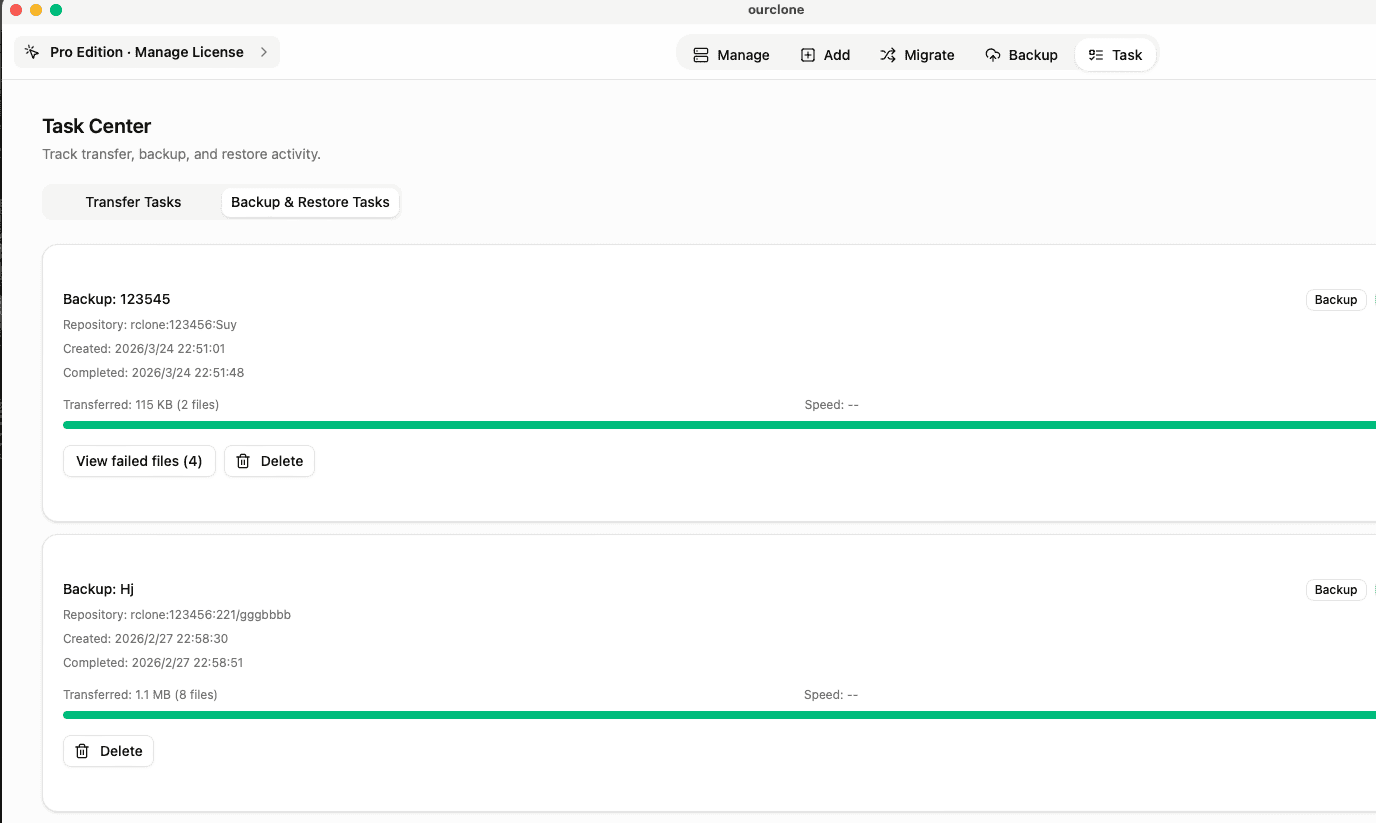
Task→Backup & Restoreto watch progress, speed, and skipped files as the snapshot runs. - 🔁 Restore Files -- To recover, open the repository, choose a snapshot, click
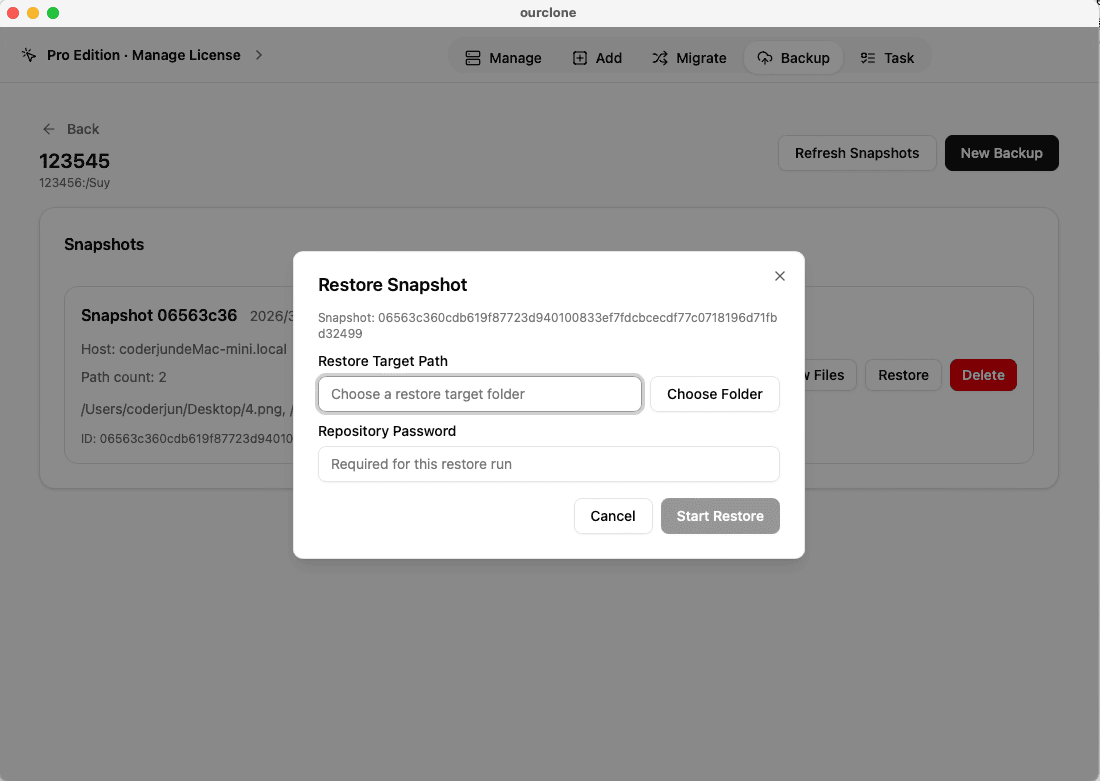
Restore, enter the repository password, and select a local destination.


Check the Result and Maintain Access
After the snapshot, take a moment to confirm the backup is genuinely usable.
- 📄 Check Task Status -- In
Task→Backup & Restore, a clean finish means the snapshot is stored. Errors and failed uploads are flagged. - 🧩 Review Skipped Files -- Locked or permission-restricted files appear in the logs, so you can fix them without redoing the run.
- 🔐 Encryption Verification -- Repository data is encrypted before upload, so Seafile stores only protected blocks tied to your backup.
Keep Credentials Current
Seafile backups quietly break when an account password changes or a self-hosted server moves to a new address. If a run fails, re-enter your login and confirm the server URL is still correct.
Try a Restore in Advance
Restore a small folder from a completed snapshot before you ever need it. It confirms your Seafile backups are recoverable and that you still hold the repository password required for every restore.