Why a Mac User Might Pick Scaleway for Backups
Scaleway Object Storage is a fit when you care about where the bytes physically live. Paris, Amsterdam, and Warsaw regions mean a backup can stay inside the EU end to end -- and OurClone treats Scaleway like any other S3 backend, so the workflow is no harder than a US hyperscaler.
- 🇪🇺 EU-Resident Object Storage -- Choose a Scaleway region (
fr-par,nl-ams,pl-waw) and the bucket stays there, which can matter for personal data, client work, or simple jurisdictional preference. - 🪣 Real S3 Behavior -- Scaleway speaks the S3 API faithfully, so OurClone connects with the standard access key, secret key, region, and endpoint -- no custom plumbing required.
- 🔐 Encryption Before Upload -- OurClone encrypts the repository on your Mac with a password you set, so every object that lands in your Scaleway bucket is already opaque.
- 💸 Predictable Backup Costs -- Scaleway publishes its object storage pricing publicly, which makes it easier to plan a multi-gigabyte Mac backup without surprise bills.
- 🍎 Mac-Native Workflow -- OurClone runs natively on macOS, so there is no rclone config to hand-edit and no terminal incantation between you and a working backup of
~/Documents,~/Pictures, or a project drive.
Why Incremental Snapshots Save Time on Scaleway
Even on a regional EU endpoint, transcontinental laptop uploads are not free. Pushing a full copy of a project tree to Scaleway every night is wasteful when most files have not changed since the last run.
OurClone runs the first snapshot in full, then sends only changed data on each later run. The Scaleway bucket grows roughly with the new content you actually produce, not with daily duplicates.
Smaller incremental snapshots also play nicely with regional endpoints -- shorter upload windows mean fewer late-night surprises if your home connection wobbles.
- 🚀 Cuts upload time on every run after the first snapshot
- 💾 Keeps the Scaleway bucket from filling up with redundant data
- 🔐 Each incremental snapshot still goes through the encrypted repository
- 📅 Lets you walk back through snapshots and restore an older version
Get the Scaleway Side Ready First
A few minutes inside the Scaleway console up front saves debugging later. Region, endpoint, and key scope are the three things to nail down.
- 🌍 Pick a Region and Endpoint That Match -- Choose your bucket region (
fr-par,nl-ams, orpl-waw) and use the matching endpoint such ass3.nl-ams.scw.cloud. A bucket in one region is not reachable through another region's endpoint. - 🔑 Create a Backup-Only API Key -- In
Identity and Access Management->API keys, generate a fresh key for backups. A backup-only key can be rotated without breaking other workloads. - 📁 Pick the Right Folders -- Focus on folders with real recovery value:
~/Documents,~/Pictures, code projects, and external drive directories. Skip caches and dependency folders such asnode_modules. - 📶 Plan the First Upload -- The first snapshot is always the big one. Run it overnight or while plugged in so the heavy upload finishes without competing with active work.
- 🧪 Start With a Small Test -- Run the first OurClone snapshot against a small folder to confirm the region, endpoint, keys, and restore flow before committing a multi-gigabyte archive.
Backing Up macOS Folders to Scaleway With OurClone
With keys, region, and endpoint in hand, the rest of the workflow is straightforward. Five steps cover everything from connecting Scaleway to restoring a file.
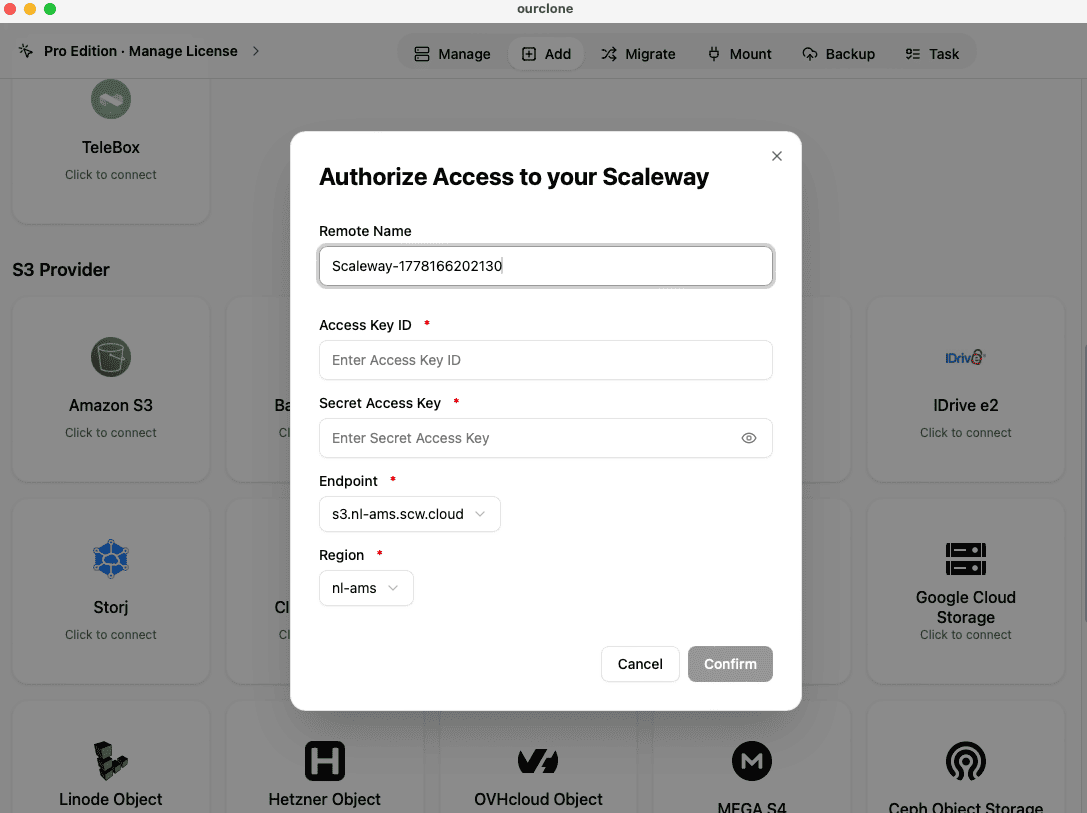
- 🔗 Add Scaleway in Add Storage -- In OurClone, open
Add Storageand select Scaleway. Give the connection a custom name like "Scaleway Paris -- Mac Backup", then paste the Access Key ID, Secret Access Key, region (for examplefr-par), and endpoint (for examples3.fr-par.scw.cloud). Save the connection. - 📦 Create a Backup Repository on Scaleway -- Open the
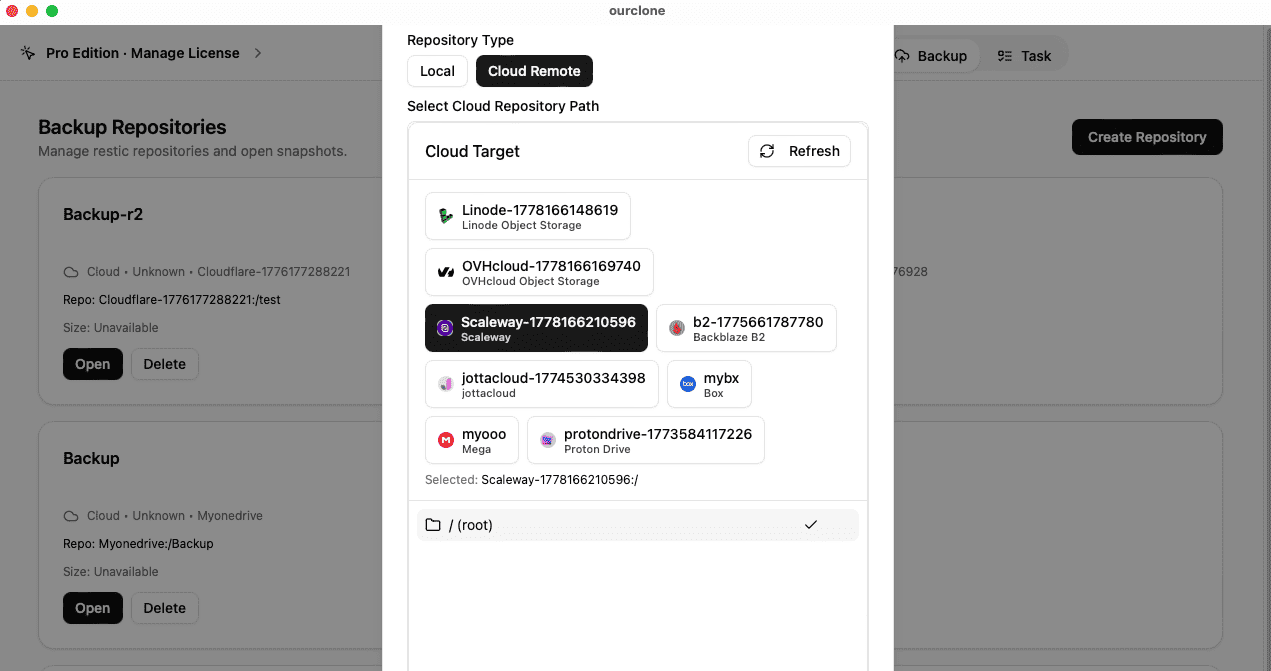
Backuptab and create a new repository. Choose your Scaleway connection as the destination, point it at a path inside your bucket (for examplebackups/mac-laptop), give the repository a clear name, and set a strong repository password. That password encrypts the repository and is required for snapshots and restores -- save it in a password manager. - 🗂️ Snapshot Local Folders -- Open the new repository and create a snapshot. Pick macOS folders such as
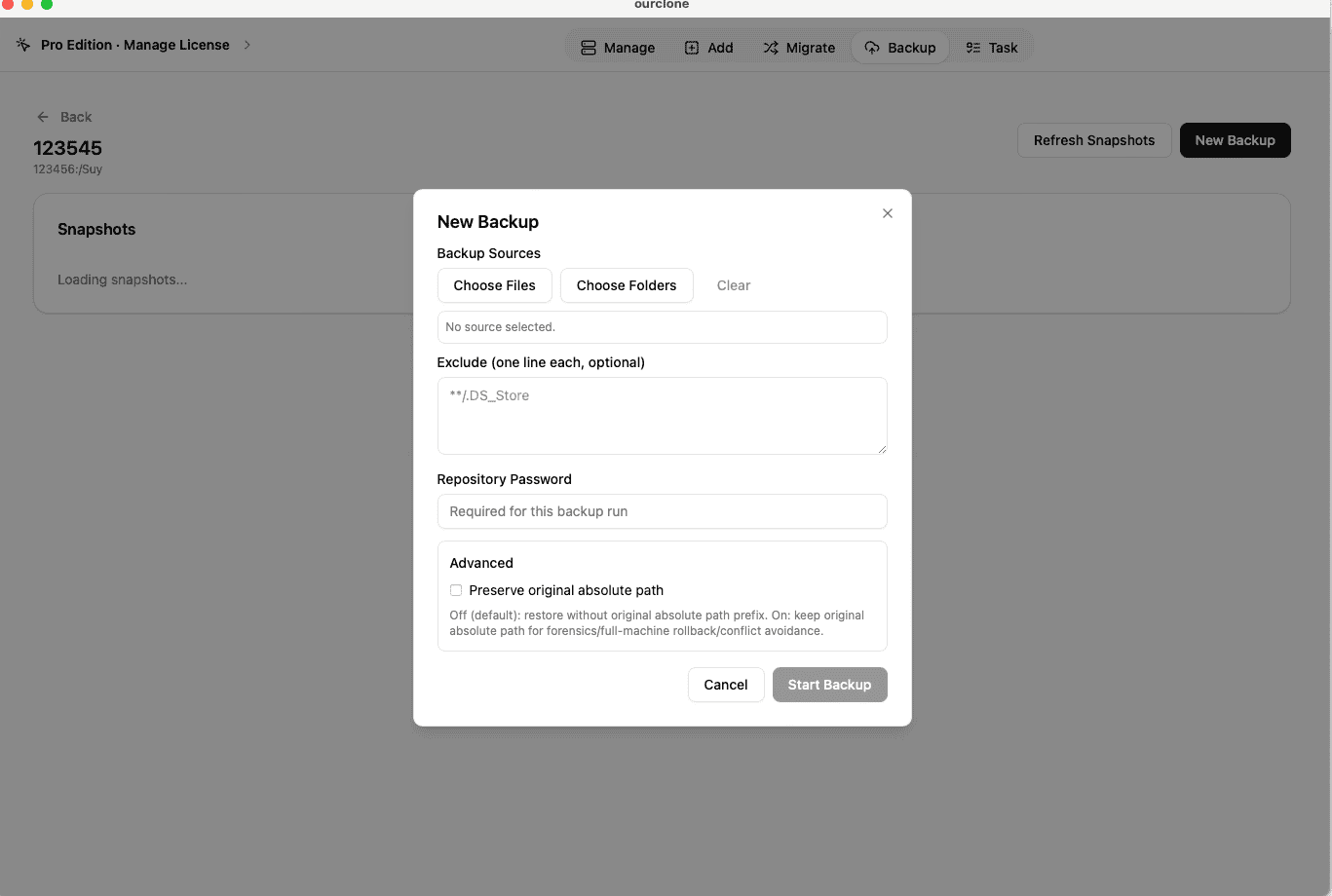
~/Documents, a project tree, or an external drive folder. OurClone packages, encrypts, and uploads the data into your Scaleway bucket. The first run is a full snapshot; later runs of the same folders are incremental. - 🕒 Watch It Run From Task -- Backup & Restore -- Open the
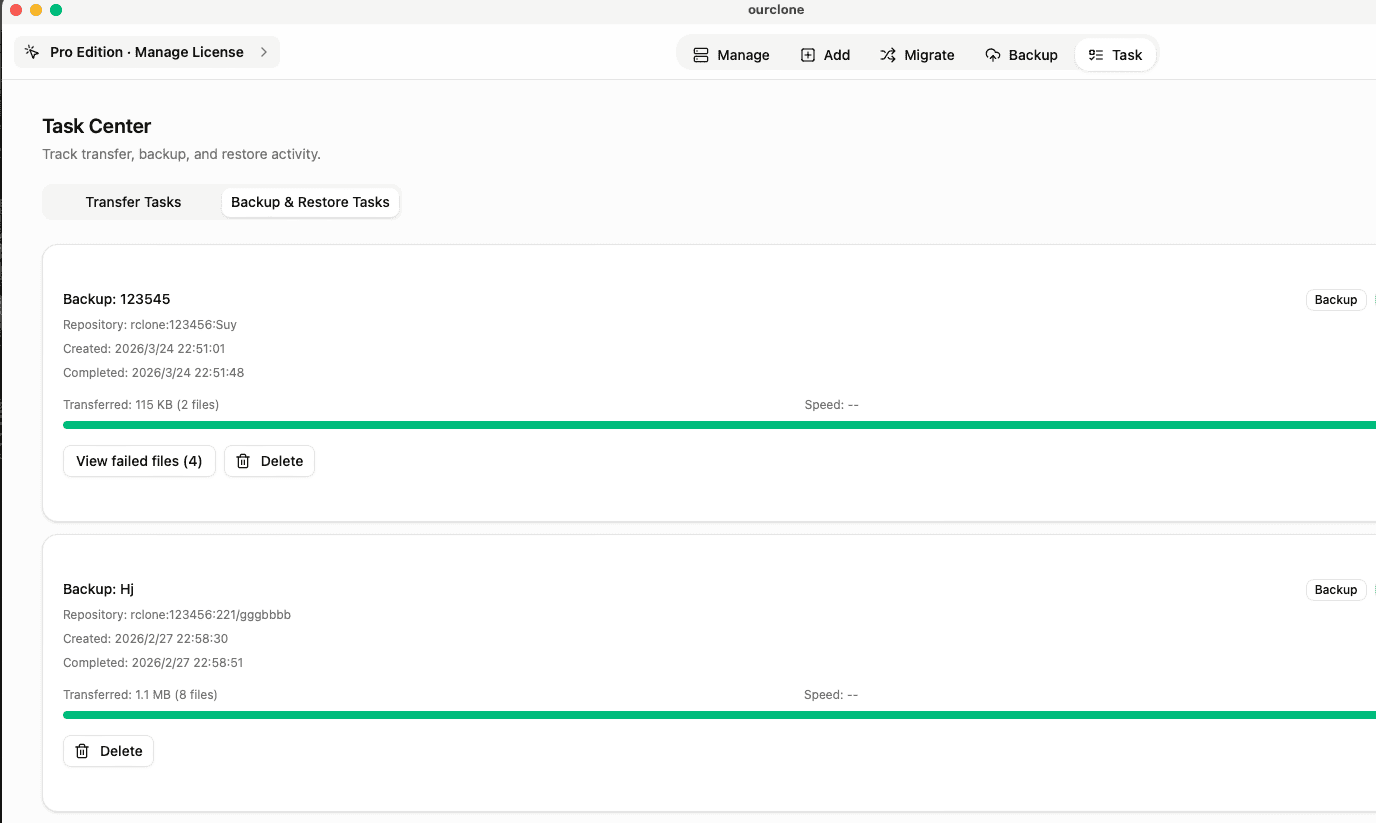
Tasktab and switch toBackup & Restore. The active Scaleway task shows progress, throughput, and any warnings. Chunked uploads keep the snapshot moving even if the connection wobbles mid-run. - 🔁 Restore From a Snapshot -- In the Scaleway repository, pick the snapshot with the files you need, click
Restore, enter the repository password, and choose a local destination. OurClone decrypts the data and writes the files back. You can restore one folder, a subset, or the whole snapshot.
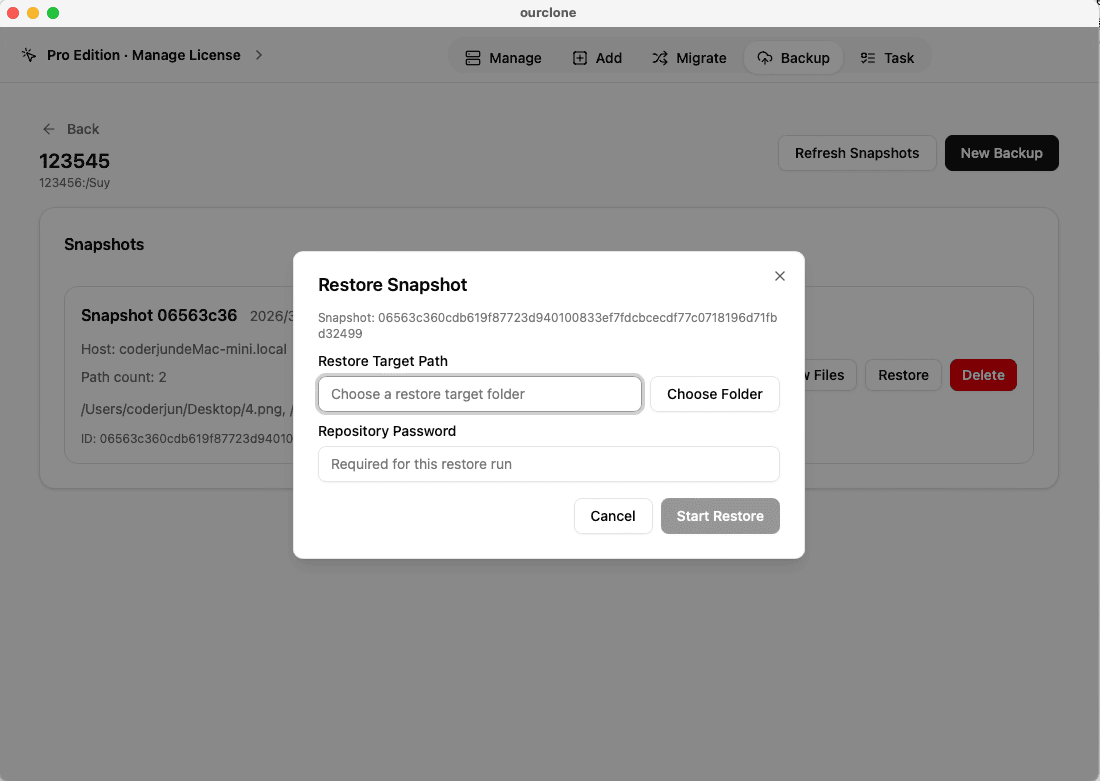
Because OurClone speaks plain S3, the workflow keeps working even if you later move data to a different Scaleway region -- update the region and endpoint and the same repository pattern applies.
Confirm Your Scaleway Backup and Keep It Healthy
An EU-region backup is only useful if it actually runs and actually restores. A short check-in routine catches problems before they bite.
- 📄 Check Task Status After Each Run -- In
Task->Backup & Restore, confirm the latest Scaleway task finished cleanly. Repeated failures usually point at the region, endpoint, or API key. - 🧩 Read Skipped File Notes -- macOS occasionally blocks OurClone from reading certain files. The task log lists which files were skipped so you can fix permissions or move the file and re-run.
- 📜 Inspect the Detailed Log -- Open a finished Scaleway task to see what was new, what was unchanged, and how much data the incremental run actually uploaded. That highlights folders that are growing faster than expected.
- 🔐 Treat the Repository Password as Critical -- The Scaleway bucket only stores encrypted repository data. Without the repository password, even a teammate with full Scaleway access cannot restore.
Rotate API Keys and Recheck Region Settings
Scaleway API keys can be rotated, deleted, or scoped down at any time, and the project that owns the bucket can have its IAM rules tightened. If a backup suddenly fails, regenerate a backup-only API key, paste it into OurClone, and confirm the region and endpoint still match the bucket.
Run a Restore Drill Before You Need One
Pick a small folder from a recent Scaleway snapshot and restore it into a throwaway directory on your Mac. That dry-run confirms the keys, region, endpoint, repository password, and OurClone restore flow are all still working together.