Why Backing Up macOS Folders to OneDrive Makes Sense
Cloud-based backups offer peace of mind in case of hardware failure, accidental deletion, or unexpected system issues. OneDrive, Microsoft's cloud storage platform, is a practical solution for macOS users who want their important files automatically backed up and accessible from anywhere.
- 🔐 Secure by Design – Files are encrypted both in transit and at rest, aligning with modern data protection standards.
- 📦 Flexible Storage Plans – OneDrive provides 5 GB free, with scalable paid options suitable for professionals and businesses.
- 💻 Native macOS Integration – The desktop app integrates with Finder, supporting drag-and-drop and preview functionality.
- 🔄 Selective Folder Sync – Users can choose which folders to include in the sync, minimizing storage overhead on local drives.
- 🌍 Universal Access – Files are accessible via desktop, mobile apps, and any modern browser across platforms.
How to Configure OneDrive on macOS for Folder Backup
Setting up OneDrive on a Mac takes only a few minutes and ensures automatic syncing of selected folders. The process is simple and doesn't require technical expertise.
- Download OneDrive from the Mac App Store.
- Launch the app and sign in using a Microsoft account.
- Choose a destination for the OneDrive folder (default:
~/OneDrive). - Select folders to sync during initial setup, or adjust them later in Preferences > Account > Choose Folders.
- Enable Desktop, Documents, and Pictures folder backup under Preferences > Backup > Manage Backup.
These folders will be automatically redirected to OneDrive, keeping local shortcuts in place for convenience.
Syncing Additional macOS Folders with Symbolic Links
OneDrive only syncs folders inside its designated directory. To include additional folders (e.g., ~/Projects), symbolic links can be used.
Use the following command in Terminal:
ln -s /Users/YourName/Projects /Users/YourName/OneDrive/ProjectsThis creates a virtual link inside OneDrive that points to the external folder. As long as the contents are not managed by another sync client, OneDrive will treat them like any other internal folder and upload them normally.
Caution should be taken with symbolic links, as they can occasionally cause sync conflicts if not used correctly.
Additional Tips for Reliable OneDrive Backups
- 📶 Ensure Stable Internet – A reliable upload connection is crucial for the first full sync and any large updates.
- 🔐 Enable Two-Factor Authentication – Protect access to the OneDrive account with strong security settings.
- 🧪 Perform Recovery Tests – Try restoring files through the OneDrive web interface to validate backup integrity.
- ⏱️ Schedule Backups if Using External Tools – Apps like Duplicati and Arq offer scheduled, encrypted OneDrive backups.
- 🧹 Avoid Syncing System or App Files – Stick to user data folders; syncing Library or Application folders is not recommended.
For users handling large datasets or needing encryption beyond OneDrive’s native capabilities, third-party tools can extend backup functionality while still using OneDrive as the storage backend.
How to Back Up macOS Folders to OneDrive Using OurClone
OurClone offers a streamlined solution to back up macOS folders to OneDrive. The setup process uses secure OAuth 2.0 authorization, allowing users to link OneDrive accounts directly through their browser. No technical background is required — once authorized, backups can run automatically and securely.
-
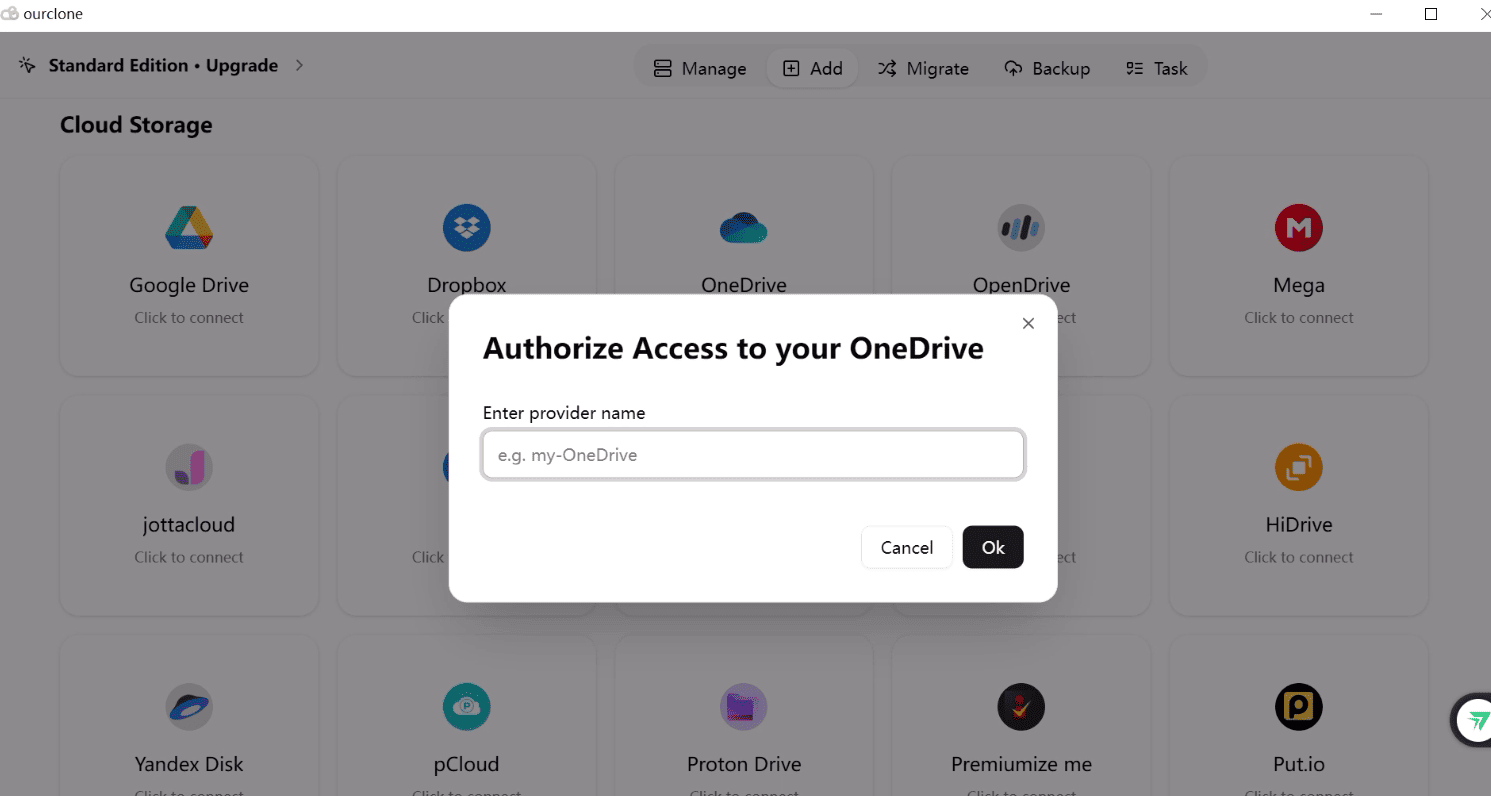
🔐 Authorize OneDrive via Browser – Begin by adding OneDrive as a cloud destination in OurClone.
Unlike MEGA, OneDrive uses OAuth 2.0 authorization. Click
Add Storage, select OneDrive, and a browser window will open automatically. After logging in and granting permissions, return to OurClone — OneDrive will now appear in the storage list, ready to use. -
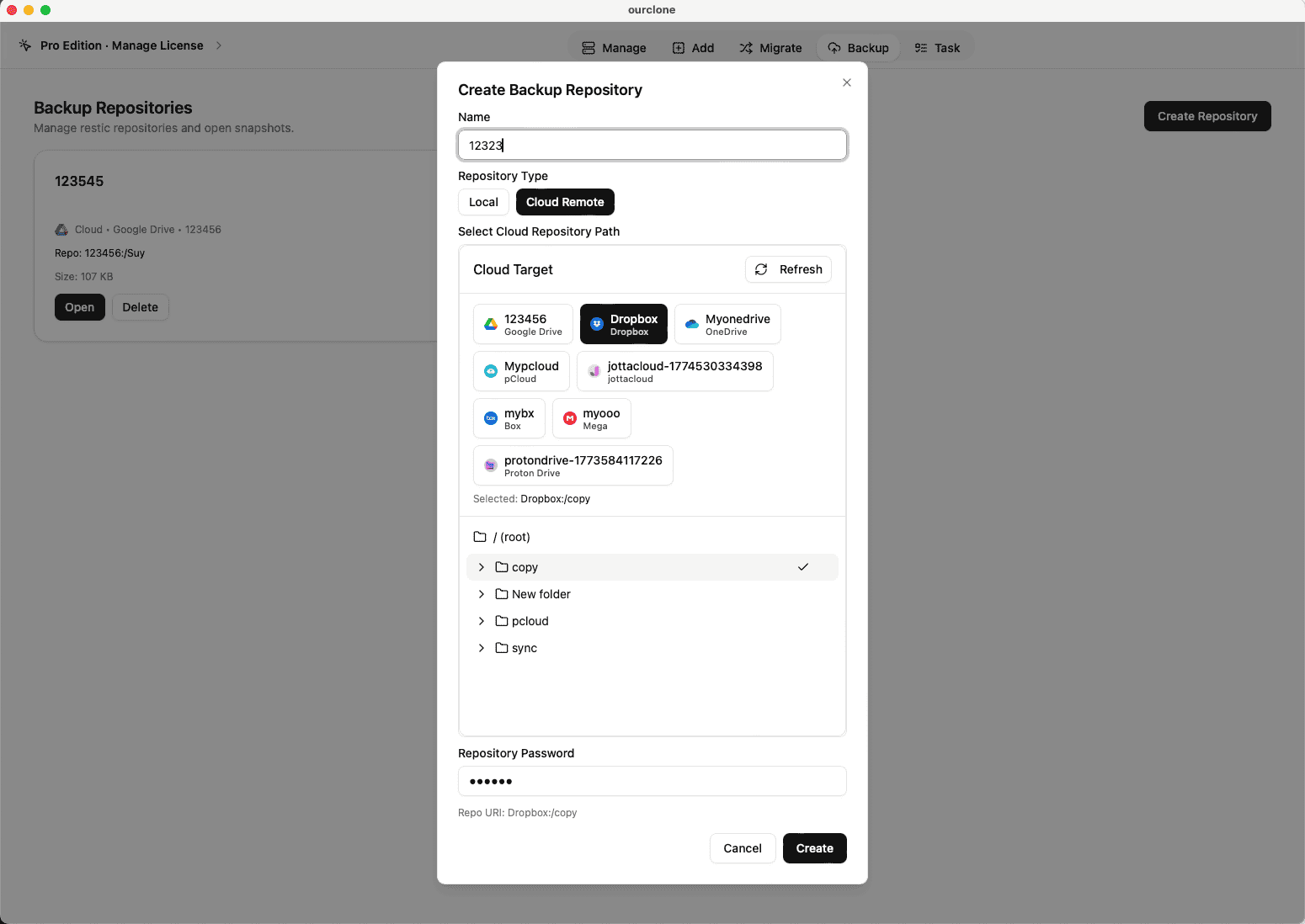
🗄️ Create a Backup Repository – Navigate to the
Backupsection and clickCreate Repository. Select a target path on OneDrive (e.g.,/mac-backups). Set a repository name and a strong encryption password. This password will be required for future restore operations — store it in a secure location. -
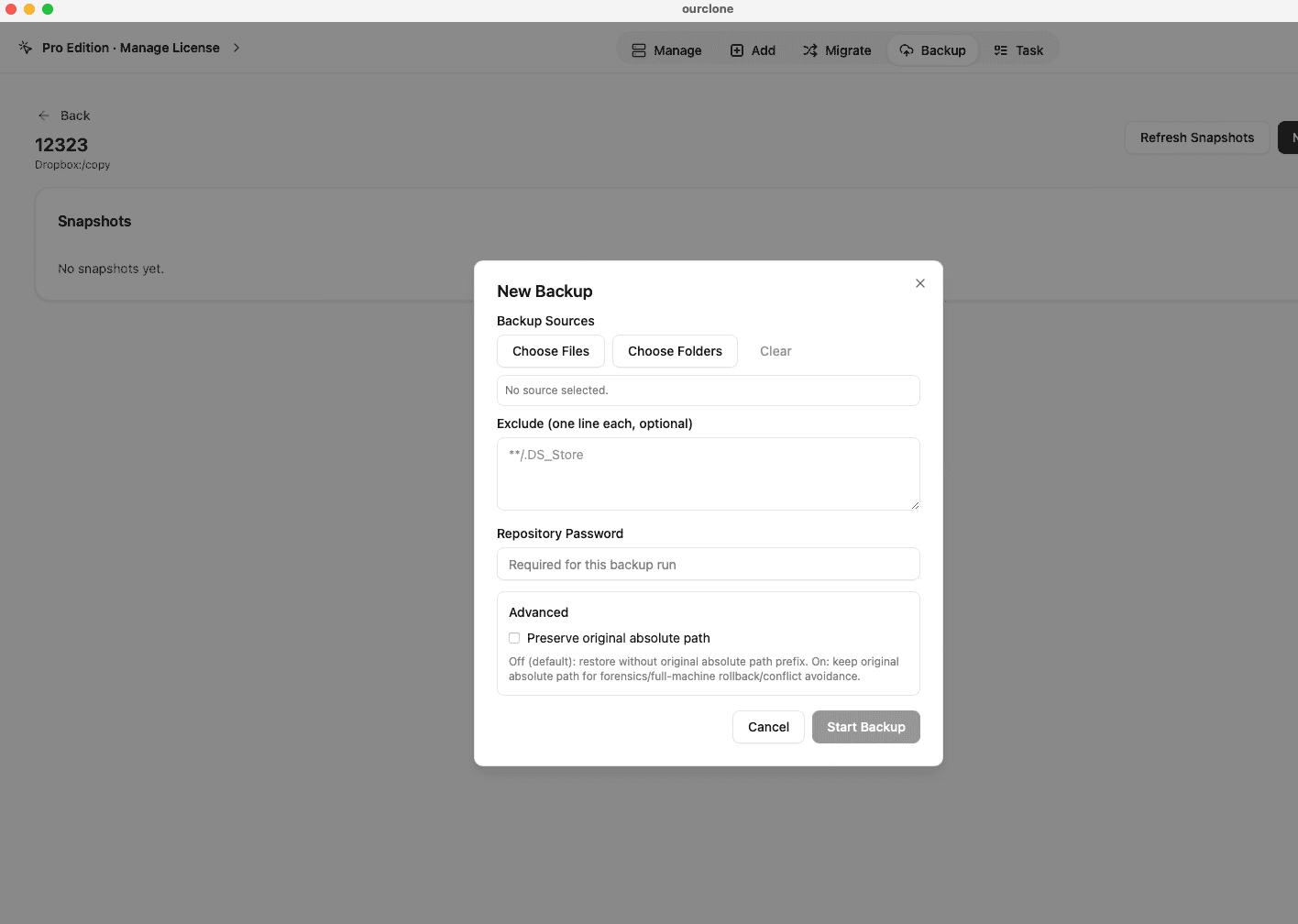
📁 Select Folders to Back Up – After creating the repository, click
New Backup. Pick folders on your Mac to include in the backup, such as~/Desktop,~/Projects, or any other custom directory. Once selected, clickBackupto start the process. -
📊 Track Backup Progress – Open the
Taskpanel to monitor your backup. Progress bars show real-time status, and detailed logs are available for review. OurClone uploads encrypted data blocks, optimizing speed and supporting pause/resume even for large backups. -
🔄 Restore Data on Demand – To recover files, open the repository and select any backup version.
Click
Restore, enter the original encryption password, and choose a destination folder. The files will be decrypted and restored to their original structure.
OurClone ensures each backup to OneDrive is encrypted, resumable, and efficient. Its OAuth 2.0 integration with Microsoft guarantees secure account access, while the app handles backup automation and error recovery — even in low-connectivity environments.
How to Confirm Your Backup in OurClone
After setting up a backup to OneDrive using OurClone, it's important to verify that the process completed successfully. OurClone provides clear indicators for task status, file-level results, and encrypted repository integrity — no need to sift through complex terminal logs.
-
📄 Review Task Completion Status – Go to the
Taskpanel and check underBackup Task. A completed task will display a green success status. If any file failed during upload or if there were permission-related issues, they’ll be listed with warnings or error tags. - 🧩 Identify Skipped or Problematic Files – Files that could not be uploaded (due to access denial, file locks, or unusual characters in paths) are flagged for review. This allows for quick correction and partial re-upload without restarting the entire job.
- 📜 Check the Full Backup Log – Each backup run generates a detailed log. This includes timestamps, file sizes, upload durations, and whether each file was newly added, modified, or skipped. Logs are helpful for verifying that critical files were actually backed up.
- 🔐 Validate Encrypted Data Integrity – OneDrive stores encrypted blocks created by OurClone. Each block is associated with a repository-specific key, ensuring that no file can be restored without the correct password and context. This guarantees both privacy and verifiability of backup integrity.
Keep an Eye on Scheduled Tasks
Automatic backups are convenient — until something breaks silently. It’s recommended to open OurClone occasionally and verify that scheduled OneDrive jobs are still running as expected. Token expiry, changes in folder names, or revoked app permissions from the Microsoft account can disrupt future uploads without warning.
Perform a Controlled Restore Test
Regularly performing a test restore helps ensure that backups are not only stored, but recoverable. Select a small, non-essential folder from the OneDrive repository, run a restore operation, and verify that the files are intact. This also confirms that the decryption password is still valid and known — a critical detail in any real recovery scenario.