Why Compliance-Minded Teams Pick IBM COS for Mac Backups
IBM Cloud Object Storage is built around the kind of properties that matter when a backup is not just a personal safety net but a control someone might one day audit: regional, dual-region, and cross-region buckets, configurable resiliency, lifecycle policies, and tight credential management. OurClone makes all of that usable from a Mac with a clean snapshot workflow.
- 🌍 Regional and Cross-Region Buckets -- Put the backup bucket where the data has to live. A regional bucket gives you locality; a cross-region bucket gives you geographic redundancy without a second backup target.
- 📋 Retention and Lifecycle on the Bucket -- Lifecycle rules and retention policies live on the IBM COS bucket itself, so they keep working regardless of which client is writing into the prefix OurClone owns.
- 🔐 HMAC Credentials, Scoped Per Use -- IBM COS issues HMAC credentials tied to specific Service Credentials, which makes it straightforward to give the backup machine its own access path without exposing your IBM Cloud account.
- 🛡️ Two Layers of Encryption -- IBM COS handles its own encryption at rest, and OurClone encrypts the repository on your Mac before any bytes leave. Even an admin browsing the bucket only sees opaque encrypted objects.
- 🍎 Mac-Native Workflow -- OurClone runs natively on macOS and treats IBM COS as a plain S3 backend, so you can protect
~/Documents, project folders, or external drives without standing up extra tooling.
Why Incremental Snapshots Pay Off on IBM COS
Hyperscale storage is durable, but every gigabyte you upload is still bandwidth, storage, and -- depending on the bucket class -- request cost. Pushing a full copy of a project tree to IBM Cloud Object Storage every night is wasteful when most of the files have not changed.
OurClone runs the first snapshot in full and then sends only changed data on each later run. The IBM COS bucket grows roughly with the new content you actually produce, not with daily duplicates.
Smaller incremental snapshots also work well with IBM COS storage classes -- you can let lifecycle rules age old snapshots into colder tiers without your active backup window ever having to touch them.
- 🚀 Cuts upload time on every run after the first snapshot
- 💾 Keeps the COS bucket from filling up with redundant copies
- 🔐 Each incremental snapshot still goes through the encrypted repository
- 📅 Lets you restore a folder as it looked at a specific previous run
Get the IBM COS Side Ready Before You Back Up
Most "first backup failed" reports against IBM COS come down to credential type or endpoint mismatch. A few minutes inside IBM Cloud up front saves you that headache.
- 🔑 Use HMAC Credentials, Not a Plain API Key -- OurClone needs an Access Key ID and Secret Access Key. Create a Service Credential on your COS instance with the "Include HMAC Credential" option enabled -- a regular IBM Cloud API key cannot be pasted into S3 fields.
- 🪣 Pick the Right Endpoint for the Bucket Region -- IBM COS publishes Public and Private endpoints for each region. Use the Public endpoint when backing up from a Mac on the open internet; use the Private endpoint only if your Mac connects through IBM Cloud networking. The endpoint is optional in OurClone but strongly recommended -- pinning it avoids ambiguity.
- 🧑🔧 Scope the Service Credential Tightly -- Limit the credential to just the COS instance and bucket the backup needs. Least-privilege credentials are much safer to leave on a laptop than a credential that can rewrite your entire account.
- 📁 Pick the Right Folders -- Focus on folders with real recovery value:
~/Documents,~/Pictures, project trees, and external drives that hold material not stored anywhere else. Skip caches and temporary build outputs. - 🧪 Start With a Small Test Folder -- Run the first OurClone snapshot against a small folder so you can confirm the HMAC credentials, the endpoint, the bucket path, and the restore flow before committing a multi-gigabyte archive to IBM COS.
Backing Up macOS Folders to IBM Cloud Object Storage With OurClone
With HMAC credentials and the right endpoint ready, the rest happens entirely inside OurClone. Five steps cover the whole flow from connecting IBM COS to restoring a file.
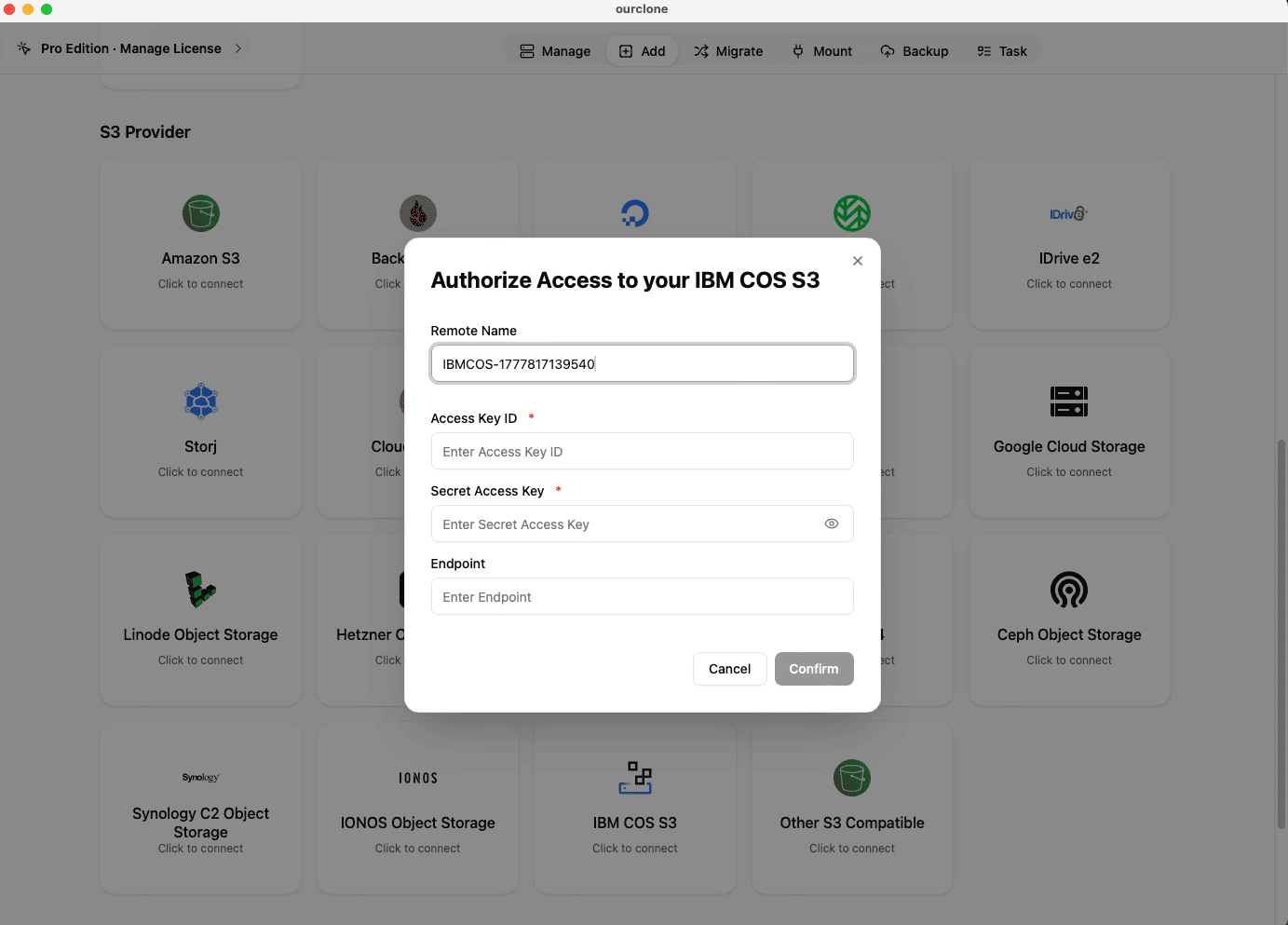
- 🔗 Add IBM COS in Add Storage -- In OurClone, open
Add Storageand select IBM COS S3. Give the connection a custom name like "IBM COS -- Mac Backup", then paste the HMAC Access Key ID and Secret Access Key from your Service Credential. Add the COS endpoint that matches the bucket region (for example a Public endpoint for the region you chose). Save the connection. - 📦 Create a Backup Repository in Your COS Bucket -- Open the
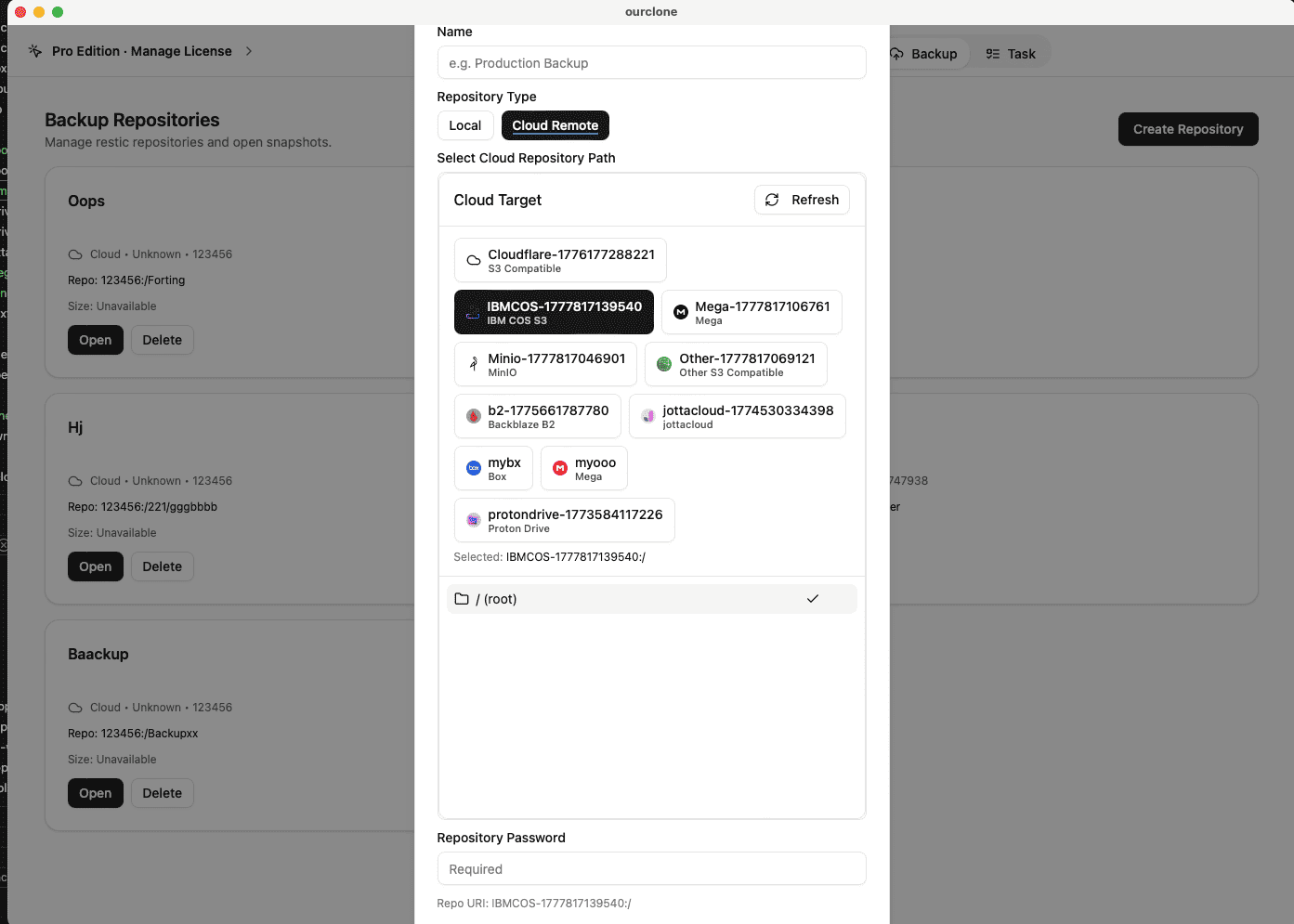
Backuptab and create a new repository. Choose your IBM COS connection as the destination, point it at a path inside the bucket (for examplemac-backup/laptop), give the repository a clear name, and set a strong repository password. That password encrypts the entire repository and is required for snapshots and restores -- save it in a password manager, not just in your head. - 🗂️ Snapshot the Folders That Matter -- Open the new repository and create a snapshot. Pick macOS folders such as
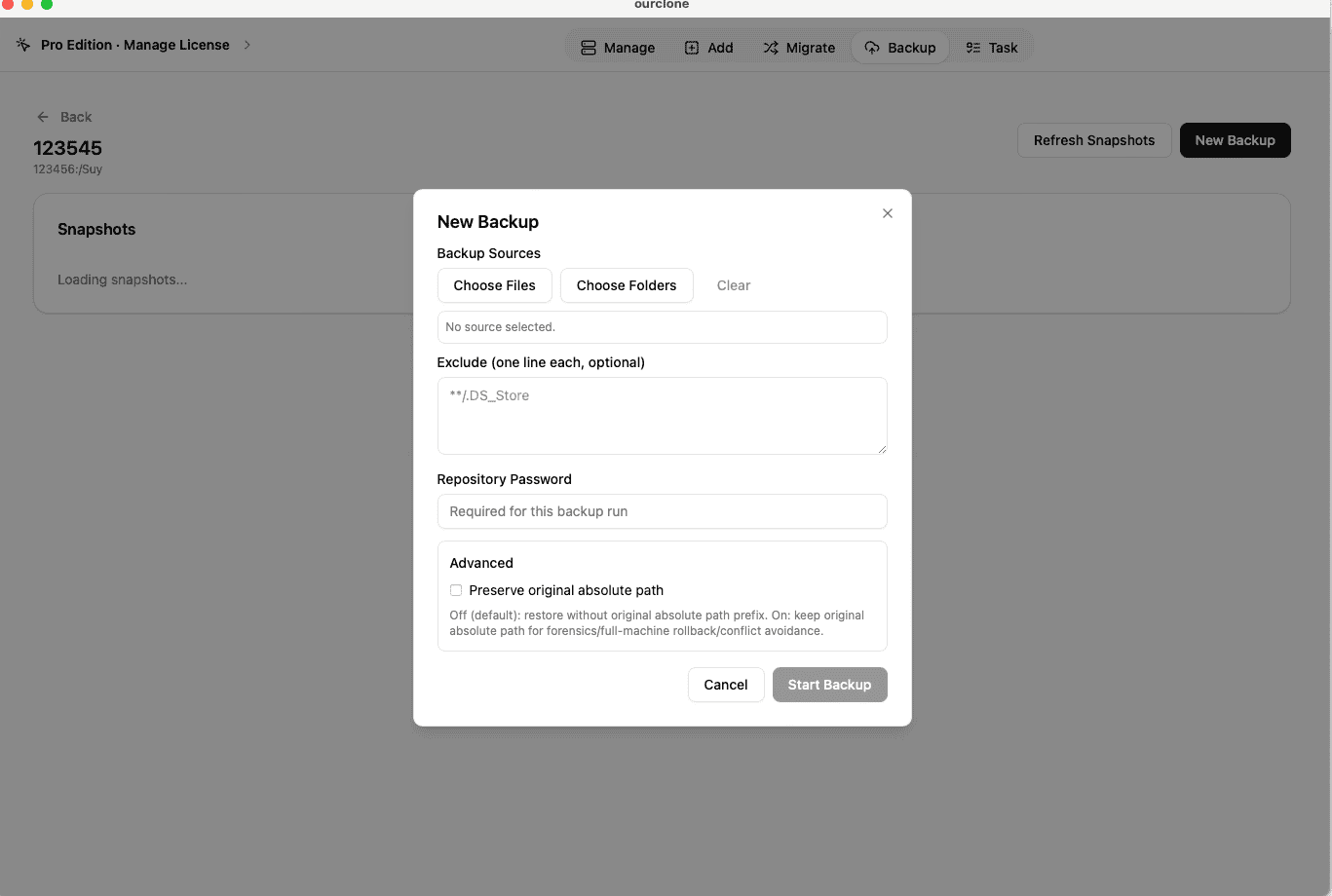
~/Documents, a working project directory, or a folder on an external drive. OurClone packages, encrypts, and uploads the data into your IBM COS bucket. The first run is a full snapshot; later runs of the same folders are incremental. - 🕒 Watch It Run From Task -- Backup & Restore -- Open the
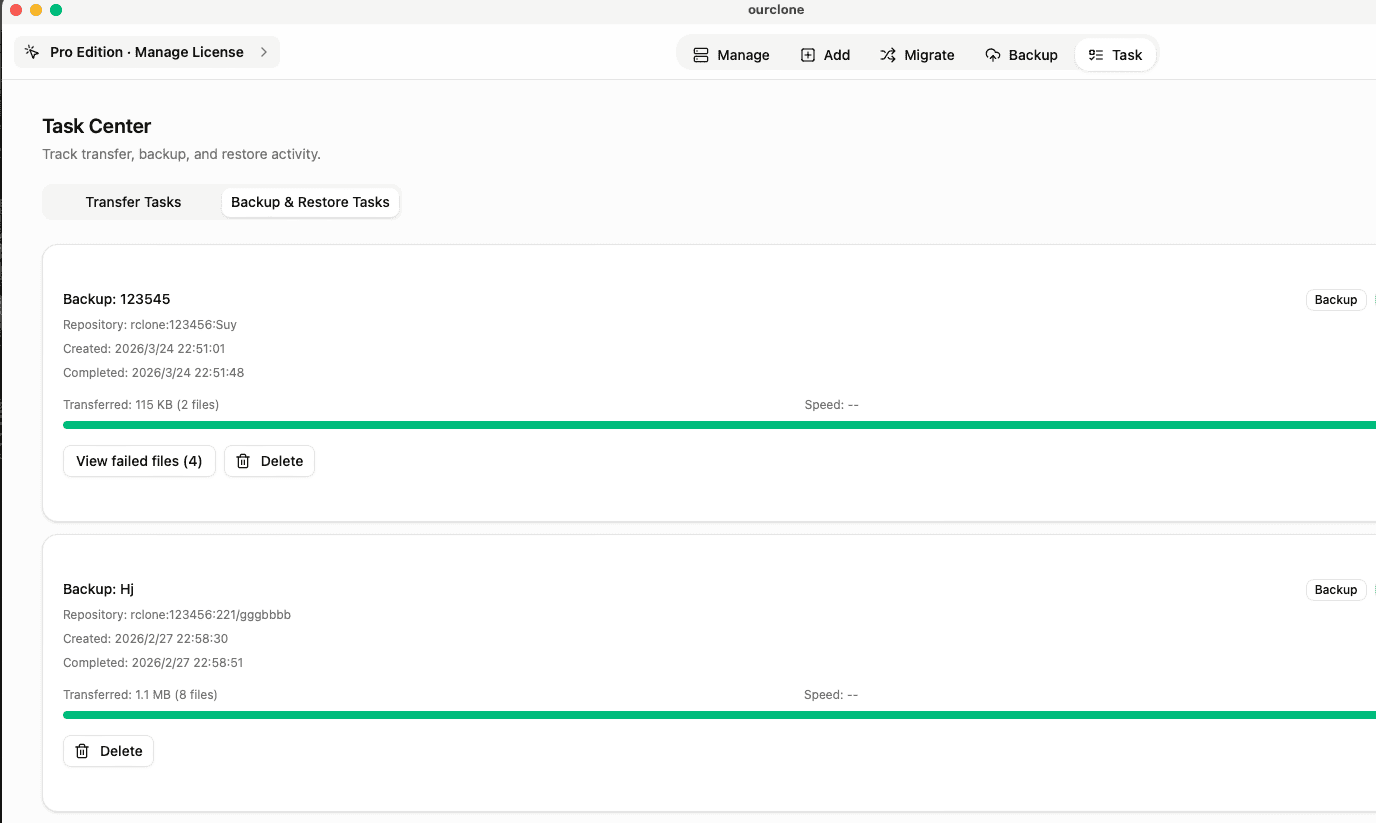
Tasktab and switch toBackup & Restore. The active IBM COS task shows progress, throughput, and any warnings. Chunked uploads mean a brief network hiccup will not force the snapshot to start over. - 🔁 Restore From a Snapshot -- In the IBM COS repository, open the snapshot you want, click
Restore, enter the repository password, and choose a local destination on your Mac. OurClone decrypts the data and writes the files back. You can restore one folder, a subset, or the whole snapshot.
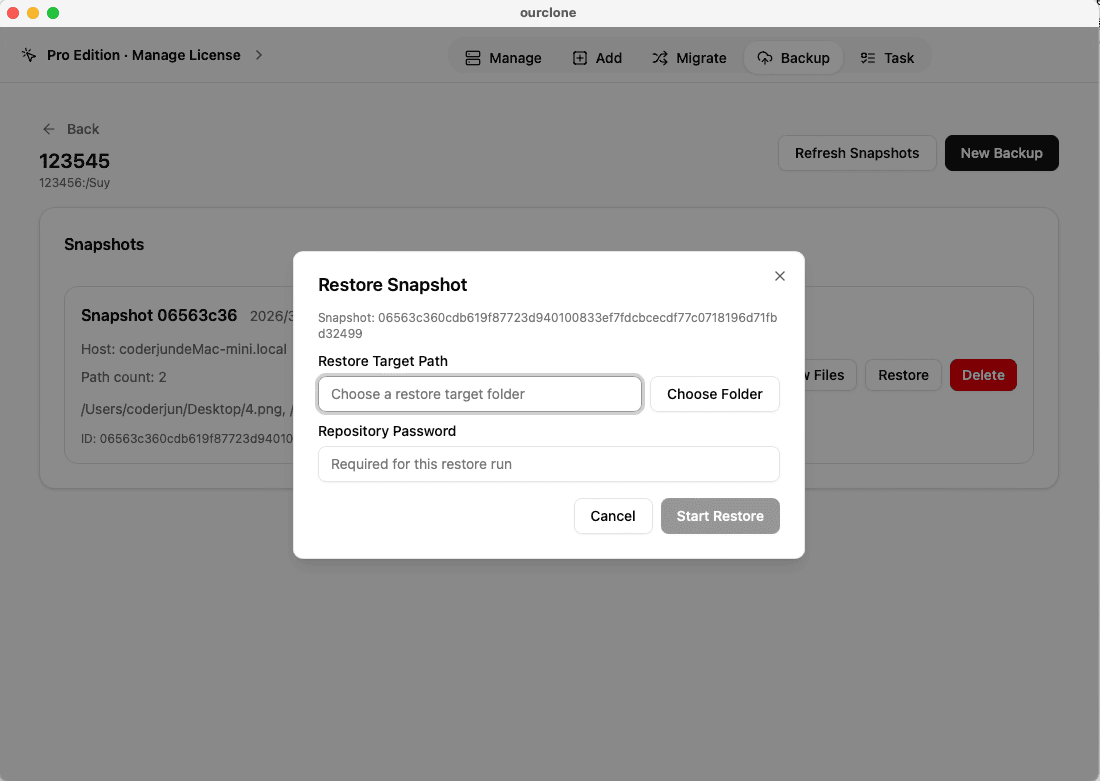
Because OurClone treats IBM COS as an S3-compatible target with chunked uploads, even a folder full of large compliance archives finishes cleanly without restarting from zero on a brief connection drop.
Confirm Your IBM COS Backup and Keep It Audit-Ready
A backup destined for compliance and recovery only earns its keep if it is regularly verified. A short, repeatable check-in routine keeps your IBM COS backup trustworthy.
- 📄 Check Task Status After Each Run -- In
Task->Backup & Restore, confirm the latest IBM COS task finished cleanly. A clean completion is the first signal the snapshot landed properly in the bucket. - 🧩 Read Skipped Files and Permission Warnings -- macOS sometimes blocks OurClone from reading specific files. The task log lists exactly which files were skipped, so you can grant Full Disk Access or move the file out of a protected location and re-run.
- 📜 Inspect the Detailed Log -- Open a finished IBM COS task to see what was new, what was unchanged, and how much data the incremental run actually uploaded. That makes it easy to spot a folder that has unexpectedly grown.
- 🔐 Treat the Repository Password as Critical -- The IBM COS bucket only stores encrypted repository data. Without the repository password, even an account owner with full IAM access cannot restore. Store it in a password manager.
Rotate HMAC Credentials and Recheck Endpoints
Service Credentials can be rotated, deleted, or scoped down at any time, and IBM COS occasionally adjusts endpoint hostnames as new regions come online. If a backup task suddenly fails, the cause is often a credential that was deleted or an endpoint that needs updating. Generate a fresh HMAC credential, paste the new keys into OurClone, and confirm the endpoint still matches the bucket region.
Run a Restore Drill Before You Need One
Pick a small folder from a recent IBM COS snapshot and restore it into a throwaway directory on your Mac. That single dry-run confirms the HMAC credentials, the endpoint, the bucket path, the repository password, and the OurClone restore flow are all still working together -- which is the only honest way to know your backup is actually recoverable when you need it.