Why Mac Backups Land Well on Hetzner Object Storage
Hetzner Object Storage appeals to the same crowd that has been quietly running Hetzner servers for years -- people who want European hosting at a price they can defend on a spreadsheet. As a Mac backup target it adds bucket-style storage to that mix, with OurClone handling the encryption and snapshot side of the workflow.
- 🇪🇺 European Object Storage -- Hetzner's regions sit in Europe, which keeps personal data and project archives close to home for EU-based Mac users.
- 💸 Cost-Conscious by Design -- Hetzner's pricing is published on its product page, which makes it easy to size a multi-gigabyte Mac backup without surprises. Predictability matters more than headline rates when you are picking a multi-year backup home.
- 🪣 Plain S3 Behavior -- Object Storage on Hetzner speaks the S3 API, so OurClone treats it as a standard backup target -- access key, secret, optional endpoint, bucket path.
- 🔐 Encryption Before Upload -- OurClone encrypts the repository on your Mac with a password you set, so every object that lands on Hetzner is already opaque to anyone browsing the bucket.
- 🍎 Mac-Native Workflow -- No CLI tooling required. OurClone runs on macOS and treats Hetzner as a plain bucket destination for
~/Documents,~/Pictures, or external drive folders.
Why Incremental Snapshots Are a Cost Lever on Hetzner
Hetzner is friendly on price, but a Mac that re-uploads the same project tree every night still wastes both bandwidth and stored gigabytes. The cheaper the per-GB rate, the easier it is to let waste accumulate without noticing -- which is exactly the opposite of why you picked a cost-friendly provider in the first place.
OurClone runs the first snapshot in full, then sends only changed data on each later run. The Hetzner bucket grows roughly with the new content you actually create, not with daily duplicates of files that have not moved.
For a regional Hetzner bucket, smaller incremental snapshots also keep upload windows short, which makes nightly backups much friendlier to a shared connection.
- 🚀 Cuts upload time on every run after the first snapshot
- 💾 Keeps Hetzner usage proportional to actual changes
- 🔐 Each incremental snapshot still goes through the encrypted repository
- 📅 Lets you walk back through snapshots and restore an older version
Get the Hetzner Side Ready Before You Back Up
A short pass through the Hetzner Console before you open OurClone keeps the first backup uneventful.
- 🌍 Note the Bucket Region and Endpoint -- In the Hetzner Console, find the bucket details and note the region and endpoint. The endpoint is optional in OurClone, but if you have buckets in different regions it is worth pinning explicitly.
- 🔑 Create a Backup-Only Access Key -- Generate a fresh Object Storage access key for backup use. A backup-only key is much easier to rotate than a key shared with multiple workloads.
- 📁 Pick the Right Folders -- Focus on folders that would actually hurt to lose:
~/Documents,~/Pictures, code projects, and external drive folders. Skip caches and temporary files. - 📶 Plan the First Upload -- The first snapshot is always the heavy one. A full
~/Documentscan be tens of gigabytes, so run the first upload overnight or while plugged in. - 🧪 Start Small -- Run the first OurClone snapshot against a small folder to confirm the Hetzner key, the endpoint, and the restore flow before committing a multi-gigabyte archive.
Backing Up macOS Folders to Hetzner Object Storage
With keys and an endpoint in hand, the rest of the workflow happens entirely inside OurClone. Five steps cover the whole flow.
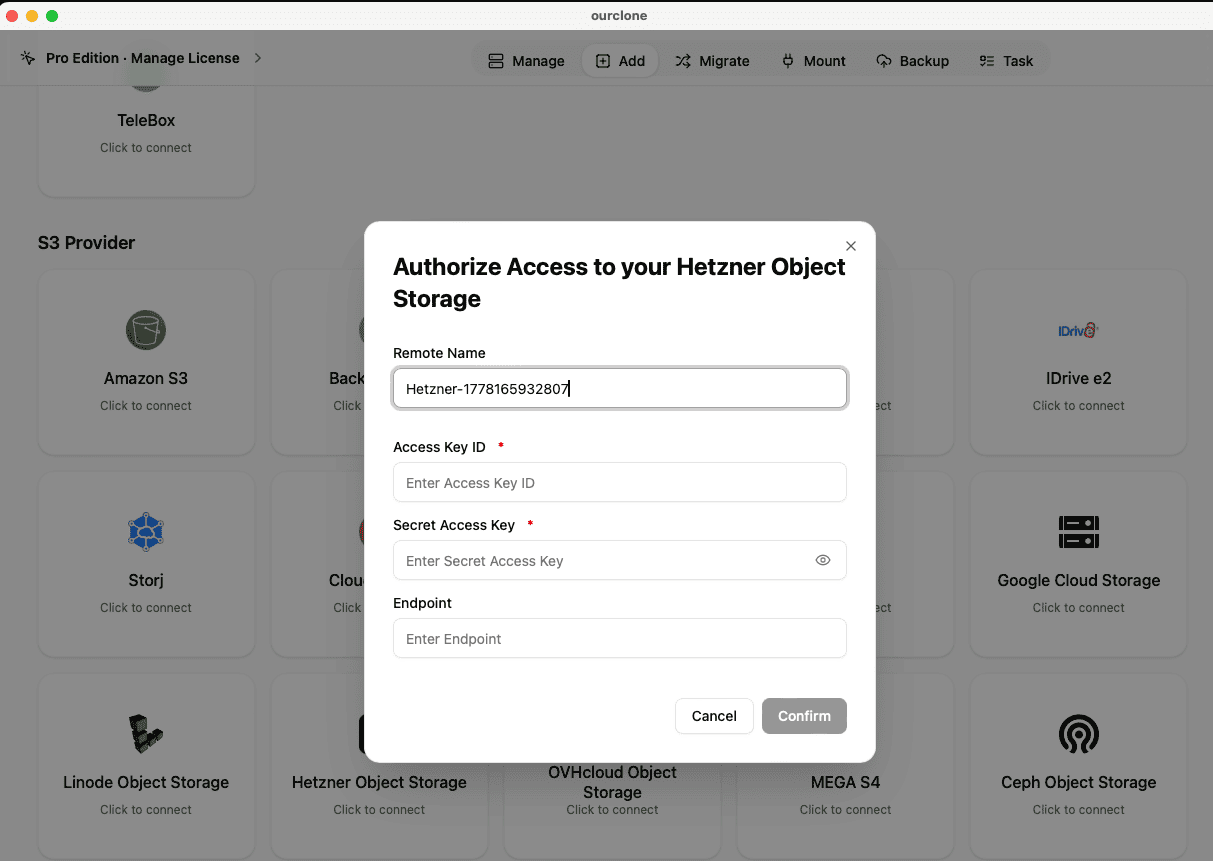
- 🔗 Add Hetzner Object Storage in Add Storage -- In OurClone, open
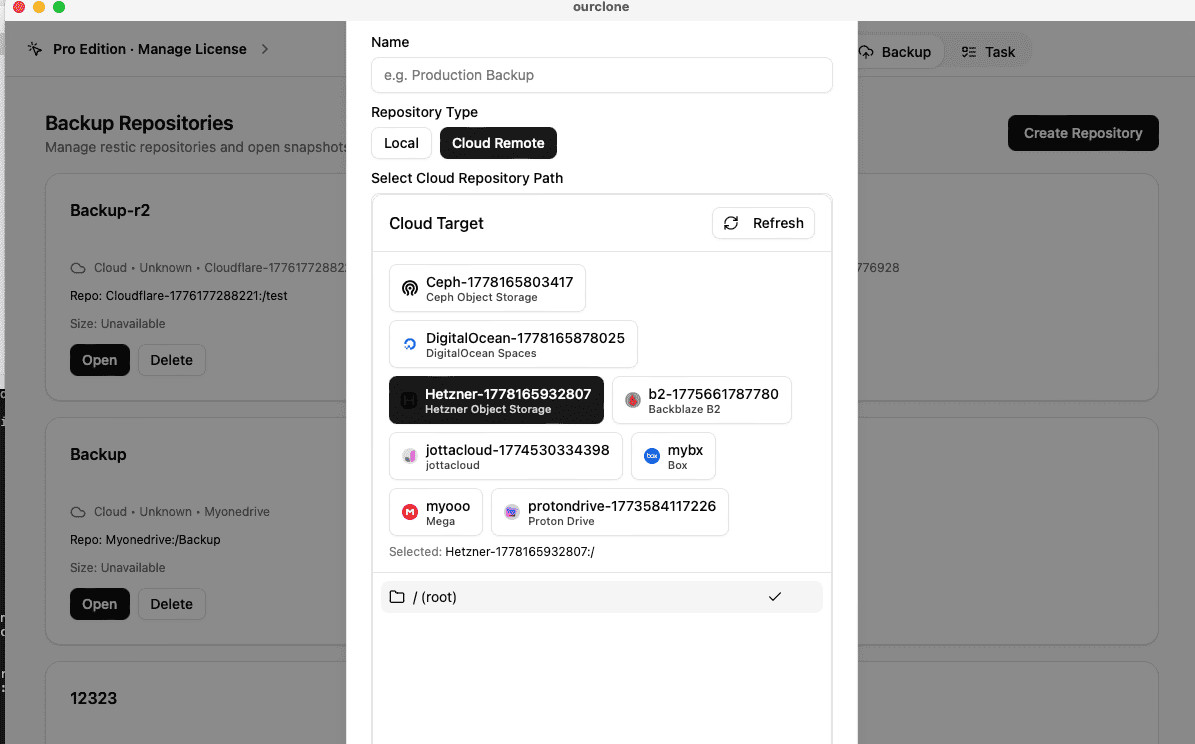
Add Storageand pick Hetzner Object Storage. Give the connection a custom name like "Hetzner Backup", then paste your Access Key ID and Secret Access Key. If you want to pin requests to a specific region, add the endpoint from the bucket details. Save the connection. - 📦 Create a Backup Repository in Your Hetzner Bucket -- Open the
Backuptab and create a new repository. Choose your Hetzner connection as the destination, point it at a path inside your bucket (for examplebackups/mac-laptop), give the repository a clear name, and set a strong repository password. That password encrypts the repository and is required for snapshots and restores -- save it in a password manager. - 🗂️ Snapshot Local Folders -- Open the new repository and create a snapshot. Pick macOS folders such as
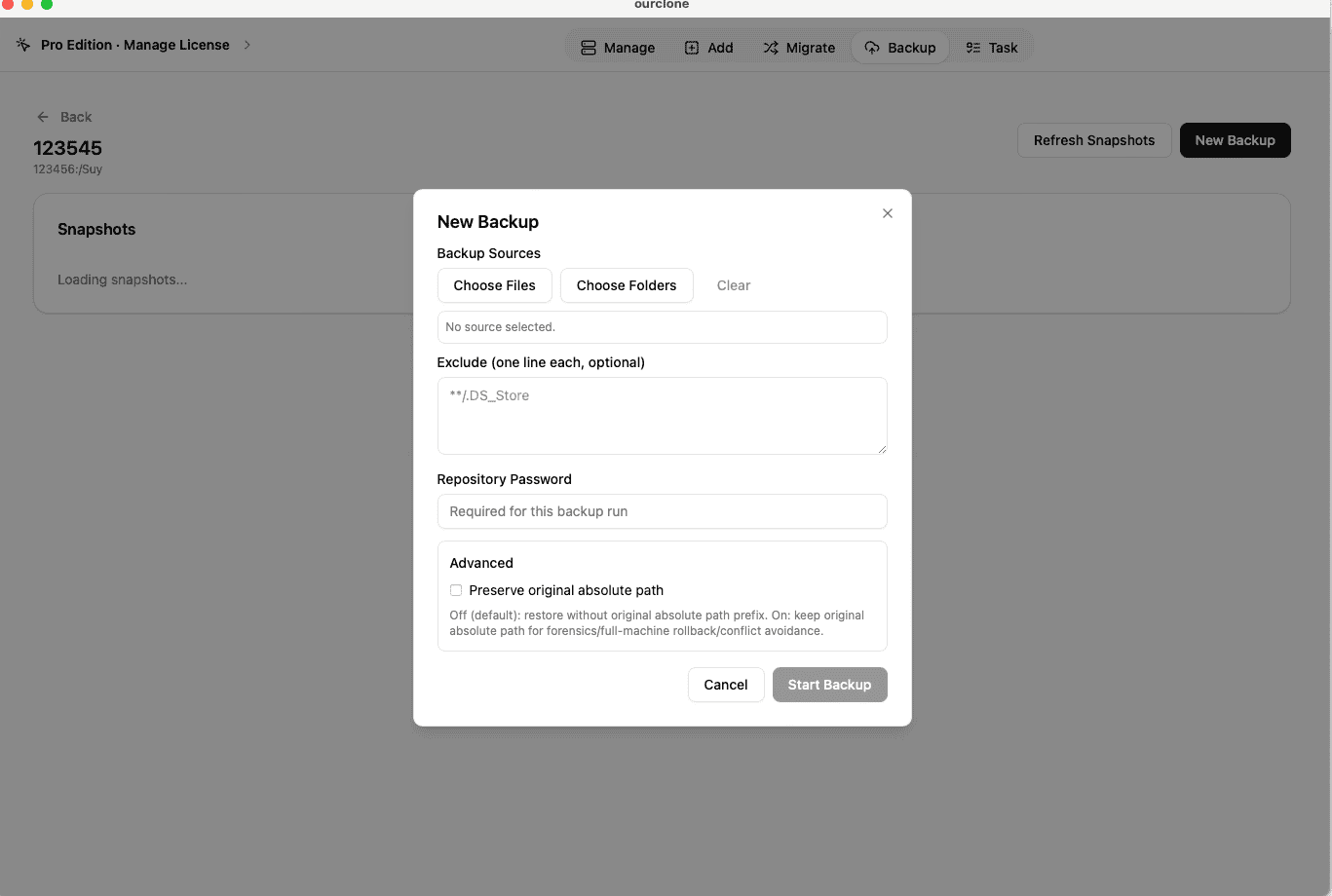
~/Documents, a project tree, or an external drive folder. OurClone packages, encrypts, and uploads the data into your Hetzner bucket. The first run is a full snapshot; later runs of the same folders are incremental. - 🕒 Watch It Run From Task -- Backup & Restore -- Open the
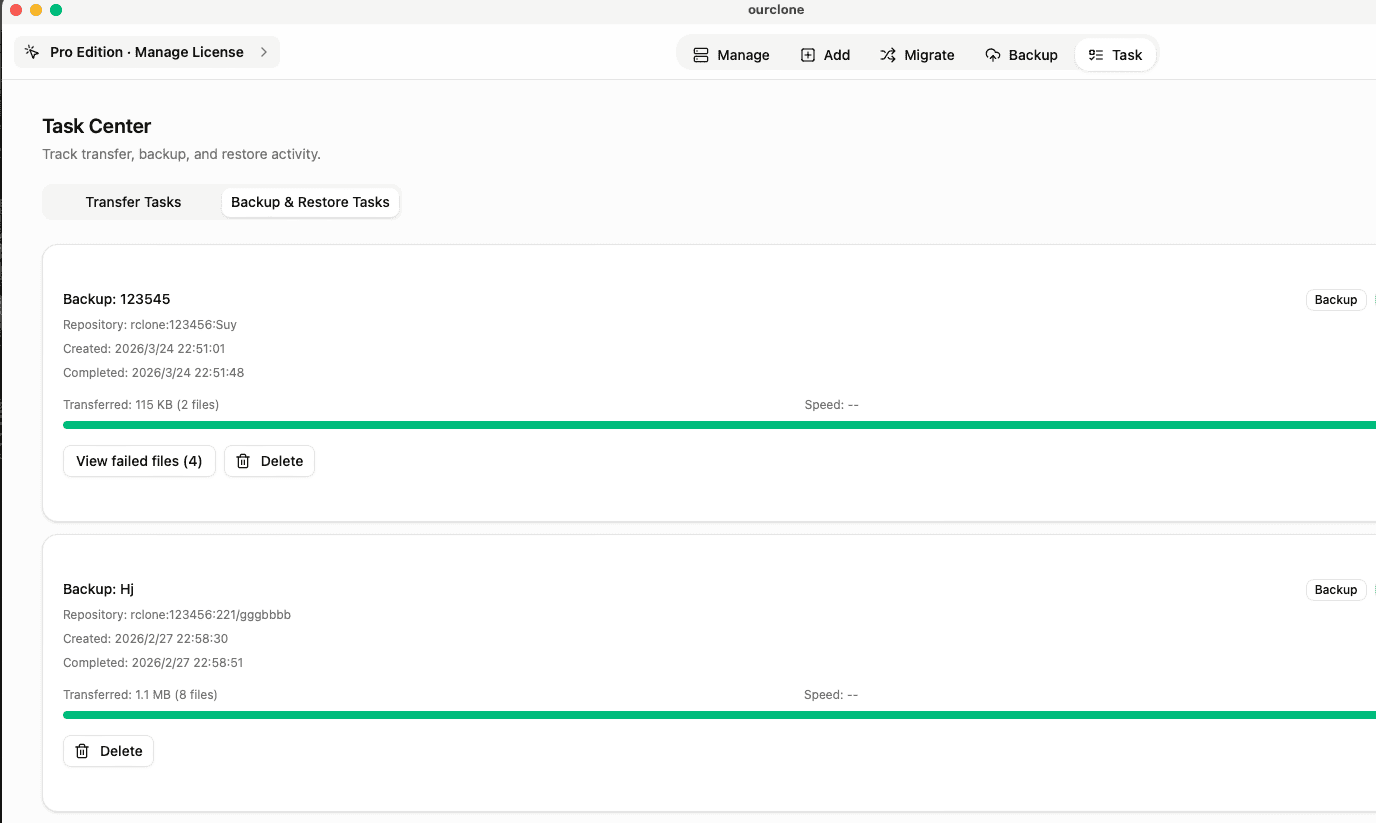
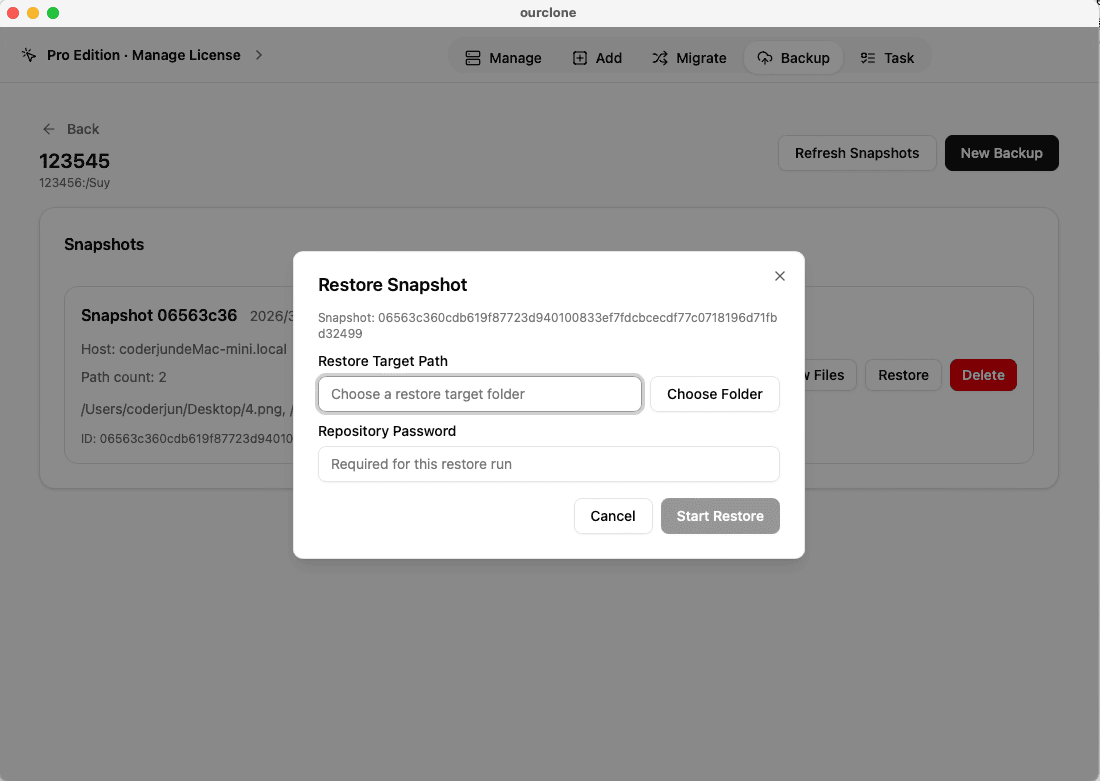
Tasktab and switch toBackup & Restore. The active Hetzner task shows progress, throughput, and any warnings. Chunked uploads keep the snapshot moving even when the connection has off moments. - 🔁 Restore From a Snapshot -- In the Hetzner repository, pick the snapshot with the files you need, click
Restore, enter the repository password, and choose a local destination. OurClone decrypts the data and writes the files back. You can restore one folder, a subset, or the whole snapshot.
Because OurClone speaks plain S3 to Hetzner, you can migrate the bucket to a different Hetzner region later without changing the rest of the workflow.
Confirm Your Hetzner Backup and Keep It Healthy
A cost-friendly backup is only cost-friendly if it actually works when you call on it. A short check-in routine keeps the Hetzner backup honest.
- 📄 Check Task Status After Each Run -- In
Task->Backup & Restore, confirm the latest Hetzner task finished cleanly. A clean completion is the first signal the snapshot landed in the bucket. - 🧩 Read Skipped File Notes -- macOS file permissions occasionally block OurClone from reading certain files. The task log shows exactly which files were skipped so you can grant the right permissions and re-run.
- 📜 Inspect the Detailed Log -- Open a finished Hetzner task to see which files were new, which were unchanged, and how much data the incremental run uploaded.
- 🔐 Treat the Repository Password as Critical -- The Hetzner bucket only stores encrypted repository data. Without the repository password, no one can restore -- which is the point, but it means the password must live somewhere reliable.
Rotate Keys and Watch for Endpoint Changes
Hetzner Object Storage keys can be rotated or revoked at any time, and bucket endpoints can change as new regions come online. If a backup suddenly fails, regenerate the access key, paste the new credentials into OurClone, and confirm the endpoint still matches the bucket region.
Run a Practice Restore Before You Need One
Pick a small folder from a recent Hetzner snapshot and restore it into a throwaway directory on your Mac. That single dry-run is the only honest way to confirm the keys, endpoint, repository password, and OurClone restore flow are still working together.