Why Backing Up Your macOS Folders to Box Is a Smart Move
Data loss rarely arrives with warning. A failed Mac SSD, mistaken drag-and-drop in Finder, or overwritten project folder can undo months of work. If you already use Box for documents and collaboration, turning it into a backup destination with OurClone gives you an offsite copy that is both practical and easy to maintain.
- 🔐 Enterprise-Grade Security -- Box encrypts data in transit and at rest, and offers strong permission controls for teams that need tighter access management.
- 💾 Flexible Plan Options -- Box offers a free Individual plan with 10 GB of storage, while Personal Pro expands to 100 GB if you need more room for backups.
- 💻 Mac-Friendly Workflow -- Box Drive integrates with Finder on the latest macOS versions, so Box already fits naturally into many Mac setups.
- 🧩 Version History Support -- Box keeps prior file versions, with limits that vary by plan, which adds another safety layer alongside OurClone snapshots.
- 📱 Anywhere Access -- Your files are available from Box on the web, mobile devices, or another computer when you need to retrieve them away from your main Mac.
What Is Incremental Backup and Why Does It Matter?
Re-uploading your entire Documents or Photos folder every time you want to update a backup is wasteful. It burns bandwidth, takes longer than necessary, and makes cloud storage costs harder to control.
Incremental backup solves that by storing a full backup once, then only uploading the files or blocks that changed after that point. If you edit a few project files instead of changing a whole archive, only the new data needs to move.
OurClone supports incremental backups to Box, so after the first snapshot your future runs stay much faster and more efficient. That makes Box much more practical as a long-term backup target, especially if you work with large folders that change every day.
- 🚀 Speeds up backup times by only syncing changed files
- 💾 Saves cloud storage space and bandwidth usage
- 🔐 Works with encrypted storage like Box for secure updates
- 📅 Allows versioning so you can access past edits when needed
What to Know Before You Start Backing Up
A little prep work makes your first backup smoother and helps you avoid common mistakes.
- 📁 Pick the Right Folders -- Start with folders like
~/Documents,~/Desktop, or active project directories. Avoid system folders, app caches, and temporary files that don't need cloud backup. - 📶 Make Sure Your Internet Can Handle It -- Your first Box backup may take a while if you're uploading tens or hundreds of gigabytes. A stable connection matters more than raw speed.
- 🔒 Don't Forget Security -- Turn on two-factor authentication for your Box account, and store your OurClone repository password in a password manager so restores stay possible later.
- 🧪 Start Small -- Test with a smaller folder first so you can confirm the Box connection, encryption password, and restore flow before backing up everything.
- 📦 Know Your Backup Strategy -- Use one repository for long-term protection, then create regular snapshots. The first run is full; later runs are incremental and much faster.
How to Back Up macOS Folders to Box Using OurClone
OurClone makes Box backup straightforward because Box uses OAuth authorization. You simply sign in through your browser once, then let OurClone handle encrypted snapshots from your Mac.
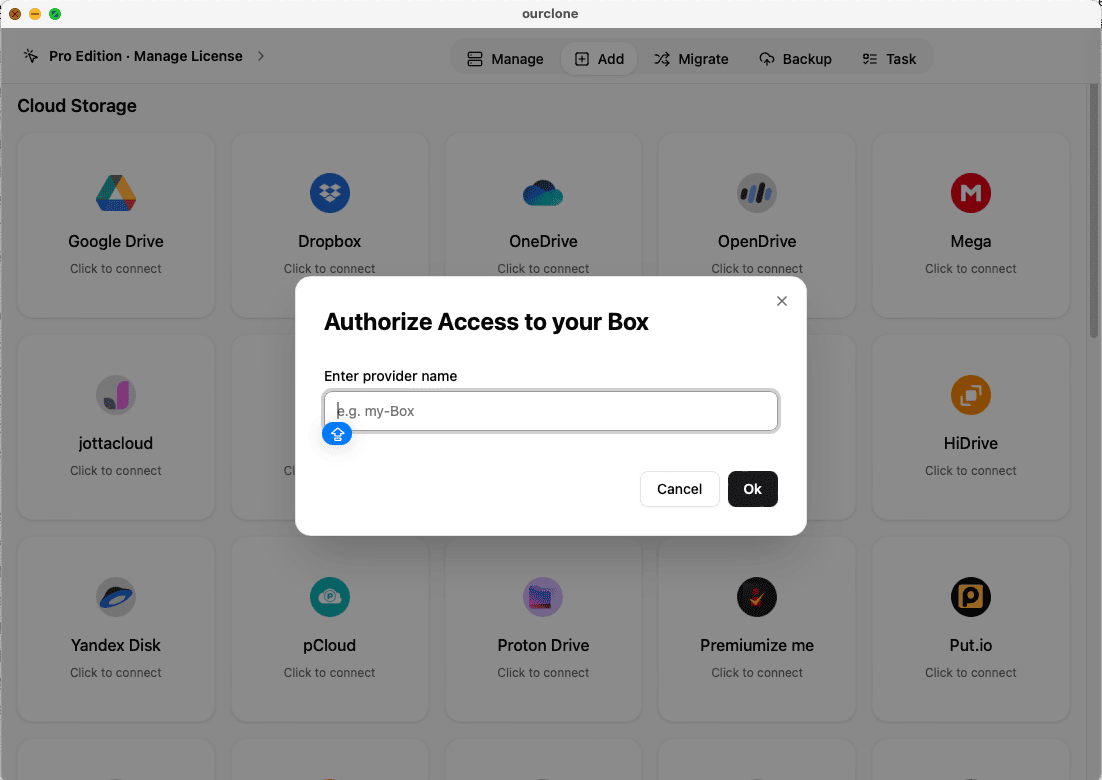
- 🔗 Connect Box via Browser -- Open OurClone and go to
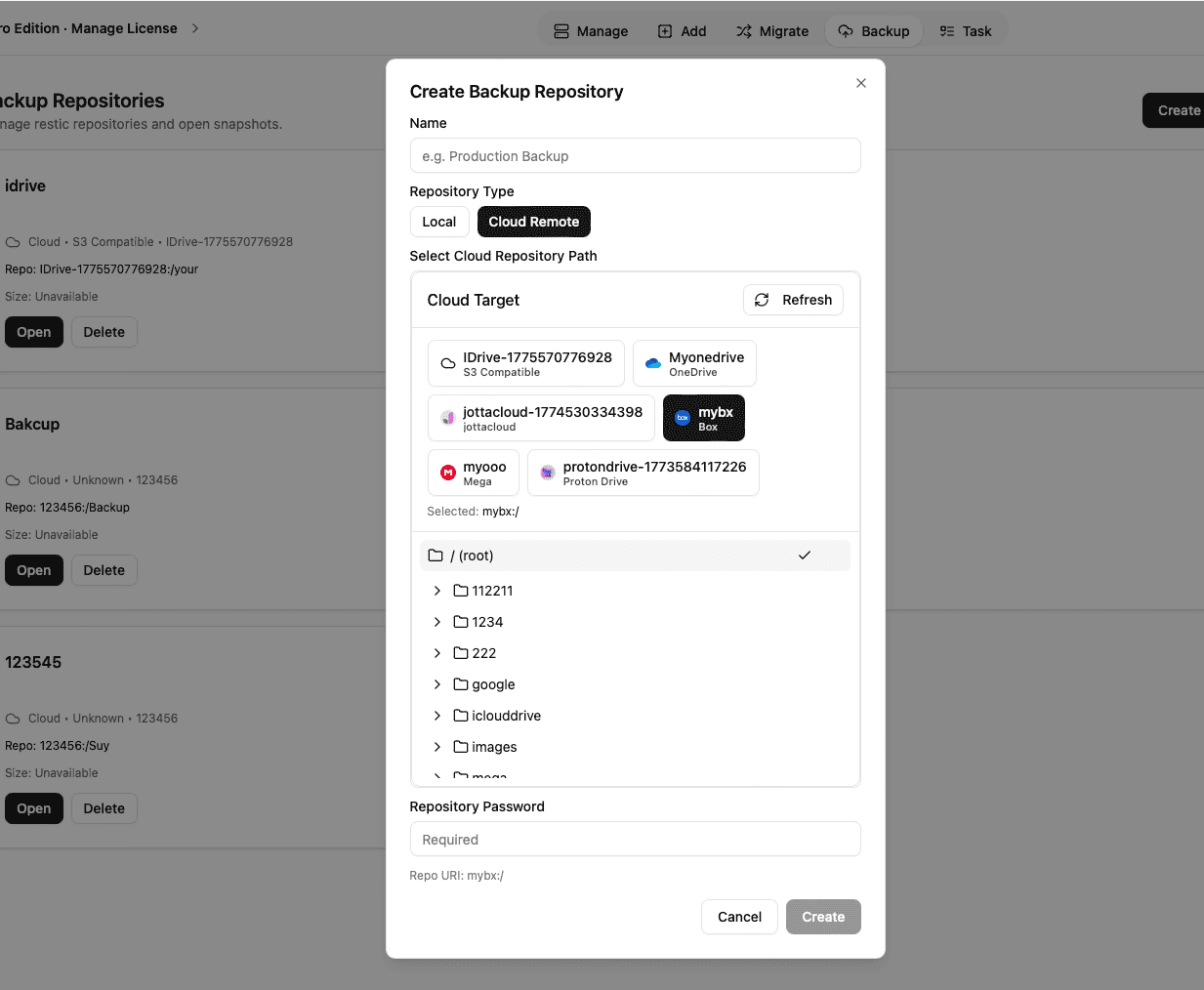
Add Storage. Select Box from the provider list. A browser window will open automatically -- log in to your Box account and authorize OurClone to access your storage. Once approved, Box will appear as a connected destination. - 🗄️ Create a Backup Repository -- Go to the
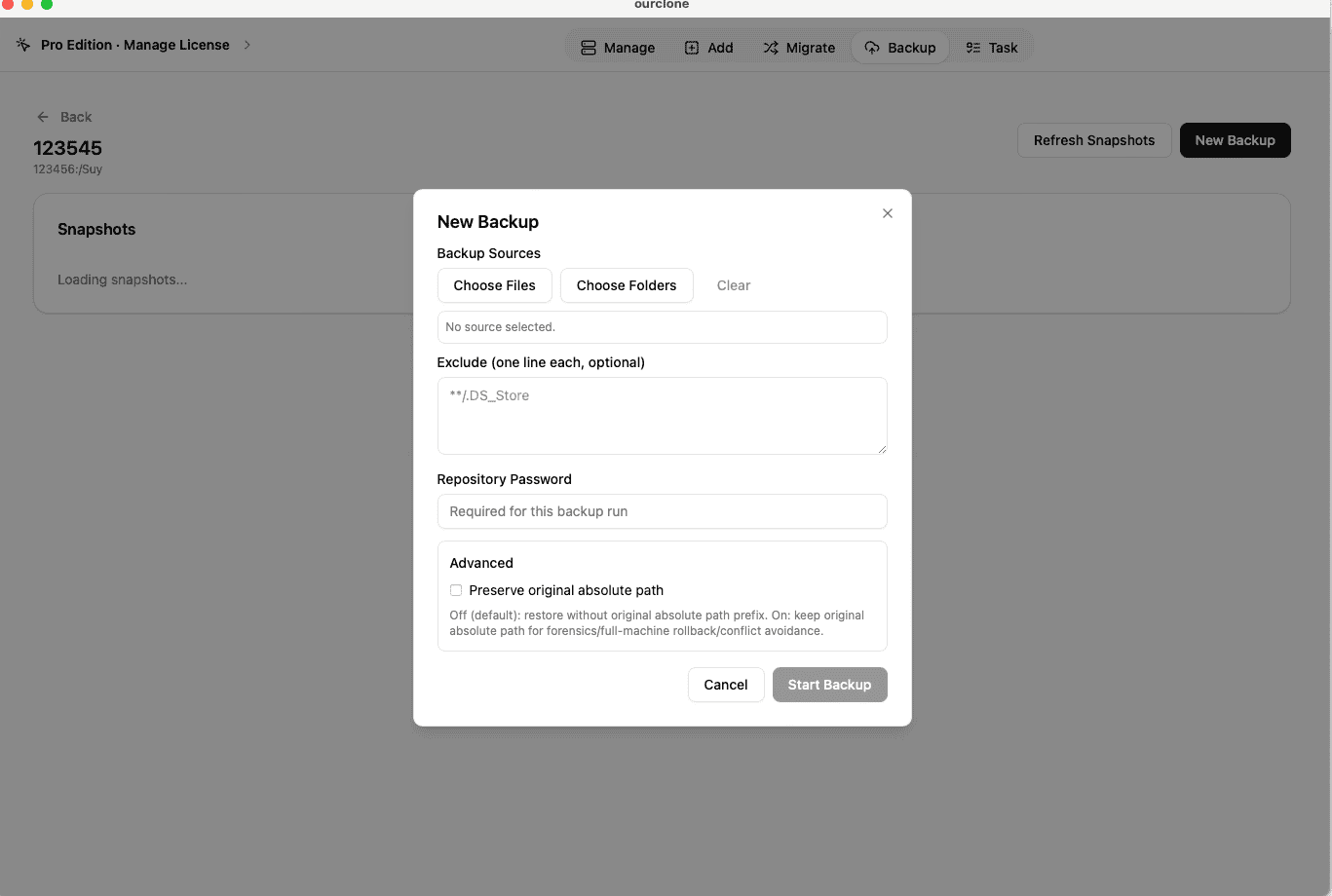
Backuptab and clickCreate Repository. Choose a destination path on Box like/macos-backup. Set a repository name and define your encryption password. This password is required to restore your files -- keep it safe. - 📁 Select Folders to Back Up -- Once your repository is ready, click
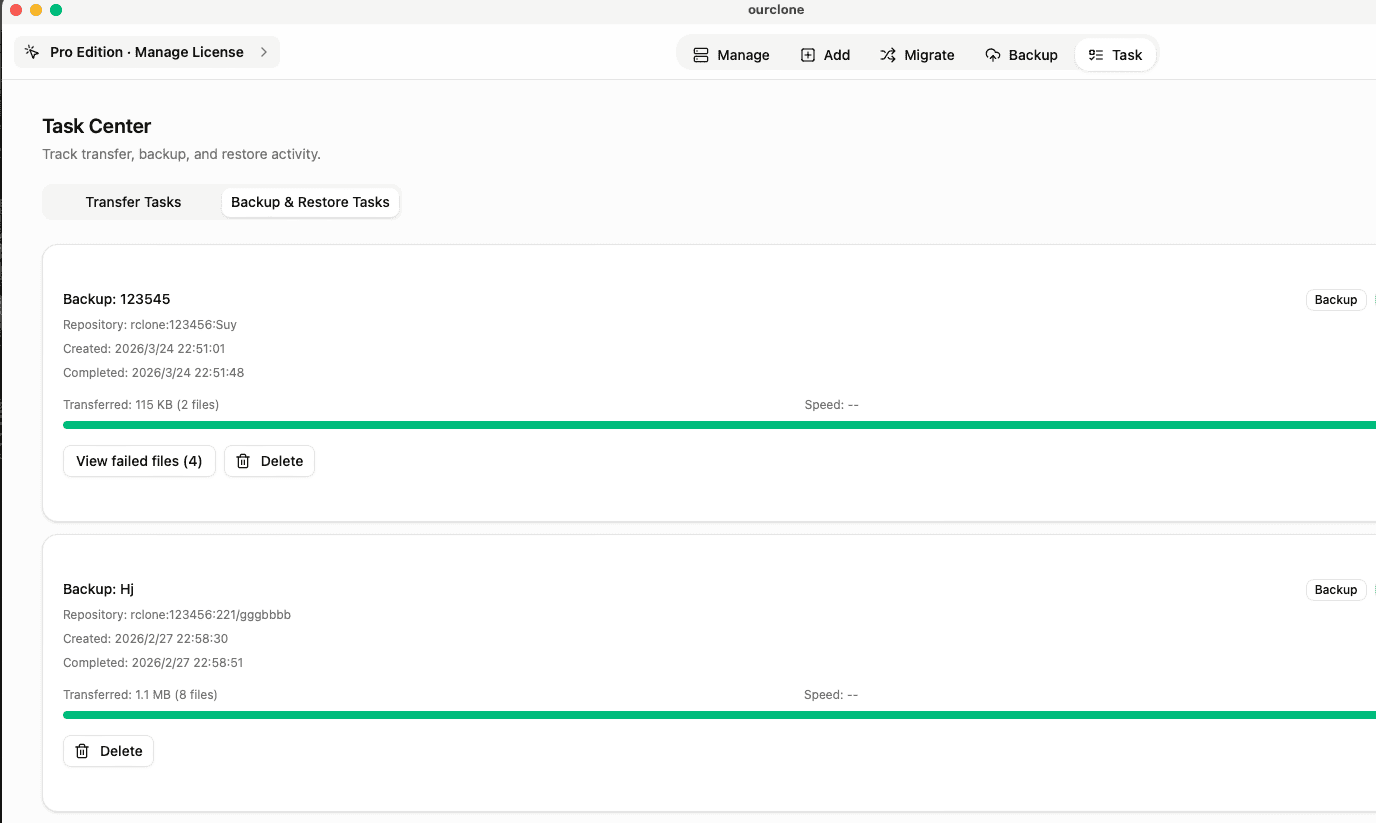
New Backupand select the local folders you want to protect. Whether it's~/Documents,~/Pictures, or folders on an external disk, OurClone will encrypt and send them securely to Box. - 📊 Track Backup Progress in Real Time -- Head over to the
Tasktab to monitor your upload status. OurClone breaks files into blocks and uploads them efficiently -- even large backups can be paused and resumed without losing progress. - 🔄 Restore When Needed -- To recover data, open your repository, select a backup version, and click
Restore. After entering your encryption password, you can restore files to their original location or a new folder -- your directory structure stays intact.
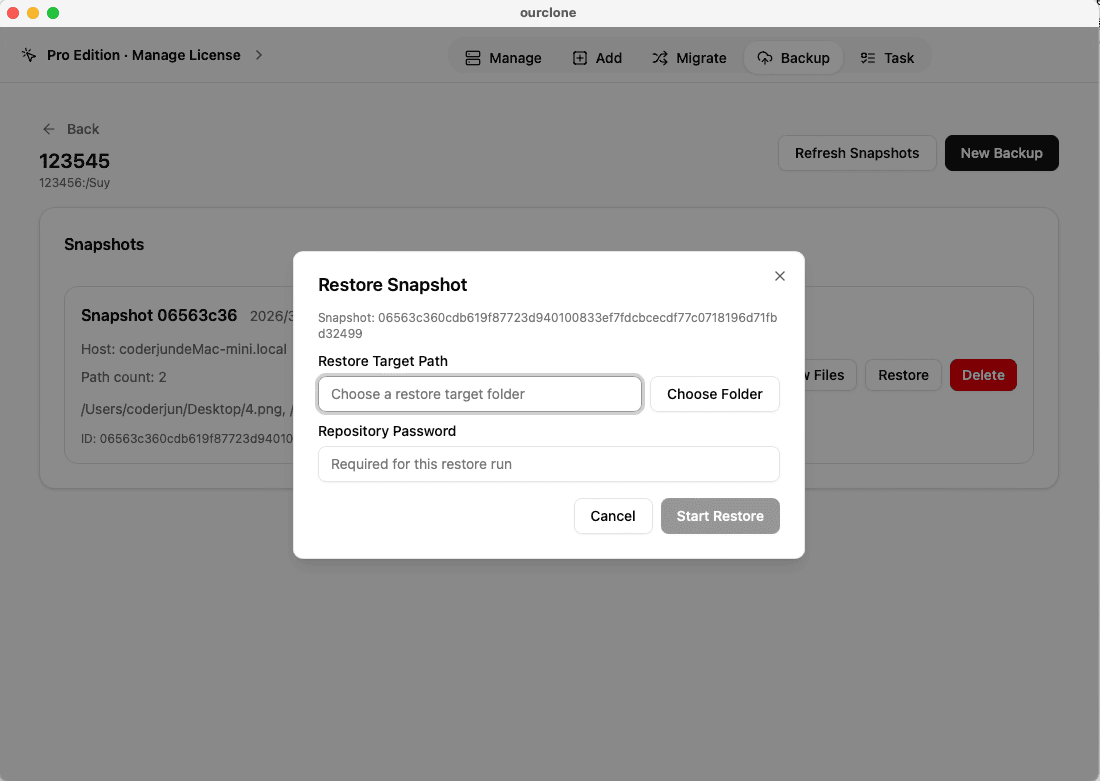
Because OurClone encrypts your data before upload, Box acts as a secure storage layer instead of seeing raw backup contents. That combination makes Box a reliable option for both personal Mac backups and team file protection.
How to Confirm Your Backup in OurClone
Once the first upload finishes, take a minute to verify that everything completed cleanly. That quick check is what turns a backup job into a backup you can trust.
- 📄 Check Task Completion -- Go to the
Tasksection and look underBackup Task. If the status shows completed without warnings, you're good. Errors or failed uploads will be flagged clearly. - 🧩 Review File Results -- If files were skipped (locked permissions, access errors), you'll see a notice in the task logs for immediate troubleshooting.
- 📜 Use the Detailed Logs -- Click into any backup task to view its full log with file paths, sizes, and upload status.
- 🔐 Encrypted Repository Checks -- OurClone encrypts all backup data before uploading. Verification ensures each encrypted block is stored properly and linked to the correct backup record.
Regularly Check That Backups Are Still Running
Revisit scheduled jobs every so often to make sure nothing silently broke. The most common issues are expired Box sessions, revoked OAuth permissions, renamed destination folders, or local disks that were disconnected when the task was supposed to run.
Test a Restore -- Even If You Don't Need One Yet
Restore a small folder into a temporary location and confirm the files open correctly. That one test verifies your Box connection, your repository password, and the full end-to-end recovery path before you ever need it in an emergency.