Why Backing Up Your macOS Folders to Backblaze Is a Smart Move
If you want an offsite backup that is more flexible than a simple sync folder, Backblaze is a strong option. For OurClone users, the relevant service is Backblaze B2 Cloud Storage, which gives you object storage built for backup and recovery while OurClone handles encryption and restore workflows on your Mac.
- 🔐 Security You Control -- Backblaze B2 uses application keys, so you can create dedicated backup credentials instead of exposing your main account password. OurClone then encrypts repository data before it leaves your Mac.
- 💸 Predictable Storage Costs -- Backblaze B2 starts at $6 per TB per month and includes up to 10 GB free, which makes it easier to estimate long-term backup costs than many tiered cloud platforms.
- 💻 Mac-Friendly Workflow -- Backblaze itself is well known among Mac users, and pairing Backblaze B2 with OurClone gives you a clean macOS backup flow without forcing everything through a single synced folder.
- 📦 Flexible Backup Design -- Because Backblaze B2 is object storage, you can keep one encrypted repository for documents, another for photos, and another for external-drive archives if you want cleaner separation.
- 🌍 Access Beyond One Device -- Once your backup lands in Backblaze, the repository can be reached from any Mac where you sign into OurClone and provide the right repository password.
What Is Incremental Backup and Why Does It Matter?
Doing a full backup every time sounds simple, but it quickly becomes painful once your folders grow. Re-uploading the same photo library, project folder, or archive on every run wastes time, bandwidth, and cloud storage operations.
Incremental backup solves that by sending only what changed since the previous snapshot. If you edit a few files in ~/Documents or add new images to ~/Pictures, only those changes need to move to the remote repository.
OurClone supports incremental backups to Backblaze, which is exactly why Backblaze B2 works so well as an offsite target. You get efficient uploads, encrypted snapshots, and versioned restore points without rebuilding the entire backup each time.
- 🚀 Speeds up backup times by only syncing changed files
- 💾 Saves cloud storage space and bandwidth usage
- 🔐 Works with encrypted storage like Backblaze for secure updates
- 📅 Allows versioning so you can access past edits when needed
What to Know Before You Start Backing Up
A few small setup choices at the beginning make your Backblaze backup much easier to trust later.
- 📁 Pick the Right Folders -- Start with folders that matter most, such as
~/Documents,~/Desktop, or a photo archive. Skip system folders, caches, and temporary files that do not belong in a recovery backup. - 📶 Make Sure Your Internet Can Handle It -- The first upload to Backblaze may take a while if you are protecting large media folders. Later incremental runs are much lighter, but the initial backup benefits from a stable upstream connection.
- 🔒 Don't Forget Security -- Create a dedicated Backblaze application key for backups, enable MFA on your Backblaze account, and store your OurClone repository password somewhere safe.
- 🧪 Start Small -- Test with one smaller folder first so you can confirm that the Backblaze connection, repository path, and restore flow all behave the way you expect.
- 📦 Know Your Backup Strategy -- A full snapshot copies everything the first time, while incremental snapshots upload only changes after that. That is the sweet spot for routine Mac backups to Backblaze.
How to Back Up macOS Folders to Backblaze Using OurClone
OurClone makes the setup straightforward. For Backblaze, the auth method is key-based: you generate Backblaze B2 credentials first, then connect that storage target inside OurClone.
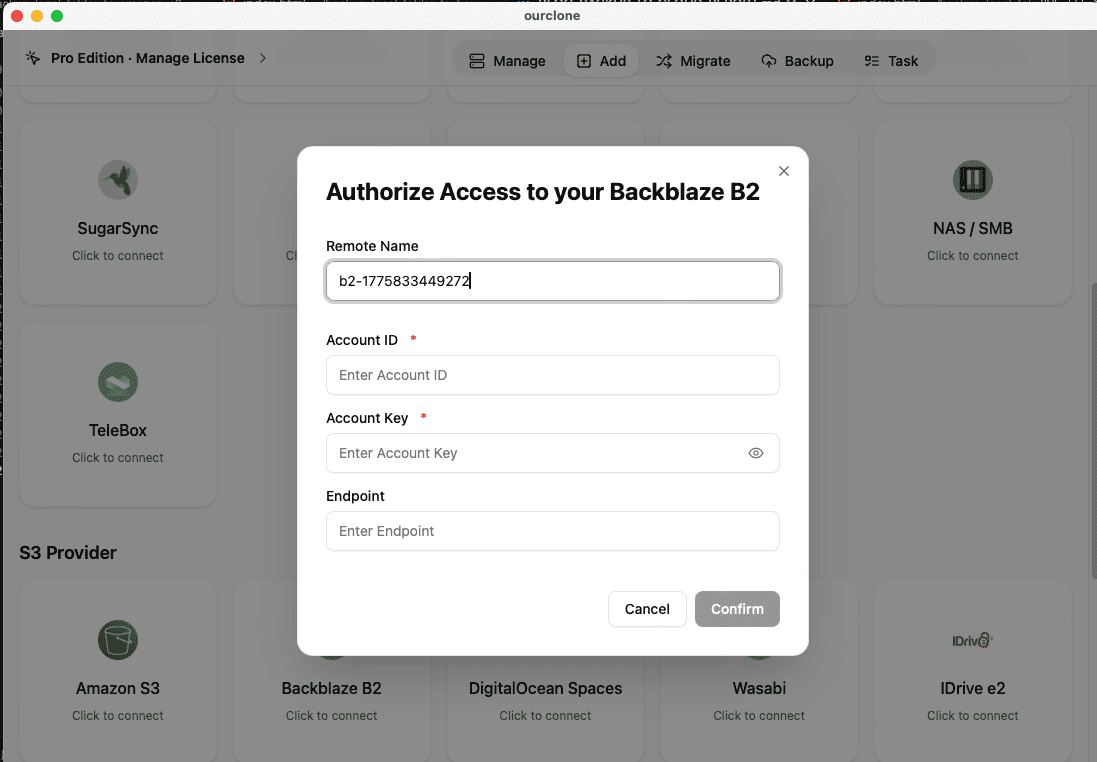
- 🔐 Connect to Backblaze via Access Keys -- Open OurClone and go to
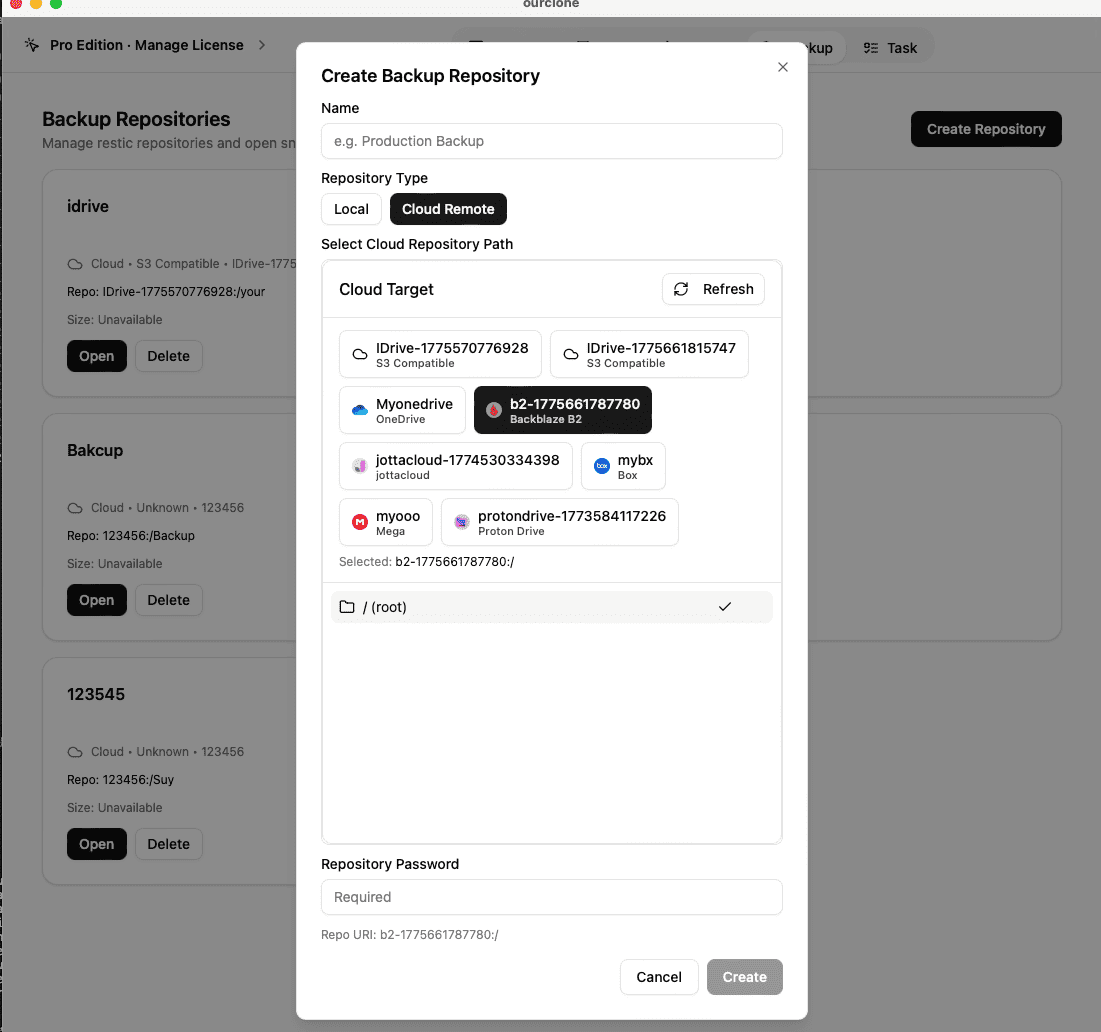
Add Storage. Select Backblaze. You'll need your Access Key ID and Secret Access Key, which you can create in the Backblaze B2 console. Include the right bucket or endpoint details if prompted. Once entered, OurClone will verify your credentials and Backblaze will appear as a connected storage backend. - 🗄️ Create a Backup Repository -- Go to the
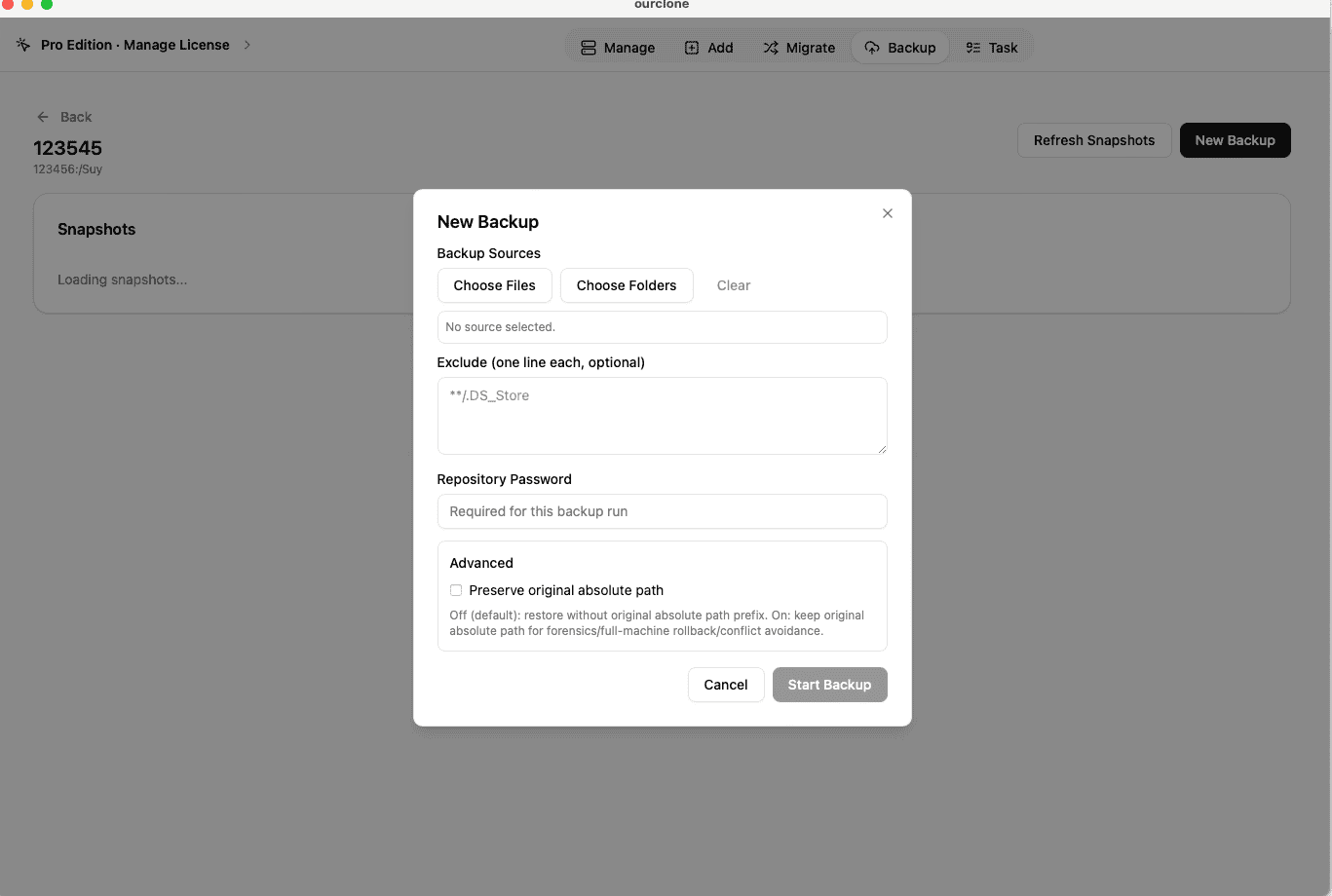
Backuptab and clickCreate Repository. Choose a destination path on Backblaze like/macos-backup. Set a repository name and define your encryption password. This password is required to restore your files -- keep it safe. - 📁 Select Folders to Back Up -- Once your repository is ready, click
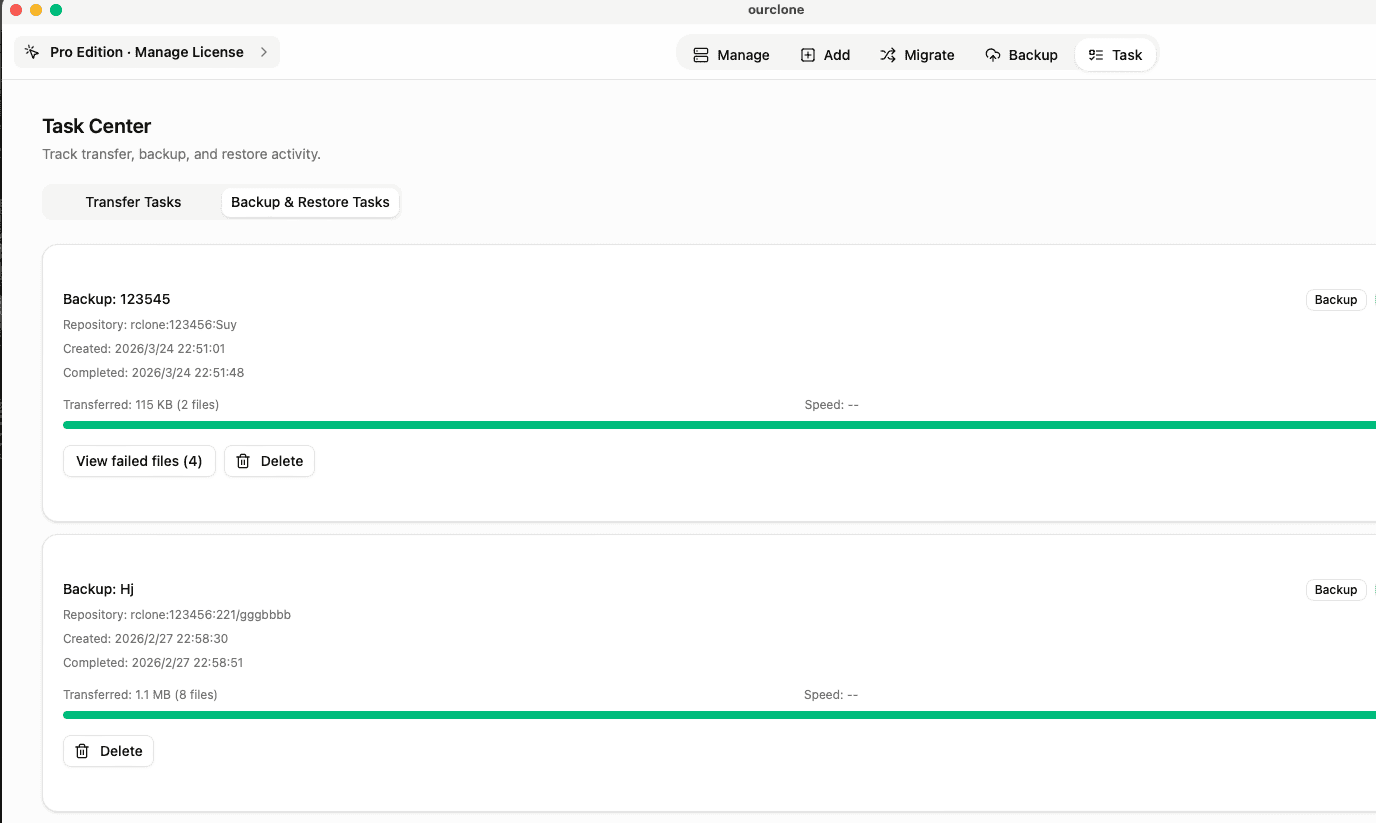
New Backupand select the local folders you want to protect. Whether it's~/Documents,~/Pictures, or folders on an external disk, OurClone will encrypt and send them securely to Backblaze. - 📊 Track Backup Progress in Real Time -- Head over to the
Tasktab to monitor your upload status. OurClone breaks files into blocks and uploads them efficiently -- even large backups can be paused and resumed without losing progress. - 🔄 Restore When Needed -- To recover data, open your repository, select a backup version, and click
Restore. After entering your encryption password, you can restore files to their original location or a new folder -- your directory structure stays intact.
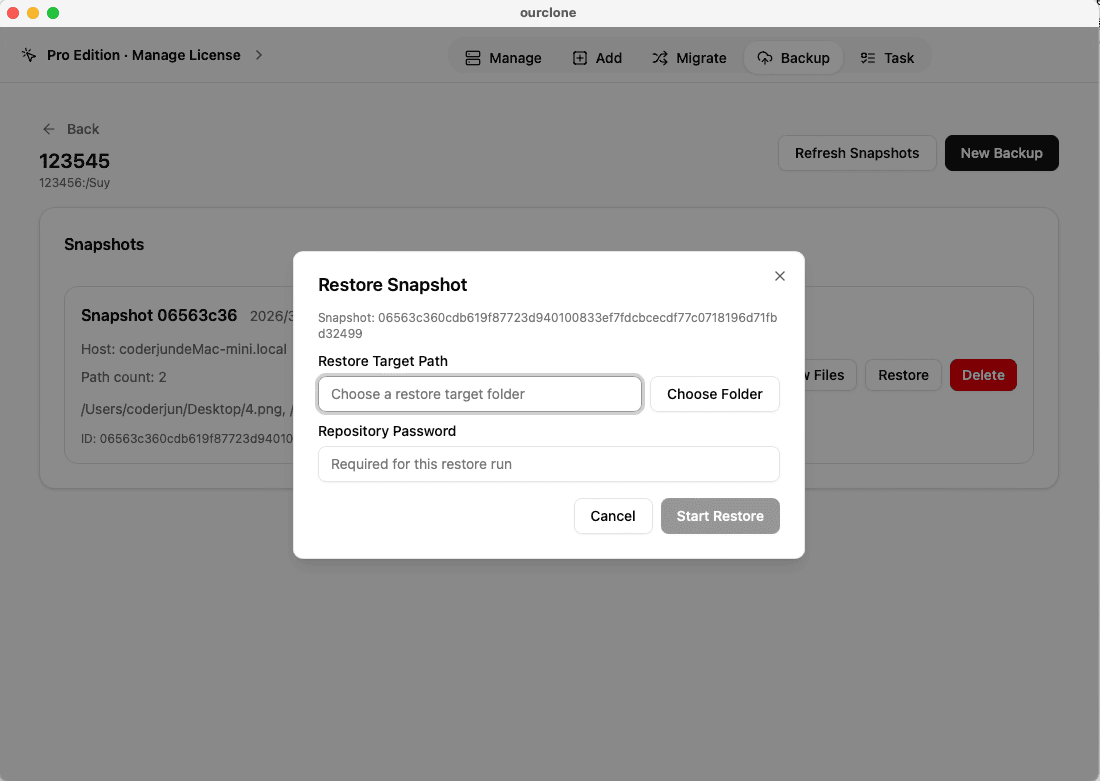
With Backblaze handling durable cloud storage and OurClone handling encryption plus incremental snapshots, you get a backup setup that is practical, secure, and easy to recover from when something goes wrong.
How to Confirm Your Backup in OurClone
Once your first backup finishes, spend a minute verifying it. A completed task plus a quick restore check is what turns a hopeful backup into a backup you can actually trust.
- 📄 Check Task Completion -- Go to the
Tasksection and look underBackup Task. If the status shows completed without warnings, you're good. Errors or failed uploads will be flagged clearly. - 🧩 Review File Results -- If files were skipped (locked permissions, access errors), you'll see a notice in the task logs for immediate troubleshooting.
- 📜 Use the Detailed Logs -- Click into any backup task to view its full log with file paths, sizes, and upload status.
- 🔐 Encrypted Repository Checks -- OurClone encrypts all backup data before uploading. Verification ensures each encrypted block is stored properly and linked to the correct backup record.
Regularly Check That Backups Are Still Running
Check scheduled jobs every so often, especially after changing credentials or bucket settings. In a Backblaze setup, expired app keys, renamed buckets, or permissions changes can quietly stop future uploads unless you catch them early.
Test a Restore -- Even If You Don't Need One Yet
Restore a small folder to a temporary location and open a few files. That confirms your Backblaze connection, your repository password, and the integrity of your snapshots before a real emergency forces the issue.